
Intuify gives you two ways to avoid starting from a blank page: AI Edit, a chat panel that builds and changes your survey from plain-language instructions, and the Library, where you keep questions, sections and templates you want to reuse.
Build with AI#
The quickest way to get a first draft is to describe the survey you want when you create it.
- On the Surveys page, click Create New Survey.
- In the Create a new survey dialog, choose Build with AI.
- Type what the survey should be about in What should this survey be about?. Be specific about length, audience and the topics you care about, for example "A 10-question post-purchase NPS survey for an online electronics store, with a follow-up on delivery experience."
- Click Create with AI (or press Ctrl+Enter).
Intuify creates the survey, opens it in the builder, and runs your description as the first instruction in the AI chat panel, so you watch the sections and questions appear on the canvas. From there you keep talking to it in the same panel.
The other starting points in the same dialog are Start from scratch and, under Start from a template, any template card. Those are covered in Survey Builder Overview and in the Library section below.
Building a survey from a Word questionnaire#
If the questionnaire is already written in Word, AI can program the whole survey from the document: sections, questions, answer options, skip and display logic, terminates, randomization, carry forward, loops, quotas and quota groups, global variables set at the start of the survey or partway through it (including branches that set a value only for the respondents who match, such as an age band), and the Custom Interfaces the document names.
-
On the Surveys page, click Create New Survey and choose Build from a Word questionnaire ("AI programs it from your .docx"). Inside HM Admin the same option sits next to Start from scratch and Build with AI on the Create New Survey page.
-
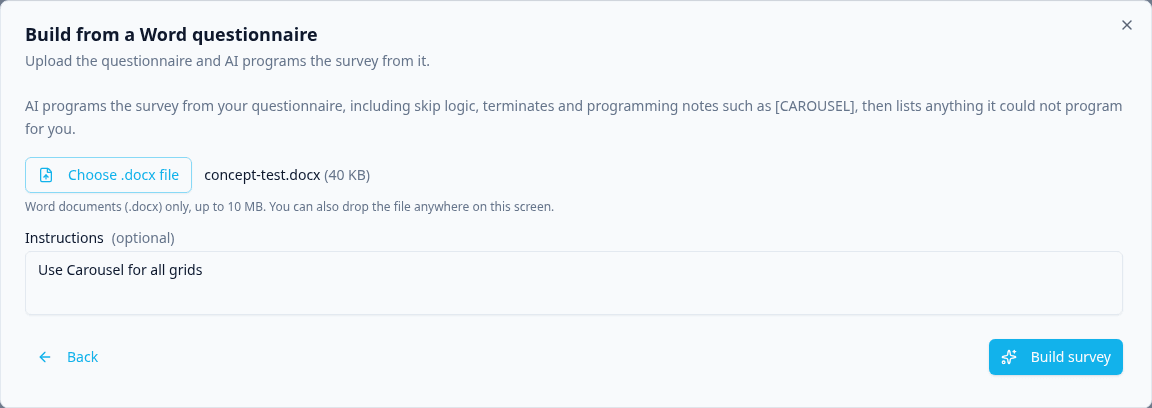
Click Choose .docx file (or the dashed box under it) and pick the questionnaire. You can also drag the file from your computer and drop it anywhere on the create screen. Remove next to the file name clears a wrong pick without losing your instructions.
-
Optionally add Instructions for anything the document does not say, for example "Use Carousel for all grids". Where they conflict with the document, your instructions win. Ctrl+Enter (Cmd+Enter on a Mac) in the box starts the build once a file is chosen. If the build cannot start, the file and your instructions stay as they are.
-
Click Build survey. The build runs in the background on our servers, so you do not have to wait on this screen: you can open other pages, reload, close the tab or move around HM Admin, and it keeps going. A long questionnaire can take a few minutes, plus a little longer for the check described below.
-
While it works, the panel shows how long it has run (for example Running 2:41) and plain steps such as Reading your document, Programming questions (with how many are built so far, for example 43 of 76), Adding logic, loops and flow, Checking the survey against your document and Saving your survey. Cancel build stops it: after a confirmation ("Stop building? Nothing will be created.") the build ends, no survey is made, and you are back at the file step with your file and instructions still filled in. A build running longer than 8 minutes says it is taking longer than usual and suggests cancelling and trying again. A build that has already finished cannot be cancelled.
-
When the build finishes, the survey is created for you automatically. You see Survey ready with a summary of what was built and a Needs manual programming list of anything the AI could not program. Click Open survey to open it in the builder.
A Graphical Choice question whose type in the document is Multiple Choice - Multiple Select is built as a multiple-select Graphical Choice, and an option marked (Exclusive) on it clears the other picks, as on a plain multiple-choice question.
A Constant Sum or Multiple Numeric question is built with its list of items. A Form Fields question is created without its fields: add them in the builder.
Display logic is built whether its conditions are joined by AND or by OR, including conditions on a global variable and on the position of a ranked item ("R10 'Deli' is not ranked #1"). A question shown "Never" is built hidden, and a "Skip (before display, auto-answer ...)" line is built as an auto-answer rule that records the named option. Count and Sum rules ("Q6 number of selected items is at least 2", "CS1 total of values among 'A', 'B' equals 100", "G1 'Brand A' number of selected columns is at least 2") and "number of ranked items" rules are built as the same rules, in display logic, terminate rules and quotas alike, and "Hidden, treated as displayed" is kept with the question's display rule. A Count or Sum the logic builder does not offer on that question type, or one printed with "(no number set)", is listed instead. A display rule that joins AND with OR in one sentence, a rank rule that names no item, and a skip after answering with more than one condition or on a variable are not built: they are listed under Needs manual programming, so the survey never gets part of the rule.
A Guided Story (voice) question in the document is built with the document's own words: its question text, its numbered list of spoken questions, its instruction lines, its voice settings and whether it shows media ("Setup: media none" turns media off). A Pantry Checker or image capture Guided Story also gets its Images block: the minimum number of photos, whether it asks a voice follow-up, the camera instruction screens, and each photo's instruction, orientation, overlay, rules and image tags. A block with no Ask voice line asks no voice follow-up, and a block with no instruction screens shows none, so the example welcome screens never appear. A photo block the builder cannot hold as written (more than four photos, or a photo with no instruction) is not built at all and is listed under Needs manual programming, so the survey never shows the example photos (the laptop and the office chair). If the document gives a Guided Story no spoken questions, the question asks its own text and is listed under Needs manual programming so you can check it. The check against your document also flags a Guided Story that still shows the example text (for example the questions about denim jeans).
Spoken questions numbered with sub-question ids, (SQID1), (SQID2), (SQID3) (with or without a colon), are one Guided Story holding all of them, in that order, even when each id sits under its own label such as WHY1, WHY2 and WHY3. A new SQID1 starts the next Guided Story. A plain paragraph just before SQID1 becomes the Guided Story's introduction; when the ids follow straight after the question's label, the Guided Story has no introduction and SQID1 is asked only once, as its first prompt. The ids must run in order from SQID1 with nothing between them but those labels: another question or a heading between two ids, or ids out of order (SQID1 then SQID3), keeps them apart. If the AI still builds one Guided Story per id, the build joins them into one before you see the survey, unless a later one has its own logic or something else in the survey refers to it.
An Instruction Swiper in the document is built with its own screens: the numbered list under Screens:, each with its picture when the document has one on or directly under the screen (the picture is uploaded to your image library first, like every imported picture). A survey exported to Word prints its swiper screens this way, so they come back when you import the file. If the document gives a swiper no screens, its paragraph becomes the one screen and it is listed under Needs manual programming. The check against your document flags a swiper that still shows the example screens (for example "This is the first instruction slide").
A Multiple Choice with Info Icons question keeps the popup text of each option. A survey exported to Word prints that text as an Info: line straight under its option, and on import each Info: line becomes the popup text of the option above it, so the info icons come back when you import the file. An Info: line is never read as an answer option. Edit the text after Info: in Word to change the popup; delete the line to remove that option's icon.
Following the build from any page#
While a build is running, a tab sits on the right edge of every Survey Builder page, just above the Help tab. It follows the Help tab when you move that. Click it to open the same progress panel. The tab changes as the build goes on:
| The tab says | What it means |
|---|---|
| Reading | The AI is reading your document. |
| Building | The AI is programming the questions. A count such as 43/76 shows questions built against the questions found in the document; when follow-up questions take the count past that number, only the count is shown. |
| Adding logic | The AI is adding skip and display logic, terminates, loops and flow. |
| Checking | The AI is comparing the survey with your document. |
| Fixing | The AI is fixing the differences the check found. The panel shows how many, and which round of fixes it is on. |
| Saving | The build is done and the survey is being created. |
| Survey ready | The survey was created. Open the panel and click Open survey, or Dismiss to hide the tab. |
| Needs attention | The build finished but the survey was not created. The panel lists why (for example a question the AI left without answer options); fix the document and Try again. |
| Build failed | The build stopped, for example because the service restarted. Try again takes you back to the Word option to start it again. |
When the build finishes you also get a notification in HM Admin ("Your survey from concept-test.docx is ready for review", or "We could not build a survey from concept-test.docx" if it failed), so you can leave Survey Builder altogether while it runs. The survey is created once, even if Survey Builder is open in several tabs. A finished build stays on the tab for a day unless you dismiss it.
You can run one build at a time. Dropping another document on the create screen while a build is running is refused with a message, so the running build is never replaced by accident; closing the create dialog does not stop it. On the Create New Survey page, a document dropped while you are in Build with AI is not taken, so your AI conversation is kept; choose Build from a Word questionnaire first. If the document is refused before the build starts (for example it has no text), the reason is shown above the buttons and nothing runs.
What to upload#
- A Word document (.docx) up to 10 MB. Older .doc files, PDFs and other formats are not accepted; save the file as .docx first. Dropping anything else shows "Only Word documents (.docx) are supported".
- The questionnaire as you would hand it to a survey programmer: section headings, numbered questions (S1, Q10a and so on), answer options and grid rows and columns. Question numbers become the question tags in the builder, so logic that refers to "Q3" lands on the right question.
- A line starting Title: becomes the survey's name.
- A questionnaire written in another language is built in that language, and the survey's base language (on the Translations tab) is set to it, for example Spanish for a Spanish questionnaire. The AI judges it from the question and answer text; translations printed under them do not count. Only the languages the Translations tab offers are recognised, and a document in any other language keeps English as the base language. Change it on the Translations tab if it is wrong. Translations inside the document are not taken from this.
Pictures in the document#
Pictures placed in the text of the document are imported too. A picture on an answer option's line, or on its own line straight under an option, goes on that option (the same for grid rows and columns and ranking items). A picture in a question's text, or on its own line under the question text or just before its number, goes in the question's text; on an instruction screen it goes in the screen's text. Every picture is uploaded to your image library first, and the survey only ever uses that library copy. In a question's text it sits where you would put it with Insert image; on an answer option, row, column or item it is part of that entry's text. On a Custom Interface question an option's picture is set as the option's image instead, because that is where the interface shows it, and a picture in a Custom Interface or Guided Story question's own text is not placed (those screens cannot show it); it is listed under Needs manual programming (pictures). A picture used in several places is placed at each of them.
- PNG, JPEG and GIF pictures are imported, up to 40 per document, 5 MB each and 25 MB in total. The type is read from the picture itself, not from its name.
- Not imported yet: pictures inside tables, floating pictures (set to wrap text rather than "In line with text"), pictures in page headers and footers, EMF or WMF drawings, charts and shapes, and pictures linked from outside the document. Each one is listed in the summary under Needs manual programming (pictures) with the text it sat next to, so you can add it in the builder.
- A picture the AI did not attach to any question is listed there as well, and is already in your image library.
- A survey exported to Word with Images on comes back with its pictures. If a picture could not be embedded, the export prints an "(image: ...)" line instead; such a line is read back as the same picture only when the address is an image library link. Any other address is never used: it is listed under Needs manual programming (pictures). With Images off the export has no pictures, so none come back.
Bold, italic, underline and bullet lists#
Words the document puts in bold, italic or underlined in a question or an answer option keep that formatting in the survey. A whole line in one style is read as the line's style, not as emphasis, so a question line that is bold from start to finish is imported as plain text; mark only the words you want to stand out. A bold question label at the start of the line, such as Q2 or S1 Age., is read as the label, not as formatting. Coloured text is read the same way. A bulleted list between a question's text and its question type (or its options) becomes a bulleted list in the question text; bulleted or numbered lines after the question type are still its answer options. Custom Interface and Guided Story questions show plain text, so their text is imported without formatting. A survey exported to Word prints its formatting and lists the same way, so they come back when you import the file; files exported before this change print every question in bold and import as they always did.
How programming notes are read#
Anything in [square brackets], text in ALL CAPS parentheses, and lines starting PROGRAMMER NOTE, PN:, BASE: or NOTE TO PROGRAMMER are treated as instructions, never shown to respondents. For example:
| Note in the document | What the AI programs |
|---|---|
| [SHOW IF Q3 = 1], [ASK IF ...] | Display logic on that question |
| [SKIP TO Q10] | Skip logic |
| [TERMINATE IF ...], "Under 18 [TERMINATE]", THANK AND CLOSE | A screen-out terminate |
| "Option 1 (TERMINATE)", "Option 1 - Terminate" | A terminate on that question when the option is chosen; the word Terminate is left out of the option |
| "Age (terminate if under 18 or over 99)" | A terminate on that question for anyone outside the range, not an answer range they must re-enter |
| "Kayak (MUST SELECT)", "TERMINATE IF NOT SELECTED" | On a select-all question or a grid row: a terminate when that option or row is not chosen |
| [RANDOMIZE], [ROTATE], "show 3 of 5" | Randomization of options, statements or sections |
| [CAROUSEL], [SWIPE], [TAP TO RANK], [FAST SELECT] | The matching Custom Interface |
| [SHOW ONLY THE BRANDS SELECTED AT Q3] | Carry forward from that question |
| [LOOP FOR EACH BRAND SELECTED AT Q7] | A section loop |
| (Exclusive), (Specify), "select up to 3" | Answer rules on that question |
| [QUOTA ...], "n = 50 per group" | A quota counting the answers or variables named |
| [SET AgeBand = 18-34 IF S1 IS 18-34], "Set variable ..." | A Set Global Variables step in the survey flow, inside a branch when it applies only to some respondents |
Answer codes such as "1. Yes" are taken out of the option text ("Yes"), and options stay in the document's order. The code itself is kept: an option numbered differently from its place in the list, such as "99. None of these" after "1." and "2.", keeps 99 as its answer code (its recode value), and a grid row marked "(recode 7)" keeps 7. Options numbered 1, 2, 3 in order keep the default codes.
Question settings printed under the type line are kept too: a grid's Answer mode (multiple select per row, text entry per cell or rank order), Auto-answer if only one option is shown and Skip if no options are shown on a choice question, and a MaxDiff's Task line ("2 screens of 4 items each"). A Custom Interface keeps its own answer mode.
Randomization keeps the options the document fixes. In an Intuify Word export, Randomize options followed by Fixed positions: None of these keeps that option where it is written while the others shuffle, and Fixed positions: 1) None of these puts it first. A Custom option order whose fixed positions number every option is built as that set order, the same for every respondent. Files exported before this change print codes such as x1, x2, x3 under Custom option order on options carried from another question; that order never moved anything, so no randomization is built and nothing is listed for it. Those files also print Custom option order with every option listed in its written order for some shuffles (for example brands that shuffle with "None of these" kept last), so that line is listed under Needs manual programming: check in the builder whether the options should shuffle. Advanced randomization with priority groups or hidden options is listed under Needs manual programming.
Checked against your document#
When the build finishes, the survey is checked against the document before you see it. The check does not rely on the AI's own account of what it built.
When the document is an Intuify Word export (edited or not), the check is complete and uses no AI: it turns the built survey into the same Word layout and compares the two line by line. Every line of the document has to be in the survey, in the same section and in the same place, and the survey may not add lines of its own. The exceptions are settings every question of a kind stores on its own: a Guided Story's settings that the import never sets (such as Auto probe or Force video playback) and the rank order answer mode of a Brand Association. They are compared only when the document states them. That covers the survey title and description, every section and its loop, every numbered question and every unnumbered instruction screen (matched by its text and its place, so a dropped "Thanks, let's carry on" screen is caught), question text, type and Custom Interface, Required, every answer option, row, column and item with its code and markers such as (Exclusive), answer rules, show if, skip, terminate, randomization, carry forward, Guided Story prompts and settings, Instruction Swiper screens, the Info: text of a Multiple Choice with Info Icons option, page breaks, translations, every flow step (groups, branches, randomizers, end of survey, variable assignments, set language, web service), quotas, global variables and panels.
For a document in any other layout, the check confirms that:
- every numbered question (S1, Q10a, P2 and so on) and every section heading exists in the survey,
- every question that names a Custom Interface uses it,
- every terminate, skip, show if, randomize, carry forward and loop note has a matching rule on that question or section,
- each question's type, answer options, rows, columns and items match what the document lists, with no placeholder items such as "Item 1" left behind,
- every picture in the document is on the question or answer option it sits with (this is part of the build only; Check against Word doc in the builder does not compare pictures).
Anything that does not match is handed back to the AI to fix, and the survey is checked again. The progress messages show this as Checking the survey against your document..., Found 9 things to fix. Fixing them (round 1 of 3)... and, once nothing is left, All checks passed. There are at most three rounds of fixes. The summary ends with a line saying how it went, for example "Checked against the document in 1 round of fixes: all checks passed." If the check itself cannot finish, for example because the build used most of its time, the summary says so and lists what a quicker check of the questions, sections and notes still found, instead of claiming everything passed.
The "Needs manual programming" list#
The summary opens with how many sections and questions were built, counted from the survey itself. When the AI finishes the whole document, the summary also has a Needs manual programming section. It lists, one line per question, every note the AI could not program, for example a loop's filter value, priority groups or detailed Custom Interface settings. In a Word file from an older version of the export (one with no "End of branch" lines), a branch followed by several "Set variable" lines can be listed as "Branch in an older file: confirm which assignments sit inside it": those files do not show where the branch ends, so the AI leaves it for you rather than guess who gets each value. Everything else about those questions is built; only the listed parts are left for you. A third part lists anything in the document the AI was unsure how to read and what it assumed.
A question's Description: line (between its text and its type) is built as the question's description, and a Description: line under a section heading as the section's description. If either differs from the document after the build, or a section has a different title, the fix pass corrects it. A section's question randomization (Randomize questions or Custom question order under its heading) is listed under Needs manual programming.
A Word export's Set language steps, its Panels (with their URL parameter and redirects), its global variables and its Page break lines are built. So are its terminates and end of survey steps with everything the line prints: the status (screenout, quota full or quality control), the message, the Redirect to: address, the Linked quota: and the rule's name. A rule or end of survey that links a quota is built after that quota. Quotas are built with everything their lines print, including a quota that is switched off (inactive), one that deletes over-quota responses, and one that uses the count and conditions of another quota (built after the quota it uses). A terminate that reads one question is built on that question, so it shows in the question's Logic > Termination Logic, and a Word export prints it under the question again. On a select-all (Multiple Select) question or a grid row, a terminate on an option is built as Is Selected (it ends the survey when that option is ticked, whatever else is ticked too), and "MUST SELECT" or "terminate if not ..." is built as Is Not Selected. It is never built as Is Equal to, which works the same way on these questions but reads as "only this option". A Word export prints these rules as "'Option' is Selected" or "is Not Selected", and an older export that printed "= 'Option'" imports as the same rule. Rules already saved in a survey are not changed. A terminate on a global variable or on several questions, or one under the Survey Rules heading of a Word export, is built as a survey rule in the Logic tab's Termination list. If a terminate is built but its name, redirect or linked quota differs from the document, it is listed under Needs manual programming, since the fix would add a second rule rather than change the first. A global variable that reads the respondent's device type or language is built that way whatever it is called. A variable printed with no source at all, as Word files from an older version of the export print a device type variable, is built as a device type variable, unless it also prints a default value: then it is built as a static value with that default, since a device type variable never has one. A variable read from a URL parameter with no parameter name is built without one, as the original survey had it: it captures nothing until you name the parameter in the builder. A global variable that reads a panel's own name or ID under any name other than Panel Name or Panel User ID is listed under Needs manual programming. A question with a Page break line under it starts a new page, and a question without one shares its page with the next question, so the survey's pages match the document; a document with no Page break lines gets one page per section. The last question of a section keeps the builder's setting, since the document never prints a break there. Section loops are built whether the section repeats once per option of an earlier question, once per listed item or a set number of times ("Repeat this section 3 times"), with show N, random order and least fill. Least fill is built only alongside "show N, random order", the only way the builder offers it; on its own it is listed under Needs manual programming. A loop's filter value, and a loop over the options chosen for one answer column ("once per selected choices for answer of ..."), are listed under Needs manual programming too. A Set language step inside a branch (between Branch if: and End of branch) is not: it is listed under Needs manual programming, because built outside its branch it would switch every respondent's language. The same goes for an End of survey step inside a branch: built outside its branch it would end the survey for every respondent who reaches it, so it is listed under Needs manual programming with its branch. A piped answer the export printed with a question number from the original survey (for example ${q://QID26/SelectedChoice/TEXT}) is copied as it is and listed under Needs manual programming: the document does not say which question that number was, and the new survey numbers its questions afresh, so check in the builder that the piped text reads the right question.
If the check still finds differences after the fixes, the summary ends with a second list, Needs manual programming (still different from the document), one line per question with what is still missing. A difference lands there when no AI tool can build it at all (for example export names or translations; these are listed straight away and never cost a round of fixes), when the AI says it cannot program it with the tools it has, when a round of fixes did not fix it (it is not sent again), or when the rounds or the time for one build run out. Typical entries are notes the survey has no setting for, such as a screen-out on a grid nobody answered, or a skip after answering that has more than one condition.
If something in the built survey would stop it from being saved, for example a ranking question left with fewer than two items, the summary lists it under This survey cannot be saved until these are fixed, one line per question, and does not say the checks passed.
Read the lists before you click Create survey, and keep a copy, because the summary is not shown again once the survey opens in the builder.
A very long document, or an error partway through, can stop the build before the end. If there is time left, the check finds the questions that were not built and the fixes add them. Otherwise you see a message that says This survey is partial, with how many questions and sections were built, instead of the full summary and its lists. You can still create the survey; check it against the document and add what is missing. If a grid was waiting for rows carried in from an earlier question when the build stopped, it gets one placeholder row, "Add this grid's rows", and the message names the grid so you can fix it in the builder.
AI Edit in the builder#
AI Edit is available on any survey you already have open, not just new ones.
How to use it#
- Click AI Edit in the builder's top toolbar and choose Ask AI to edit this survey.
- A panel slides in from the right, headed AI Survey Editor.
- Type what you want changed and send it.
- Progress messages appear while the AI works, and the change lands on the canvas as it goes. The reply tells you what it did.
- If you don't like the result, use Undo in the toolbar, or Ctrl+Z.
Changes the AI makes are ordinary builder changes. They are not saved until the survey is saved, and they can be edited, reordered or deleted by hand like anything else.
Conversations#
The panel keeps your chat with the survey, so you can close it, come back later and carry on with the context intact.
- The row of conversation chips at the top of the panel switches between threads. Click one to open it.
- New conversation at the end of that row starts a separate thread when you want a clean slate without losing the old one.
- The bin icon on a chip (Delete conversation) removes that thread. You are asked to confirm, and the history goes for good.
You can also attach an image to a message with Attach image or file, or paste a screenshot straight into the box, when you want the AI to match a design you already have. Drag and drop works too.
What you can ask for#
There is no fixed menu of actions. You type the instruction, so the useful thing to know is the range of the survey the AI can actually reach:
| Area | What it can do |
|---|---|
| Survey details | Change the survey title and description, and survey settings |
| Sections | Create sections, with a title and description, rename them, set their description, and delete them |
| Questions | Add, rewrite, reconfigure and delete questions, and set a question's description, including Custom Interfaces and Guided Story question types |
| Question logic | Set display and skip logic on a question |
| Termination | Add rules that end the survey early for a respondent. A rule that reads one question is saved on that question, in its Logic > Termination Logic, and stays when you later change that question's display or skip logic; a rule on a global variable or on several questions is a survey rule in the Logic tab's Termination list |
| Branching | Add branch rules that route respondents between sections |
| Quotas | Add quotas |
| Panels | Add a panel, with its URL parameter and redirect links |
| Randomization | Set randomization on questions and answers |
| Flow | Add flow blocks, such as randomizers and end-of-survey blocks |
| Global variables | Add variables and the assignments that set them |
| Section loops | Set a section to repeat |
| Carry forward | Carry answers from one question into another |
| Piped text | Insert answers from earlier questions into later question text |
| Translations | Add a translation language |
| Library | Insert a saved question or a saved section from your Library |
Useful shapes for an instruction:
- "Add a demographics section at the beginning."
- "Add a branch after section 1 to screen out anyone who does not shop online."
- "Rewrite every question at an 8th-grade reading level."
- "Pipe the brand chosen in Q1 into the next question's text."
- "Cap this at 200 completes."
If nothing changes on the canvas#
Occasionally the AI reports that it built something but the panel tells you nothing was modified. That means the change could not be applied to the survey, not that it was applied and lost. Nothing has been changed and nothing needs undoing. Retry the instruction, and report it if it keeps happening.
AI Edit in the template editor#
Templates have the same panel. Open a template for editing and click AI Edit; the panel is headed AI Template Editor and works the same way, with two differences: the chat is not kept after you leave the page, and you cannot attach images to a message.
Checking a survey against a Word document#
If the survey was programmed from a Word questionnaire, AI can read the document and list where the survey and the document disagree. It compares the survey as it is in the builder right now, including edits you have not saved yet. For a document that is an Intuify Word export, it compares every line of the document with the survey, as described in Checked against your document, and anything no AI tool can build is set apart as needing manual programming. For a document in any other layout, it looks at the questions, sections, question types, answer options, interfaces and the logic notes in the document; anything else in that document is not checked. The check never changes the survey; it only gives you a list to work through.
-
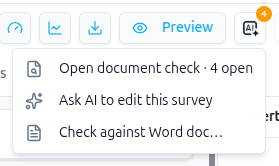
In the builder's top toolbar, click the AI Edit button and choose Check against Word doc…. You can also drag a .docx file from your computer and drop it anywhere on the builder page.
-
Pick the questionnaire (.docx only, up to 10 MB). A window titled with the file name, for example Check against "questionnaire.docx", opens straight away and fills in while the AI works.
-
The left side shows the document as the AI read it. The right side lists each gap it found. Every gap shows the question label and a short title, then three lines:
- Document: what the document says.
- Survey: what the survey has.
- Fix: a suggested change.
-
Above the list, n of m open with Previous and Next steps from gap to gap (the key J or the down arrow, and K or the up arrow, do the same while the list has focus), highlighting each one in the document. With more than eight gaps a filter box narrows the list by title, question or document text. Each gap has these buttons:
- Show in document highlights the matching passage on the left and scrolls to it. When the same line appears under several questions, such as Randomize options, it highlights the one under the gap's own question.
- Go to question closes the window and selects that question in the builder. It is greyed out when the question is not in the survey, or was deleted after the check.
- Fix with AI (not shown for gaps that need manual programming) closes the window and opens the AI Edit chat with a message built from the gap already in the box. Nothing is sent: read it, change it if you like and press send. The gap stays open until you mark it resolved.
- Mark resolved moves the gap into the Resolved list at the bottom. Open that list and click Reopen to bring a gap back.
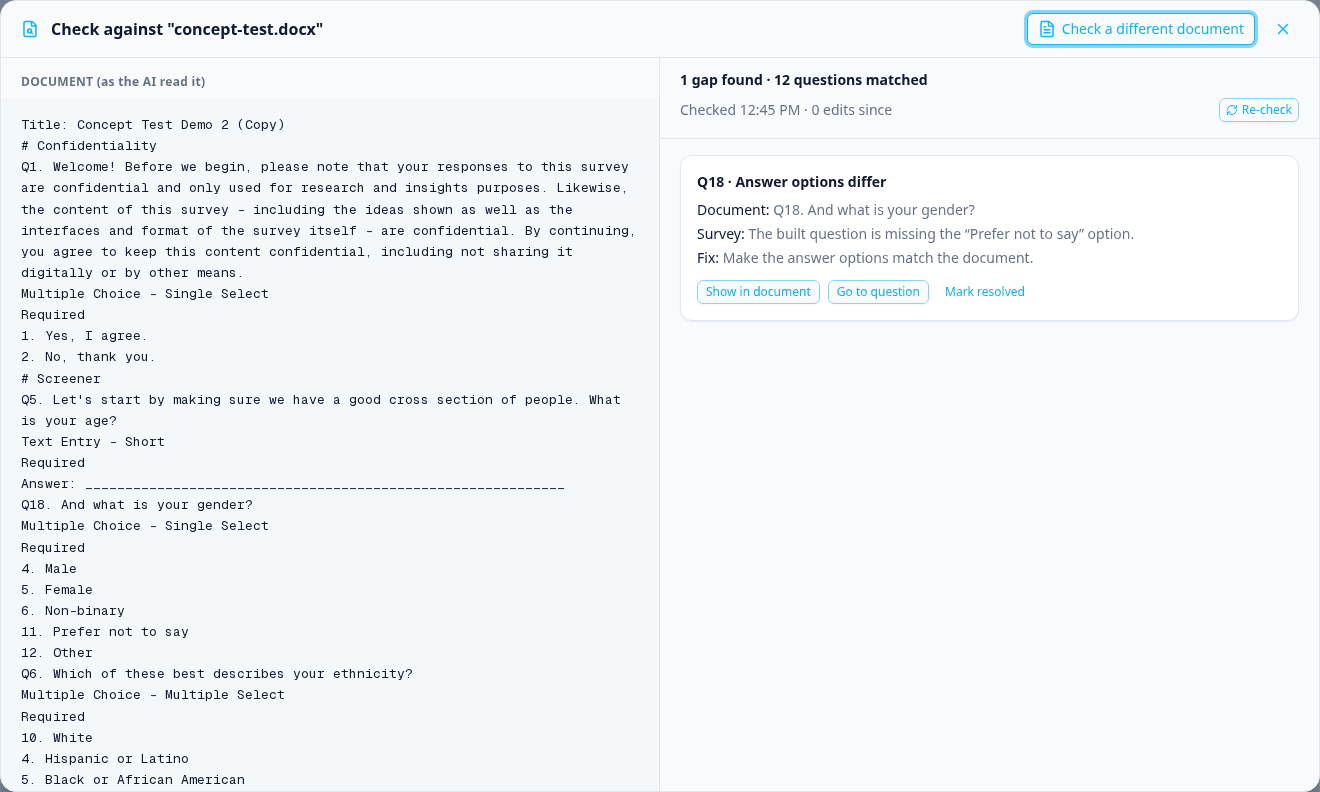
The top of the list shows how many gaps were found (only the ones you or the AI can fix) and how many questions were matched, when the check ran and how many edits you have made since. A gap whose question you have edited since the check is tagged Changed since check. Click Re-check to run the same document again against the current survey, or Check a different document to start over with another file. Starting a new check while one is kept asks Replace the current check? first, because it clears the current gaps and resolved marks. The file is checked before that question: a file that is not a .docx, or is over 10 MB, is refused and the current check stays. If the new check fails before it has read the document, the current check also stays and the reason is shown in a message. When nothing is found, the list says so and names what was compared.
Differences that no AI tool can build are not counted in that number. They sit below the gaps in a collapsed Needs manual programming (N) section: click it to expand the list. Each entry is the same card, with Show in document, Go to question and Mark resolved. Typical entries are display logic that joins AND with OR in one rule or a rank rule that names no item, flow branches that hold sections, a variable step or a branch that sets a variable which the build left out (it is listed rather than sent for fixing, so a value is never set outside its branch), advanced randomization, an option's display logic that joins AND with OR or sits on a carried option, export names, quotas that mix AND with OR, count a date or count responses only from a date, cross quotas, an exclusive option on an interface that does not support one, or a Custom Interface this environment does not offer. When every difference is of this kind, the list says there are no gaps to fix. The badge on the AI Edit button also counts only the gaps that can be fixed.
You can close the window and keep editing. While a check is kept and has open gaps, the AI Edit button shows a badge with their number, and its menu offers Open document check to return to the list where you left off. The check is kept for the browser tab, so it survives closing the window and reloading the page, but not closing the tab.
Library#
The Library page holds reusable content so you don't rebuild the same things every study. Its three tabs sit at the left of the toolbar, largest first, each with how many it holds:
| Tab | What it holds |
|---|---|
| Surveys | Survey templates: complete surveys you can spawn a new survey from |
| Sections | Whole saved sections, with all of their questions |
| Questions | Individual saved questions, with their settings. A picture in the question text stays a small thumbnail in this list, so a wide picture does not stretch the row |
The search box in the middle of the toolbar narrows the open tab by title, description, text or tags. Case does not matter ("demo" finds the tag Demo), and spaces before or after the words are ignored.
Saving things to the Library#
From inside the builder:
- On a question's menu, choose Save to library. The Save to Library dialog asks for a Title and optional tags.
- On a section's menu, choose Save to library. Save Section to Library asks for a Title, an optional Description and tags. Logic between the section's own questions is saved with it; a rule or condition that names a question outside the section is not, and the dialog says how many there are before you save. Rules that end the block or the survey are kept.
- To save the whole survey as a template, choose Save as template from the builder's menu. The Save as Template dialog asks for a Template name, an optional Description (optional) and tags. This one needs permission to manage templates, so you will not see it if you only author surveys.
The name or title is required in all three: left empty, the dialog says so under the field and saves nothing.
Search matches tags too, so a couple of consistent ones are worth the few seconds.
Using a template#
On the Surveys tab, click Use Template on a card. The Name your survey dialog asks for a Survey name; click Create survey and Intuify creates a new survey from a copy of the template and opens it. The template itself is untouched, so later edits to your survey never change it, and later edits to the template never change surveys already made from it.
If you can manage templates, template cards also offer Edit details (name, description, tags), Edit content (open the template in the editor) and Delete. How to Add Templates at the top of the page shows how each kind of template is saved. Authors without that permission see Use Template only.
Changing a saved section or question#
If you can manage templates, a section's or question's ⋯ menu also offers Edit content. It opens the item in the template editor on its own page, titled Edit section template: or Edit question template: and its name:
- A section opens with its questions showing. You can add, edit, duplicate and delete its questions, but not add another section or delete this one. Each question has a Logic tab in its Properties, for display, skip and termination logic between the section's own questions.
- A question opens on its own, selected, with its Properties beside it. You can change its text, answers, type and settings. It has no Logic tab: a question on its own has no other question to point at.
Each question keeps its own settings in the Library: Require Answer, help text, validation, page breaks and custom JavaScript, and they come with it when you add it to a survey. A section also keeps its questions' logic between its own questions, and when you add it to a survey that logic points at the new copies of those questions. A saved question keeps no logic. Click Save changes when you're done; the name and tags stay in Edit details, and ← returns to the tab you came from. Surveys that already use the section or question keep their copy.
Using saved questions and sections while you build#
You do not have to leave the builder to reach them.
- In the question palette on the left, switch from Questions to Library.
- Use Search library... or the Questions and Sections sub-tabs to find what you want.
- For a saved question, pick the section it should go into first, then drag the item onto the canvas or click it to add it.
- A saved section is added as a new section, with all of its questions.
Items arrive with the settings they were saved with, and are yours to edit afterwards like any other question or section.
How AI and Library fit together#
- There is nothing special about an AI-built survey. It has the same structure as one you built by hand, so every builder feature, and the Library, works on it normally.
- The AI can pull from your Library too, so a saved screening section can go into a survey the AI is drafting.
- Analytics and exports do not distinguish between AI-built, library-sourced and hand-built questions.
Was this page helpful?