
An API event sends survey data to one of your client's systems when something happens on a survey: the survey closes, is paused or is resumed, a quota reaches its limit, or a respondent completes the survey and matches a condition you set. For example: "when the Women quota fills, send the responses as a CSV file to the client's CRM."
Events are an admin tool. They are not part of the survey builder, and nothing about a respondent's survey changes because of one. A respondent's submit never waits for a send.
Where events live#
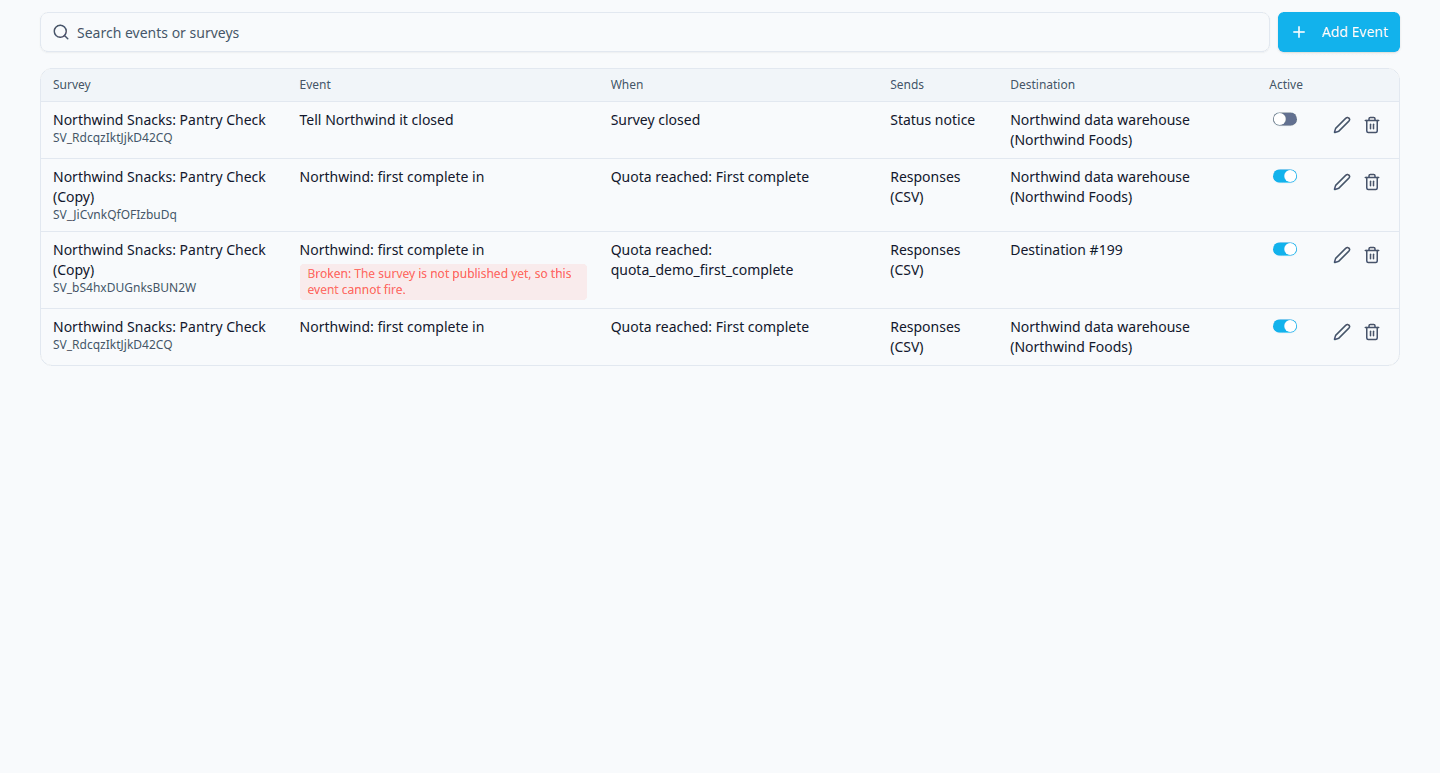
Events are in HM Admin → Admin → API Management, on the Events tab. API Management has three tabs:
| Tab | What it holds |
|---|---|
| Tokens | API tokens for Intuify's public API. |
| Destinations | Where data can be sent: a client's web address and key, set up once per client. |
| Events | What is sent, from which survey, and when. Every event names one destination. |
Who can manage events. The Events tab needs the Export responses permission, because an event sends response data out of Intuify. You see the events of every survey you can see, and only those.
Before there are any events the page says: "Send survey data to a client's system when a survey closes, is paused or resumed, a quota is reached, or a respondent matches a condition."
Before you start: a destination#
An event does not hold a web address or a key. It sends to a destination, which an admin sets up on the Destinations tab for the survey's client. The address and the client's key are entered there, stored encrypted, and never shown on the Events page.
An event can only send to a destination of a client linked to its survey. If the survey's client has none, the destination list is disabled and says: "No destinations for this survey's client yet. An admin adds them on the Destinations tab of API Management." A survey with no client linked has no destinations, so no event can be saved for it.
Adding an event#
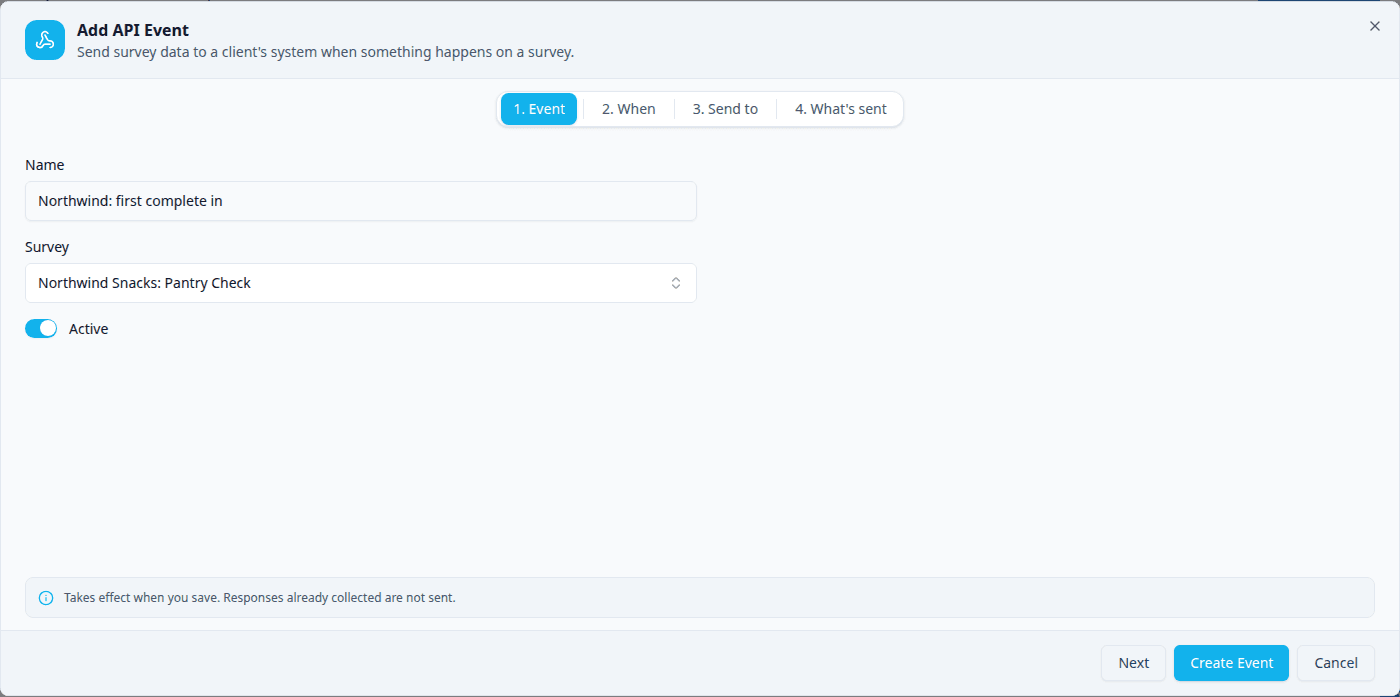
Add Event opens the event dialog. It has four steps. Next and Prev move between them, and you can also click a step's name. Create Event saves from any step; if something is missing, the dialog lists what.
Under the steps the dialog says: "Takes effect when you save. Responses already collected are not sent." There is no backfill, and nothing needs publishing: an event works from the moment it is saved.
1. Event#
| Field | What it is |
|---|---|
| Name | Your label for the event, up to 100 characters. Your client's system receives it, and HM Admin's delivery log shows it. |
| Survey | The survey the event belongs to. Search by name. Every event belongs to exactly one survey, and an event cannot be moved to another survey. |
| Active | Whether the event sends. Switch it off to stop sending without deleting it. A send already waiting for a retry is cancelled too. |
When the page is opened from a survey (the address ends in ?survey=<id>), the
list shows that survey's events and a new event starts on it.
2. When#
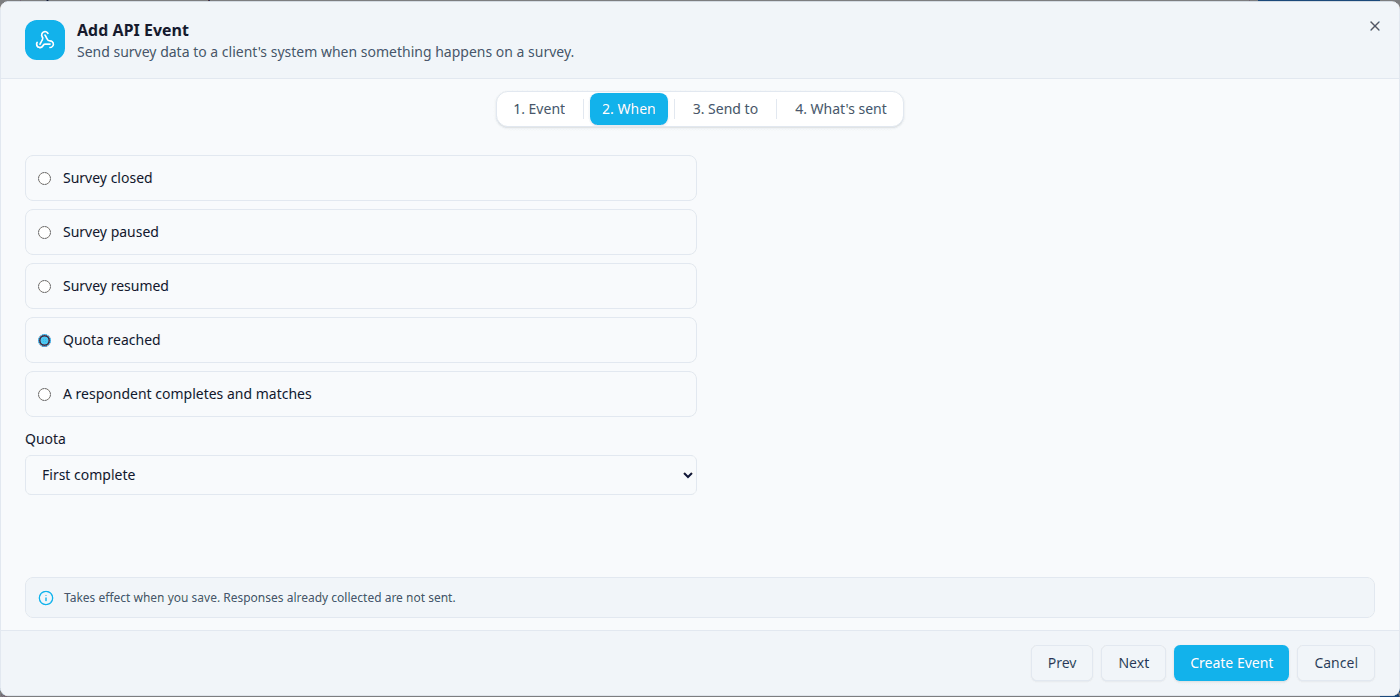
| When | Sends |
|---|---|
| Survey closed | Once each time the survey is closed, by hand or by a quota whose When Full action is Close survey. |
| Survey paused | Once each time the survey is paused. Pausing it again later sends again. |
| Survey resumed | Once each time a paused survey is set live (published) again. |
| Quota reached | Once when the quota you pick reaches its limit, whatever its When Full action is. If the limit is raised and reached again, it sends again. |
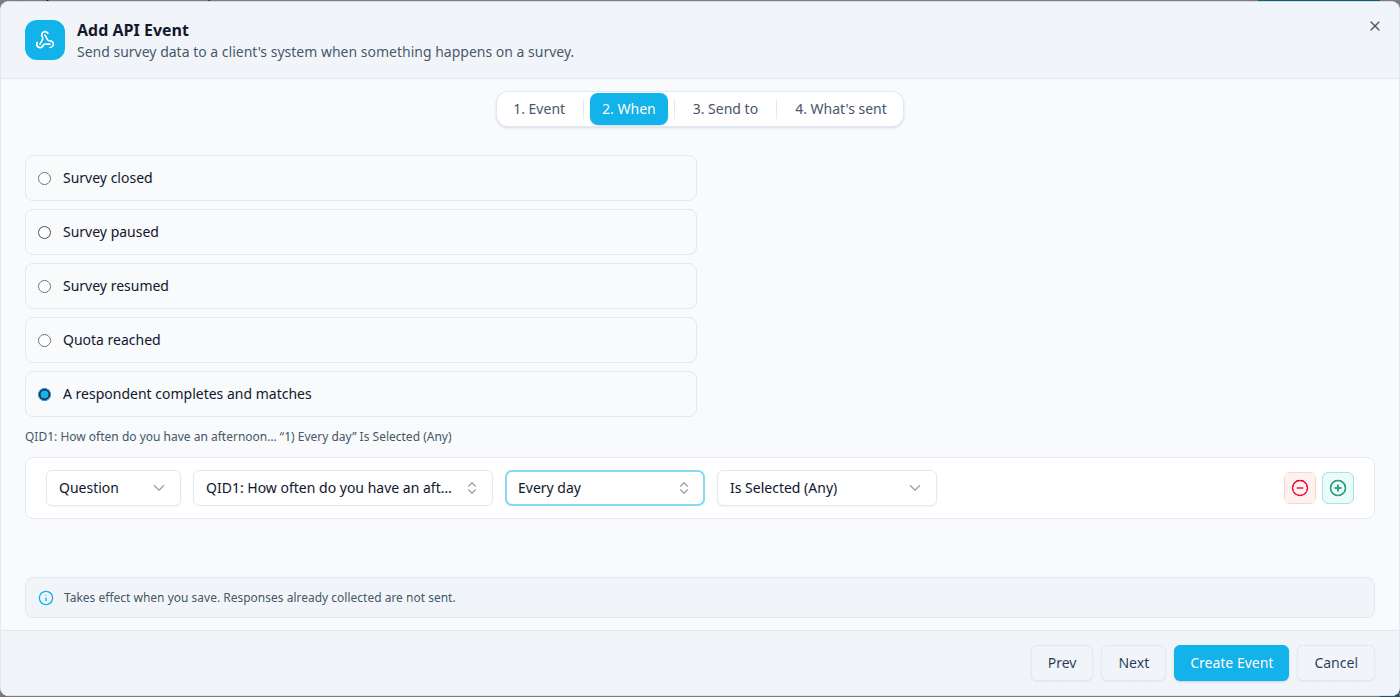
| A respondent completes and matches | For each respondent who completes the survey and matches the conditions you build here. |
The quotas and questions offered here come from the survey's published version, the one respondents take and the one an event is checked against. A quota or question added since the last publish appears once the survey is published again, and one removed in an unpublished draft is still offered until then. A survey that has never been published offers none, and says so.
Matches uses the same condition editor as quotas: anything a quota can match on, an event can too, including another quota's state. Loop number and survey mode are not offered, because they are not known once the response has completed. Global variables can be picked but not created here: this page reads the survey and never changes it. A row left blank is not saved. A Matches event needs at least one condition: until it has one, the summary above the editor and Save both say "Add at least one condition." An event can hold up to 200 condition rows.
3. Send to#
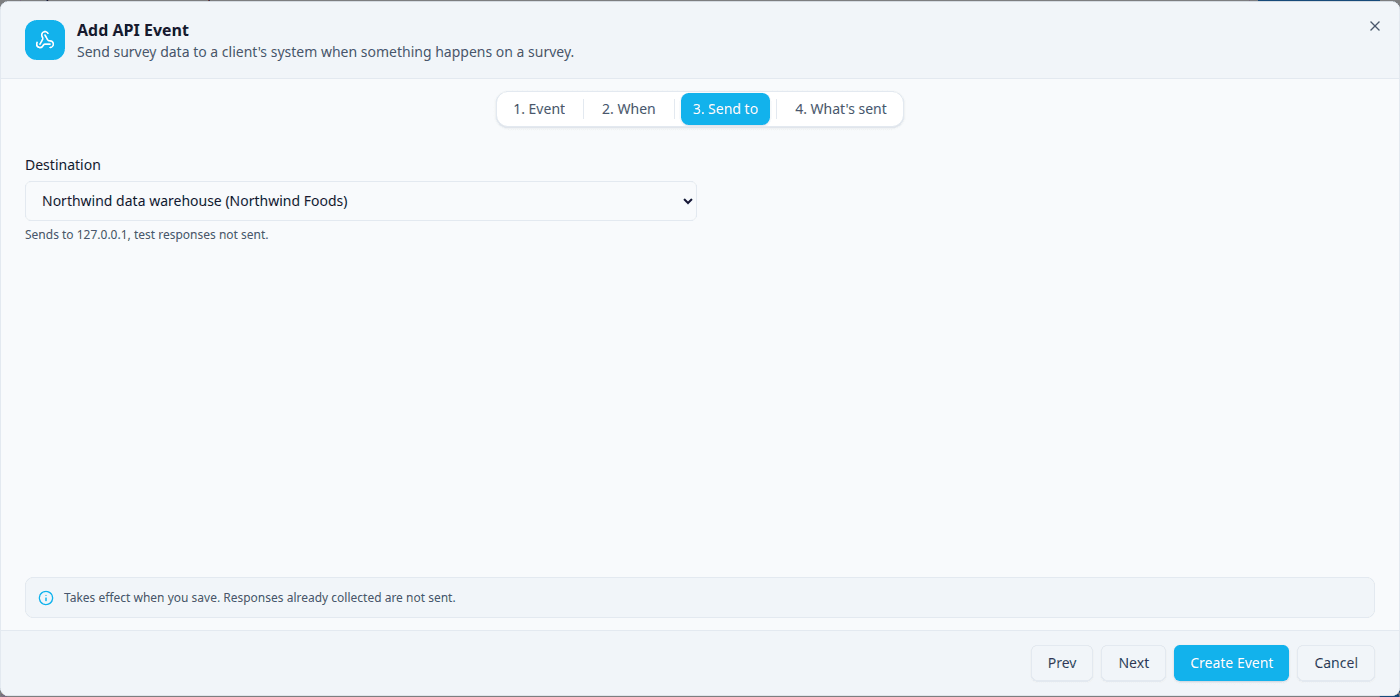
Pick one of the destinations of the survey's clients. Each shows its client's name, and under it where it sends and whether test responses are included. A destination switched off on the Destinations tab is shown but cannot be picked.
4. What's sent#
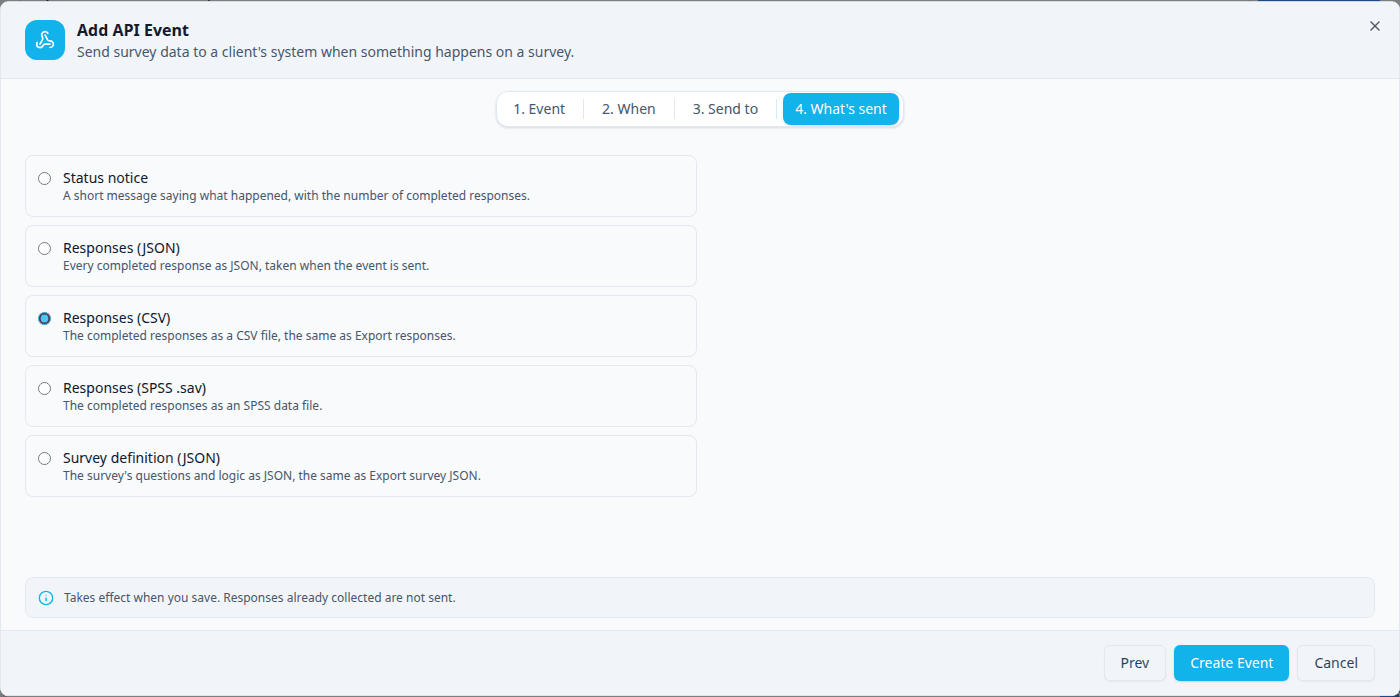
For Survey closed, Survey paused, Survey resumed and Quota reached, pick one format:
| Format | What your client receives |
|---|---|
| Status notice | A short message saying what happened, with the number of completed responses. |
| Responses (JSON) | Every completed response as JSON, taken when the event is sent. |
| Responses (CSV) | The completed responses as a CSV file, the same as Export responses. |
| Responses (SPSS .sav) | The completed responses as an SPSS data file. |
| Survey definition (JSON) | The survey's questions and logic as JSON, the same as Export survey JSON. |
A client who needs two formats gets two events.
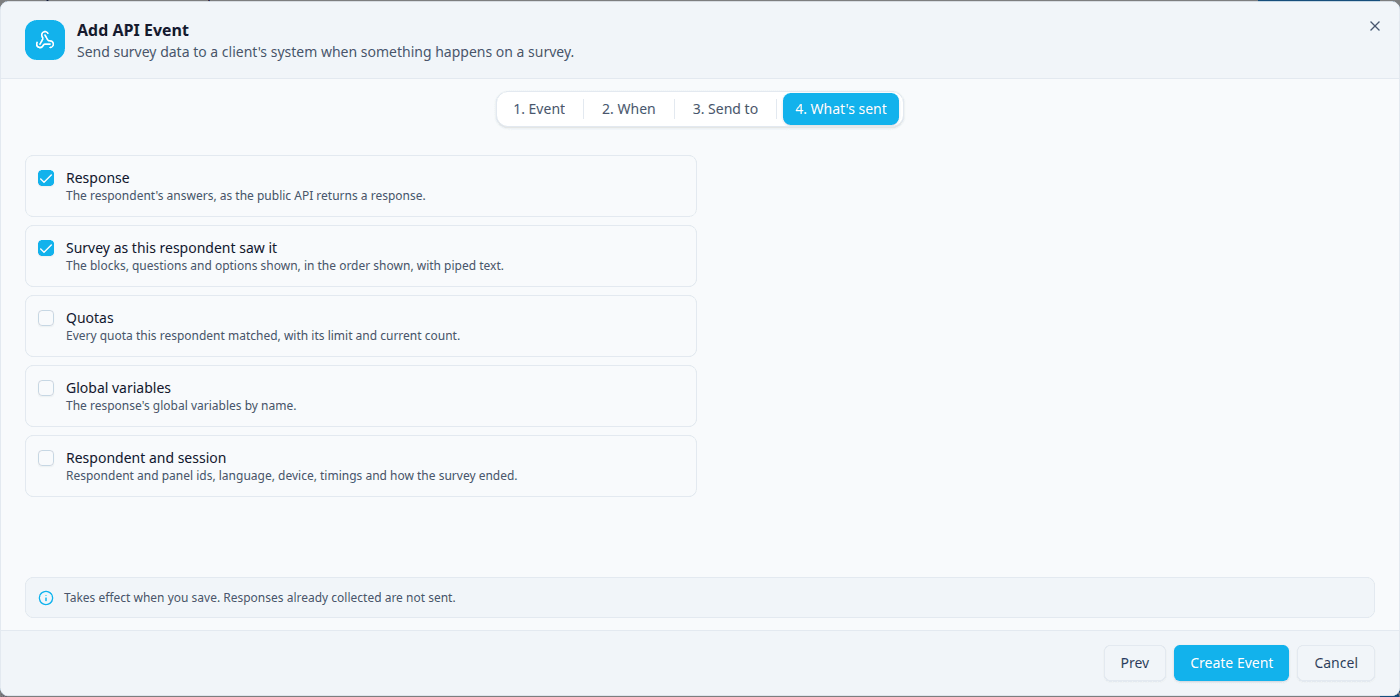
For A respondent completes and matches, tick one or more blocks instead. Response is ticked to start.
| Block | What your client receives |
|---|---|
| Response | The respondent's answers, the same object the public API returns for a response. |
| Survey as this respondent saw it | The blocks, questions and options shown, in the order shown, with piped text filled in. |
| Quotas | Every quota this respondent matched, with its limit and current count. |
| Global variables | The response's global variables by name. |
| Respondent and session | Respondent and panel ids, language, device, timings and how the survey ended. |
What your client's system receives#
Every send is a POST to the destination's address, with the header
X-Intuify-Event set to the When: survey_closed, survey_paused,
survey_resumed, quota_reached or response_matched. Every body carries the same common fields:
| Field | What it is |
|---|---|
event | The When: survey_closed, survey_paused, survey_resumed, quota_reached or response_matched |
deliveryId | The delivery's id, the same on every retry of it |
occurredAt | When it happened |
survey | { id, name, status }: status is closed when the survey closed (also by a quota), paused for Survey paused, otherwise published |
apiEvent | { id, name, when }: the event that sent it |
quota | Quota reached only: { id, name, limit, count, action } |
Then, by format:
| Format | Body |
|---|---|
| Status notice | JSON: the common fields plus responseCount, the number of completed responses. |
| Responses (JSON) | JSON: the common fields plus responses: [...]. |
| Responses (CSV) | multipart/form-data with two parts: event (the common fields as JSON) and file, named <survey id>.csv, type text/csv. |
| Responses (SPSS .sav) | multipart/form-data with two parts: event (the common fields as JSON) and file, named <survey id>.sav, type application/x-spss-sav. |
| Survey definition (JSON) | JSON: the common fields plus definition, the survey definition as Export JSON produces it. |
| Blocks (Matches) | JSON: the common fields plus one key per ticked block. |
A status notice for a closed survey looks like this:
{
  "event": "survey_closed",
  "deliveryId": 812,
  "occurredAt": "2026-10-23T09:12:03Z",
  "survey": { "id": "SV_abc", "name": "Pantry check", "status": "closed" },
  "apiEvent": { "id": "evt_...", "name": "Tell Northwind it closed", "when": "survey_closed" },
  "responseCount": 412
}
Responses are taken when the send runs, so a respondent who finishes after a close is not in it.
When an event sends#
- Only completed responses. Screen-outs, over-quota terminations, quality-control removals, partials and abandoned sessions are never sent, and never match a Matches event.
- Once. A retry never sends the same thing twice: each survey close, each quota limit, each pause, each resume and each matching respondent is sent once per event.
- Test responses are sent only when the destination's Include test responses switch is on.
- Matches is checked again at every send. If you change the condition while a send is waiting for a retry, and the respondent no longer matches, it is not sent.
- Retries. A failed send is tried again after 1, 5 and 15 minutes. Every attempt is logged on the destination's Deliveries in HM Admin, labelled "event name · When".
- An end date passing is not a close. Only closing the survey, by hand or by a quota, sends Survey closed events.
The event list#
Each row shows the Survey, the Event name, When (with the quota's name for Quota reached), what it Sends, the Destination with its client, an Active switch, and Edit and Delete. Use the search box to find an event or a survey by name.
A red Broken badge says why an event cannot send:
- "The survey is not published yet, so this event cannot fire."
- "The quota is no longer in the published survey."
- "A condition uses a question that is no longer in the published survey."
- "The destination was deleted or its client is no longer linked to this survey."
Fix it by editing the event (pick another quota or destination, or fix the condition), or switch it off. The survey builder does not warn about events, so check this list after removing a question or a quota that an event uses.
Copies and templates#
- A copied survey copies its events, each with the same Active state, so the copy is set up to send as the original does. A copy only sends once it is published and real people complete it. Until the copy is published and linked to the client, the list marks its events Broken ("The survey is not published yet"); the badge goes once both are done.
- Deleting a survey deletes its events. Moving a survey to the trash stops its events at once, sends waiting for a retry included.
- Templates have no events, so a survey created from a template starts with none.
See also: Quotas and Quota Groups.
Was this page helpful?