
Display logic controls whether a specific question or section appears for a given respondent. If the condition is not met, the respondent simply never sees that question or section.
For how display logic fits with skip logic, randomization, and the Flow tab, see the Logic, Flow & Conditions hub.
How to add display logic to a question#
- Select the question on the canvas.
- In the properties panel, look for Display logic.
- Open the condition builder and set your rule — for example, "Show this question only if Q1 = Yes".
- Save the condition. A summary label will appear on the question card so you can see at a glance that logic is active.
If you click Add and then change your mind, click Cancel (or the ✕): the question stays as it was, still Always visible (no conditions), and nothing is saved.
If the condition is not met, the respondent simply never sees that question.
Hiding a question can also skip a Section Loop that loops over that question's choices later in the survey — when the respondent never saw the source question, there is nothing active to loop over, so the looped section is skipped. Loops set to All Choices, All Rows, or All Columns are never skipped this way.
How to add display logic to a section#
In the Flow tab, each section appears as a block. You can attach display logic to an entire section so that all questions inside it are skipped when the condition is false. This is useful for paths like "Show this section only to parents" or "Skip for non-customers".
See Flow editor for how sections and logic blocks appear on the visual map.
How to add display logic to choices, items, rows and columns#
You can also show or hide single options of a question: the choices of a Single or Multiple Choice question, the items of a Ranking, Distribution, MaxDiff or Constant Sum question, and the rows and columns of a Matrix.
The window that shows all of them at once has one name for each kind of option: Choice logic on a Single or Multiple Choice question, Item logic on a Ranking, Distribution, MaxDiff or Constant Sum question, and Row and column logic on a Matrix. This page says "choice" throughout; on the other question types read "item", or "row" and "column".
One option at a time: open the option's ⋯ menu on the question card and choose Add choice logic, or Edit choice logic when the choice already has a rule. It opens the Choice logic window with that choice picked (see below). Remove choice logic in the same menu takes the rule off straight away. On a question type that has no Choice logic window (for example an Instruction Swiper's slides), the menu says Add display logic and opens the option's own display logic dialog instead. When you close the window or the dialog, the question card stays where it was, so you can go straight on to the next option.
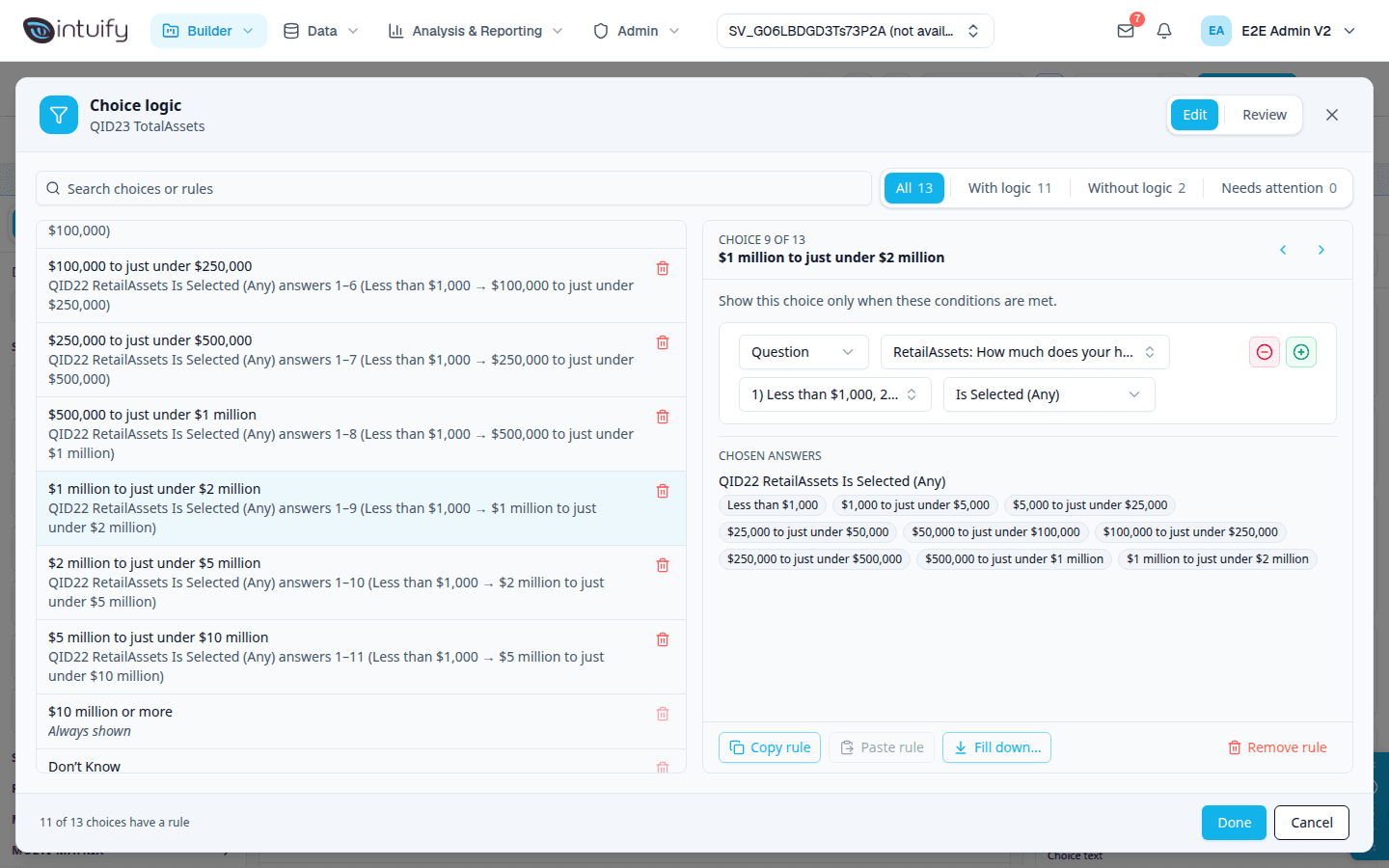
Many options at once: select the question and click Choice logic in the header above its choices, for example Choice logic · 11 (the number is how many choices already have logic). You can also open it from the question's Logic tab, under Choice logic, with Open choice logic. The window's title is Choice logic, with the question's QID and tag under it, for example QID23 TotalAssets. It lists every choice on the left with a one-line summary of its rule, or "Always shown" when it has none, and shows the choice you pick on the right.
How a rule is summed up#
A summary names the question a rule checks by its QID and tag, for example QID22 RetailAssets. If that question has no tag, the summary uses the QID alone. Answers are named by the same number you see in front of them in the answer lists, for example 2) Female. That number is the answer's recode value, or its place in the list if you have not set recode values.
- One or two answers are written out in full: QID5 Gender Is Selected (Any) 2) Female.
- Answers that follow one another are shown as one run, with the first and the last answer: QID22 RetailAssets Is Selected (Any) answers 1–9 (Less than $1,000 → $1 million to just under $2 million).
- When there are gaps, the summary shows each run and how many answers of the list the rule checks: answers 1–3, 5–7 (6 of 13). Two answers side by side read "1, 2".
Answers are always given in the order of the question they come from, whatever order you picked them in. Hold the pointer over a summary to read every answer, each with its number in front, for example "1) Less than $1,000". An answer you have since deleted from that question is named "(deleted answer)" there and left out of the short summary.
Working in the window#
- Type in the search box to find choices by their label or by words in their rule.
- Use All, With logic, Without logic and Needs attention to check which choices have rules. Each one shows how many choices it holds, for example All 13, With logic 11, Without logic 2, Needs attention 0. The numbers count every choice, whatever you have typed in the search box. Needs attention finds the rules you should look at again (see What the warnings mean below).
- When nothing is left to show, the list says why, for example "No choices without logic", "No choices need attention", "No choices match 'brand'" or "No choices with logic match 'brand'". Click Clear search to empty the search box, or Show all choices to go back to All.
- Click anywhere on a row to edit that choice's rule on the right, in the usual condition builder. There is no separate Edit button: the whole row picks the choice. The bin at the end of the row stays, and removes that choice's rule. Above the builder you see where the choice sits, for example Choice 9 of 13 (or Item, Row or Column). The answers the rule checks are listed in full under it.
- Use the arrows beside the choice's name to go to the Previous choice or the next one. They follow the list as it is filtered, so you can step through only the choices with logic, for example. From the keyboard, Alt+↑ and Alt+↓ do the same from anywhere in the window. In a text box or an open list they keep their usual meaning, so click outside it first. In Review they move to the previous or next row.
- The tab rows (Edit | Review, the filters, and on a narrow window Choices | Rule) work like tabs from the keyboard: Tab reaches the tab you are on, ← and → move to the previous or next tab and open it (from the last tab, → goes round to the first), and Home and End go to the first and last. Press Tab again to leave the tab row.
- Copy rule copies the picked choice's rule. Pick another choice of the same question and click Paste rule to give it the same rule; hold the pointer over Paste rule to see which choice it came from. The copied rule is kept only while the window is open: it cannot be pasted on another question.
- Fill down… gives the choices below the picked one a rule made from its rule, one step at a time. See Fill down below.
- Remove rule takes the rule off the picked choice. It works on any rule, including one that is broken (for example a condition that lost its question), because removing it is how you fix it. The bin on a row does the same for that row.
On a smaller screen (narrower than 1280 pixels) the list and the rule take turns: use the Choices | Rule switch at the top to go between them, so the condition builder keeps the whole width.
Long lists stay quick. On a question with hundreds of choices, picking a choice, Next, the filters, the search box and Done respond at once, and the list and Review fill in the rows as you scroll to them, so scrolling looks and works as usual.
There is one Choice logic window on the page, and it shows one question at a time. It works the same on the Build tab and the Flow tab, wherever you open it from. If the question is deleted while the window is open, by you or by a teammate, the window closes.
Choices that are pictures#
A choice with a picture shows it as a small thumbnail: in the list, in Review and at the top of the rule. The picture is the choice's own image, or else the first image in its text. A choice that is only a picture, with no words, is named by the image's alt text, or by the image's file name when it has none, for example logo-northside.png. That name is what the window, the search box, and the warnings use for it, so give your images alt text if you want a readable name.
Fill down#
Many surveys show each choice to the people who gave a matching answer earlier, one step further each time. Fill down writes those rules for you from the rule on one choice.
- Give the first choice its rule, for example QID22 RetailAssets Is Selected (Any) answers 1–3.
- With that choice picked, click Fill down….
- Choose how each rule changes from one choice to the next. Under each option you see an example
of the first rule it would write.
- Add the next answer each step: the next choice checks the same answers plus the next answer of the source question, the one after that adds two, and so on. It stops at the source question's last answer.
- Remove one answer each step: each choice checks one answer fewer than the one before. The run loses its last answer each step, or its first answer when the run ends on the source question's last answer. It stops when one answer would be left.
- Match answer to choice: each choice checks the one answer with the same label in the source question, or, if there is none, the answer in the same place. Labels match whatever their capitals, extra spaces, or punctuation at either end, so "Apple Inc." matches "apple inc" and "(Globex)" matches "Globex": upper and lower case count as the same. Punctuation inside a label still counts, so "A&B" does not match "AB". When two answers read the same, the first one is used. The preview says "same label" or "same place" for each. It stops at the first choice with neither.
- Fill down covers all choices below the picked one, in the list's own order, whatever the search or the filter shows. To stop sooner, pick the last choice to fill under Stop at.
- Check the preview: it says how many choices it fills, lists each one with its new rule, says where it stops if the source question runs out of answers, and says how many of them already have a rule, which it replaces.
- Click Apply. The new rules are changes like any other: each filled choice gets an orange dot and nothing is saved until you click Done. Cancel closes the panel and changes nothing.
Each new rule keeps the operator of the rule you started from, for example Is Selected (Any), with one exception. When the rule uses Is Selected (All) and the source question allows only one answer (a Single Choice question, also when it is shown as a dropdown, or an imported choice question set to take one answer), a new rule that names two or more answers is written with Is Selected (Any) instead, because a respondent can never have chosen all of them and the choice would never show. The preview says so, for example Uses Is Selected (Any): QID22 RetailAssets allows one answer, so (All) of two or more answers could never match. Rules that name one answer, and rules on a question that takes several answers, keep their operator. The preview also shows any Needs attention warning a new rule would have (see What the warnings mean).
Fill down works from a rule with one condition, on a question, that names answers from one list of that question. When it cannot, Fill down… is greyed out and its tooltip says why, for example "Fill down works from a rule with one condition; this rule has 2", "The rule names no answers to step through", or "There is no choice below this one to fill". When one way of changing the rule cannot work, the panel says why in place of its example and Apply stays greyed out while it is chosen: for example Add the next answer each step when the rule already names the source question's last answer, or Remove one answer each step when the rule names one answer.
Saving#
Nothing is saved until you click Done. You can change several choices first: each changed choice gets an orange dot, and the bottom of the window says how many are changed but not saved yet. Done saves them all as one step for Undo. Cancel or the ✕ throws them all away; when something is changed, the window first asks Discard changes?, and Keep editing takes you back. Escape and clicks outside the window do not close it. If a changed rule has a condition with no question or no answer, Done saves nothing, shows a message and takes you to that choice. Just clicking a choice never counts as a change.
When a teammate is editing the question#
While a teammate is editing the same question, the window still opens (from the choice-logic count beside the question's tag, the Flow tab's badge, or one already open) and you can read all of it: the list, each rule, Review, the warnings and Copy rule. A notice at the top says who, for example Riya Shah is editing this question — view only. Everything that would change a rule is greyed out: the condition builder, Paste rule, Fill down…, Remove rule, each row's bin and Done. Hold the pointer over any of them and the tooltip says who is editing. If the Fill down panel was open, it is put away, and it can come back when your teammate finishes.
If this happens while you have unsaved changes, they stay in the window, still marked, and the notice says so. When your teammate finishes, the window becomes editable again and you can save them with Done. Close takes Cancel's place while the window is view-only: it closes the window straight away, without asking, and drops anything unsaved.
When the window closes, you are back where you clicked to open it, for example on the choice's filter badge or the Review all link.
Review#
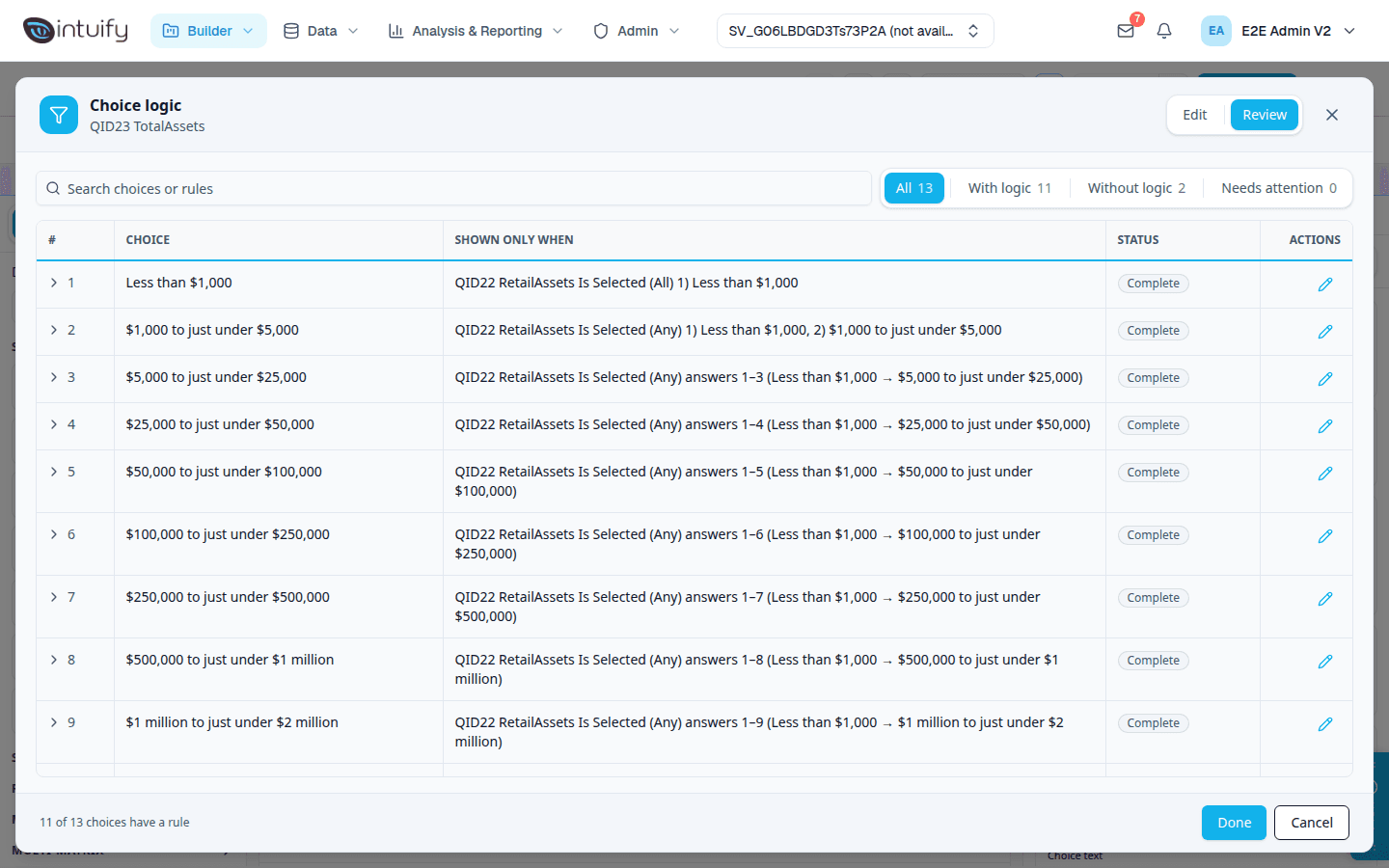
Click Review at the top of the window for a table of every choice, its rule and its status. Nothing can be changed in this view. The rule column is headed Shown only when, because a choice with a rule is shown only when its rule is true.
| Status | Meaning |
|---|---|
| complete | The choice has a working rule. Shown in plain grey: there is nothing to do. |
| Always shown | The choice has no rule, so every respondent sees it. |
| Needs attention | Shown in amber. The rule has one of the problems in the table below. Open it and fix or remove the rule. |
Each rule is on one line, in its short form, with its warnings under it. Click a row, or the arrow in front of it, to open it and see every answer the rule checks; hold the pointer over the rule to read it in full. The pencil button on a row takes you back to Edit with that choice picked. Unsaved changes are kept when you switch views. On a phone each row is a card, with each field labelled.
What the warnings mean#
The window checks every rule for mistakes that are easy to make in a long list. A warning appears under the rule in Review, above the condition builder in Edit, as an amber triangle on the choice's row in the list, and in the Fill down preview for the rules it is about to write. Every warning is amber, with a triangle: the rule cannot work as written. It makes the choice's status Needs attention, is counted on the Needs attention tab, and is what the question card and the Logic tab count. Two choices with the same rule, or a rule that steps differently from its neighbours, are your call and raise no warning.
| Warning (as the window words it) | What it means and what to do |
|---|---|
| "A condition has no question or no answer yet." | The rule is not finished. Pick the question and the answers, or remove the condition. |
| "Names an answer that was deleted from its source question." | Someone deleted an answer the rule checks. Pick the answers again. |
| "Reads a question that was deleted from the survey." | The question the rule checks is gone. Point the rule at another question, or remove it. |
| "Never shows: QID22 RetailAssets allows one answer, so Is Selected (All) of 3 answers can't match. Use Is Selected (Any)." | A respondent can give only one answer to that question, so they can never have chosen all of them. Change the operator to Is Selected (Any). |
| "QID40 Brands comes after this question, so its answer isn't known yet." | The rule checks a question the respondent has not reached. Move the question, or check an earlier one. |
| "QID21 Income is on the same page, so its answer isn't known when the page shows." ("Reads this same question, …" when the rule checks its own question) | Answers on the page the respondent is looking at are not known yet when the page is drawn. Put a page break between the two questions, or check an earlier question. |
On a matrix the messages say row or column, and on ranking-style questions item, instead of choice. A question counts as "on the same page" when no page break separates it from this question (a new section always starts a new page); a section set to show one question per page puts each question on its own page.
Other ways to open it#
The question card and the Flow tab show where logic is, and every one of these opens the same window, selecting the question first if needed:
- The Choice logic line under the question, for example Choice logic · 11 of 13 choices are shown only for matching answers at QID22 RetailAssets. Click Review all to open the window on Review. When the rules check more than one question, the line ends at "matching answers". When some rules need attention, the line goes on with an amber label, for example · 2 need attention (or · 1 needs attention). Click it to open Review showing only those choices.
- The small blue filter badge beside a choice's label, on the selected card and on cards you have not selected. Hold the pointer over it to read the whole rule. Click it to open the window on that choice, in Edit. When the choice's rule needs attention the badge is amber, and its tooltip starts with what is wrong. On a question type that has no Choice logic window, the badge opens that choice's own display logic dialog instead.
- The same filter badge with a number, next to the question's tag on a card you have not selected, and on the question's row in the Flow tab. The number is how many choices have logic; when some need attention, its tooltip says how many. Click it to open the window on Review. Once you select the question, the badge on the tag goes away, because the Choice logic · 11 button above the choices carries the number.
- Add choice logic or Edit choice logic in a choice's ⋯ menu opens the window on that choice. It is not offered on matrix rows that are carried forward from another question.
- The question's Logic tab: Open choice logic, with the number of choices that have logic, and an amber K need attention link that opens Review showing only those choices.
Choices carried forward from another question are not in the list, because they come from the other question. A respondent never sees a choice whose rule is false, and if every choice is hidden the question is skipped.
The condition builder#
Whenever you set up display logic, skip logic, or quota rules, you'll use the same condition builder dialog. Here's how it works:
- A condition is a single rule, like "Q3 = Very satisfied".
- A condition group bundles multiple conditions together with ALL (every condition must be true) or ANY (at least one must be true).
- You can nest groups inside each other for complex rules — for example, "Show if (Country = US AND Age = 18–24) OR (Country = UK AND Age = 25–34)".
- Each group can have a name to help you remember what it does.
- The + button on a condition adds a copy of that condition directly below it, joined with AND, so you can build a run of similar rules by editing the copy. On a condition that isn't finished yet, + adds an empty one instead.
- The lists you pick answers, rows, columns and items from show each one with its recode value in front, for example 99) Don't know, so you can find the answer a client document names by its code. Typing the number in the list's search box finds it too. If you haven't set recode values, the number is the answer's position in the list.
Logic sets: AND IF and OR IF#
A logic set is a bracket of conditions that is checked as one piece. Use logic sets when a rule mixes AND and OR and you need to say which conditions belong together, for example "(owns a pet AND the pet is a dog) OR (shops weekly OR shops daily)".
- To start a logic set, open the AND / OR list on a condition and pick Move to New Logic Set. That condition and every condition below it move into a new set.
- Between two sets there is a divider with a list of its own. Pick AND IF when both sets must be true, or OR IF when either set is enough. OR IF is shown in amber and AND IF in teal, and each set has a coloured line down its left side so you can see where it starts and ends.
- The same list has Remove Logic Set, which puts that set's conditions back where they were. The first of them keeps the set's AND / OR, so the rule still joins it the same way.
- Under the conditions, Reads as spells out the whole rule with each set in brackets, for example "(Q1 Yes and Q2 Dog) OR IF (Q5 Weekly or Q5 Daily)".
- Sets are read left to right. A OR IF B AND IF C means (A or B) and C. If you need A or (B and C), put B and C in the same set.
- Conditions inside one rule or one set are read left to right too. AND does not go before OR, as it does in some other tools: A and B or C and D means ((A and B) or C) and D. When a rule's conditions mix AND and OR, Reads as appears under them even without logic sets, with brackets showing how the rule is really read, and a note saying Rows are read left to right, not AND before OR. Use logic sets (Move to New Logic Set) to group them. If you meant (A and B) or (C and D), move C and D into a new logic set and pick OR IF. A rule that is all AND or all OR has no Reads as line, since there is nothing to group.
- A new logic set always starts with AND IF. The first condition in a set has no AND / OR of its own; the set's divider says how it joins.
Logic sets work the same everywhere the condition builder appears: display logic, skip logic, branches, End of Survey, choice logic and quotas. The summaries on the question card, the Flow tab and the quota card show each set in brackets with AND IF or OR IF between them.
Surveys made before OR IF existed keep working exactly as they did. If such a rule joined its sets with OR, its divider now says OR IF, which is what it always did.
When you close the dialog, a compact summary appears on the question or flow element so you can see what's configured without reopening it. Each answer in the summary shows its recode value in front of the label, for example "Q2 Gender Is Equal to 1) Male", so you can match the rule to your coded data at a glance. If you haven't set recode values, the number is the answer's position in the list. For a matrix condition on a specific row, the row is named and the scale point carries the recode, for example "Q7 Rate each factor “Price” Equals “10) Good”".
A long question title or answer is shortened with "…" in a summary, and a rule with several conditions may show only the first one followed by "+N more". Hold the pointer over the summary to read the whole rule: every title and answer in full, every condition, and each logic set in brackets with AND IF or OR IF between them. This works wherever a rule is summarized, including the Display Conditions, Auto-Answer and Skip Logic summaries on a question's Logic tab, the Branch element and Set Variables conditions in the Flow tab, and quotas. On the quota card and in the quota window you can also tab to the summary to show it.
Condition sources#
Every condition row starts by choosing what to look at. The same list is available on question display logic and on section display logic in the Flow tab:
| Source | What it checks |
|---|---|
| Question | An answer the respondent already gave |
| Global variable | The current value of a survey variable |
| Boolean | A plain True / False |
| Survey metadata | Session details such as language, panel, duration, or date |
| Loop number | Which pass of a Section Loop you are on (only inside a looped section) |
| Mode | Whether the survey is being taken in preview or through a published link |
Loop item: one item's answer from a Section Loop#
When the question you pick is asked inside a Section Loop, a Loop item dropdown appears next to it. It lists every item that loop can repeat over, including choices carried forward into the loop's source question.
- Current loop item (the default) reads the answer for the pass the respondent is on, exactly as before. Conditions you saved before this option existed keep working this way.
- Pick an item, for example Loop item: Brand B, and the condition reads the answer given for that item, whichever pass it came up on. This works anywhere in the survey, inside or after the loop, and is the way to target one item when the loop order is randomized.
Example: Q1 picks brands A, B and C, a Section Loop repeats Q2 (rated 1 to 3) for each picked brand in random order. A termination rule "Q2 (loop item: Brand B) Is Selected 1" screens the respondent out only when they rate Brand B a 1. Loop number could not do this, because Brand B is not always on the same pass.
The summary on the question card, the Flow tab and the Word export show the item, for example "Q2 (loop item: Brand B) Is Selected 1". The Loop item dropdown is offered in display, skip, termination and every other condition builder. If the respondent never got that item, the condition reads it as unanswered.
Is Displayed and Is Not Displayed always check what is on screen now, so the Loop item dropdown is hidden for them, and picking one of them clears a loop item you had chosen.
A rule pinned to an item reads exactly the same inside the loop, after it and in termination. On a grid question with no row picked, it checks every row of that item's answer, never just the row named after the current pass.
Word import reads "(loop item: Brand B)" back onto the condition, so exporting to Word, editing and importing again keeps the rule pinned to Brand B. The AI assistant keeps it too when it rewrites the logic. If the item no longer exists in that loop (for example, you renamed Brand B in the document), the rule is not added and is listed for manual programming instead, rather than silently reading the current pass.
Mode — preview vs published link#
Mode is the last entry in the source list. Pick it and the row becomes simply "Mode Is Preview" or "Mode Is Published Link" — there is nothing else to fill in.
- Preview means the preview you open from the build page.
- Published Link means a real, live distribution that respondents are taking.
Use it to keep test scaffolding out of live fielding — for example, put a Display Global Variables block behind "Mode Is Preview" so you can watch your variables while building, and real respondents never see it.
Note: A question or section with no Mode condition shows in both places, exactly as it always has. Adding the feature changes nothing about your existing surveys.
Operators by question type#
The condition builder automatically shows only the operators that make sense for the selected question type. You don't need to remember which operators apply — just select a question, and the dropdown updates.
Single choice#
You pick one or more of the question's options in the choice dropdown, then one of four operators, listed in this order:
| Operator | What it checks |
|---|---|
| Is Selected (Any) | At least one of the picked options was selected |
| Is Selected (All) | Every picked option was selected |
| Is Not Selected (Any) | At least one of the picked options was not selected |
| Is Not Selected (All) | None of the picked options was selected |
With one option picked, the Any and All versions mean the same thing. Answered / Not Answered and Displayed / Not Displayed sit in the Conditions group of the choice dropdown. Conditions saved before Is Not Selected had Any and All versions show as Is Not Selected (All) and work exactly as before.
Example: "Show Q3 only if Q1 'Yes' Is Selected (Any)" or "Show Q3 if Q1 'Red', 'Blue' Is Not Selected (All)" (neither Red nor Blue).
Multiple choice#
Since respondents can select multiple answers, the operators reflect set logic:
| Operator | What it checks |
|---|---|
| Is Selected (Any) | At least one of these options was selected |
| Is Selected (All) | ALL of these options were selected |
| Is Not Selected (Any) | At least one of these options was NOT selected |
| Is Not Selected (All) | NONE of these options were selected |
Answered / Not Answered sit in the Conditions group of the choice dropdown.
Example: "Show Q5 if Q2 'Apple', 'Samsung' Is Selected (Any)" is true if the respondent selected Apple or Samsung (or both). "Show Q6 if Q2 'Apple', 'Samsung' Is Not Selected (Any)" is true unless the respondent selected both.
To check how many options were picked, use Count — see Count and Sum below.
Guided Story + Segmentation#
A Guided Story + Segmentation question itself offers only Is Answered, Is Not Answered, Is Displayed and Is Not Displayed: it stores the recording, not a choice. A choice rule left on it from an earlier build never runs, and the condition row and Publish both say so. To use the choice the AI assigned, pick Segmentation choices from <tag> (Guided Story) as the source. This is a hidden choice question that holds the AI's pick, and it lists the choices like any choice question, with Is Selected (Any / All) and Is Not Selected (Any / All). A respondent with no assigned choice (microphone denied, or nothing fit and no choice is Exclusive) leaves it Not answered, so Is Not Selected (Any or All) is true for every choice. A Guided Story + Segmentation question made before this update has no such question until you open its setup window and press Save once.
Text (short text, long text, email, phone, zip code)#
| Operator | What it checks | Value input |
|---|---|---|
| Equals | Exact match | Text input |
| Not equals | Does not match | Text input |
| Contains | Answer includes this substring | Text input |
| Does not contain | Answer does not include this substring | Text input |
| Starts with | Answer begins with this text | Text input |
| Ends with | Answer ends with this text | Text input |
| Is one of | Answer matches any of these values | Text input (comma-separated) |
| Is not one of | Answer matches none of these values | Text input (comma-separated) |
| Is empty | Nothing was entered | None |
| Is not empty | Something was entered | None |
Example: "Skip to Section 3 if email ends with '@company.com'" or "Show Q4 if zip code starts with '90'".
Numeric (rating, NPS, slider)#
| Operator | What it checks | Value input |
|---|---|---|
| Equals | Exact numeric match | Number input |
| Not equals | Not this number | Number input |
| Greater than | Above this value | Number input |
| Less than | Below this value | Number input |
| Between | Within a range (inclusive) | Min and Max inputs |
| Is one of | Matches any of these numbers | Text input (comma-separated) |
| Is not one of | Matches none of these numbers | Text input (comma-separated) |
| Is empty | Not answered | None |
| Is not empty | Answered | None |
Example: "Show Q6 if NPS score is between 0 and 6" (detractors) or "Skip to thank-you if rating is greater than 8".
Date / Time / Date & Time#
| Operator | What it checks | Value input |
|---|---|---|
| Equals | Exact date/time match | Date/time input |
| Not equals | Not this date/time | Date/time input |
| After | Later than this date/time | Date/time input |
| Before | Earlier than this date/time | Date/time input |
| Between | Within a date/time range | Min and Max inputs |
| Is empty | Not answered | None |
| Is not empty | Answered | None |
Example: "Show section if appointment date is after 2025-01-01" or "Skip if date is between 2025-06-01 and 2025-06-30".
Matrix#
Matrix questions store a response per row (which column was selected). The operators work across rows:
| Operator | What it checks | Value input |
|---|---|---|
| Any row equals | At least one row has this column selected | Column dropdown |
| All rows equal | Every row has this column selected | Column dropdown |
| No rows equal | No row has this column selected | Column dropdown |
| Any row in set | At least one row's answer is one of these columns | Multi-select checkbox dropdown (columns) |
| All rows in set | Every row's answer is one of these columns | Multi-select checkbox dropdown (columns) |
| Is Selected (Any) | Answer matches one of these columns | Multi-select checkbox dropdown (columns) |
| Is Not Selected | Answer matches none of these columns | Multi-select checkbox dropdown (columns) |
| Is empty | No rows answered | None |
| Is not empty | At least one row answered | None |
Example: "Show Q5 only if any row in the satisfaction matrix equals 'Very Dissatisfied'" or "Skip section if all rows in set [Good, Excellent]".
Is Selected (Any) and Is Not Selected use the same names as Multiple Choice, and work the same way on Directional Swipe and the other matrix-style custom interfaces. They used to be called "Is One Of" and "Is Not One Of". Conditions you set up under the old names still work, and show the new names when you open them.
Ticking several rows or columns. The condition's first dropdown lists Rows and Columns, each with a (?) beside it. Ticking more than one row (or column) there means the condition must be true for all of them: "Price, Quality Equals Good" needs both Price and Quality rated Good. There is no Or switch for this. To match any one of several rows, use Any Row, or add one condition per row joined with Or.
Multigrid Sequential Carousel and Simple Icon Grid#
In the question palette these are called Jobs To Be Done Sequential Select and Icon Rating Multi-Matrix. They ask for one answer per concept and measure (for example Concept A × Would buy). A condition can look at one of those answers:
- Pick the question, then the concept (row).
- Pick the measure (column).
- Pick the operator, then pick the answer from the dropdown, which lists that measure's own options. On a Simple Icon Grid it lists the levels 1, 2, 3 … up to the number of scale points.

| Operator (Carousel) | What it checks |
|---|---|
| Is Selected | The respondent picked this answer for this concept and measure |
| Is Not Selected | The respondent picked a different answer, or did not answer this concept and measure |
| Is Greater Than / Is Greater Than or Equal to | The answer is further down the measure's list than this one (or this one) |
| Is Less Than / Is Less Than or Equal to | The answer is higher up the measure's list than this one (or this one) |
"Greater" and "less" follow the order the answers are listed in the builder: the first answer is the lowest. On a Simple Icon Grid you use the comparison operators (Is Equal to, Is Greater Than and so on) with the level number, for example "Concept A · Look Is Greater Than 4".
Example: "Show Q5 only if Concept A · Would buy Is Selected 'Definitely would'".
The summary names the concept, the measure and the answer, for example "Concept A · Would buy Is Selected “1) Definitely would”".
Rules set up before the dropdown existed. If you typed the answer's number or its exact wording into the old text box, the rule now works as that answer and the dropdown shows it. If a rule names nothing in the list (for example it still holds the measure's own name), it shows the value followed by (not in the list) and a note asking you to choose one of the measure's options. Until you do, Is Selected never matches and Is Not Selected always matches. If you change the measure, pick the answer again: each measure has its own list. If you delete an answer that a rule uses, the rule shows (not in the list) in the same way. A rule with no answer picked can't be saved: the rule window asks you to choose one of the measure's options first.
On a Simple Icon Grid a level outside the list, such as Is Greater Than 0, still works as a number, and the builder marks it (not in the list) because the dropdown has no such level.
The carousel does not offer Is Equal to or Is Not Equal to: use Is Selected and Is Not Selected, which mean the same thing. A rule that already uses one of them keeps working.
A condition tied to one item of a looped section (see Randomization and loops) keeps the plain text box instead of the answer list, and works as it did before.
Ranking#
Ranking questions store an ordered list of items. The operators check positions:
| Operator | What it checks | Value input |
|---|---|---|
| Item ranked at | A specific item is at this exact position | Item dropdown + Position number |
| Item not ranked at | A specific item is NOT at this position | Item dropdown + Position number |
| Item in top N | A specific item is in the top N positions | Item dropdown + N number |
| Item in bottom N | A specific item is in the bottom N positions | Item dropdown + N number |
| Items ranked count = | The total number of ranked items equals this | Count number |
| Is empty | Nothing was ranked | None |
| Is not empty | At least one item was ranked | None |
Example: "Show Q8 if 'Price' is ranked in position 1" or "Show follow-up if 'Quality' is in top 3".
Items that the respondent did not rank are treated as not matching any position.
The logic summary on the question card and in the Flow tab names the item and the number, for example 'Taste' Item In Top N 3. The same applies to Grid Rank (which also names the row) and MaxDiff conditions.
MaxDiff#
A MaxDiff question offers the same conditions as a Ranking question. The rank is the respondent's MaxDiff ranking, most preferred first: each Best pick scores +1 and each Worst pick −1, and ties go in a random order that stays fixed for that respondent. This is the same order carry forward uses, so a condition and a carried-forward list always agree.
Pick an item, then the operator — for example Item In Top N with N = 3.
Example: "Show the Taste follow-up only if 'Taste' is in the respondent's MaxDiff top 3."
A respondent who has not picked a Best or Worst on any screen has nothing ranked yet. MaxDiff conditions saved before rank conditions existed (Is Selected / Is Not Selected) are left as they were.
Constant Sum#
Constant Sum questions (list or grid layout) store the points the respondent gave each item. Pick an item first; the operator list then offers the value comparisons (Is Equal to through Does Not Contain) followed by:
| Operator | What it checks | Value input |
|---|---|---|
| Is Highest | This item got the most points of any item in the question | None |
| Is Lowest | This item got the fewest points of any item in the question | None |
Ties count for every tied item. If "Quality" and "Price" both got 40 points and nothing got more, "Quality" Is Highest and "Price" Is Highest are both true. An item with no points recorded (for example, one that was not shown) or a question the respondent did not answer is never highest or lowest; an item given 0 points still counts.
Example: "Show Q9 only if 'Quality' Is Highest in the budget question."
Tip — auto-answer "the top item", with ties broken at random: give a single-choice question one option per Constant Sum item, add display logic "item Is Highest" to each option, and set its Auto-Answer to use the displayed options. With one clear winner, that option is recorded; with a tie, one of the tied options is picked at random.
Simplified Shelf Choice questions offer them too; a product that was not on the respondent's shelf is never highest or lowest.
Count and Sum#
Count checks how many items the respondent answered; Sum checks what a Constant Sum's values add up to. Each is built in three steps: Count (or Sum), then a comparison, then a number.
| Comparison | True when the count (or sum) is… |
|---|---|
| Equal to | exactly the number |
| More than | above the number |
| Less than | below the number |
| Equal to or More Than | the number or above |
| Equal to or Less Than | the number or below |
Where to find it:
| Source question | How | What is counted |
|---|---|---|
| Multiple choice | Open the item list → Other Conditions → Count (the last entry, below Is Not Displayed) | the options picked, including "Other" and "None of the above" |
| Constant Sum (incl. Simplified Shelf Choice) | Open the item list → Conditions → Count or Sum | Count: items given a value other than 0 (a blank or 0 is not counted). Sum: the total of the values (decimals allowed). A product not on the shelf is never counted |
| Matrix with several answers per row, or a rank-order grid | Pick one row, then Count | the columns ticked (or cells ranked) in that row |
| Some of the items only | Tick two or more items, then choose Count (or Sum on Constant Sum) in the operator list | only the ticked items. Works on Multiple choice, Constant Sum and Ranking (not MaxDiff) |
Ranking and MaxDiff keep their existing whole-question rule, Count of items ranked is equal to / greater than / less than; Count on Ranking is only for a set of ticked items. MaxDiff has no Count: once a respondent makes any Best / Worst pick, every item shown to them counts as ranked, so the rule would be true for almost everyone.
A Count takes a whole number (0 or more); a Sum takes any number. If you untick back to one item, the row becomes an ordinary item condition again.
If the respondent never saw or skipped the source question, Count and Sum are 0 — so "Count Less than 2" is true and "Count Equal to or More Than 1" is false. This keeps screen-outs such as "Count Less than 2 → screen out" working for people who skipped the question.
Examples:
- "Show Q7 only if Q6 Count Equal to or More Than 2" — Q7 appears when 2 or more brands were picked in Q6.
- "Show Q9 only if the budget question's Sum Equal to 100" — 33.3 + 33.3 + 33.4 counts as 100.
- "Q6 'Brand A, Brand B, Brand C' Count Equal to 1" — exactly one of those three brands was picked.
The rule reads the same in the Logic panel, on the question card and in the Flow tab, for example Q6: Which brands? Count Equal to or More Than "2". The Word export prints it in words (Q6 number of selected items is at least 2), and Build from a Word questionnaire reads those words back into the same rule. Count and Sum work in display and skip logic, answer-option, row and item display logic, Flow branches, End of Survey, terminations, auto-answer conditions, global variable conditions, randomization priority rules and quotas. The older Branching sub-tab of the template editor does not offer them.
Recipe — show a Constant Sum only when 2 or more options were picked, otherwise record 100 for the one pick: on the Constant Sum, (1) carry forward the selected options of the earlier question, (2) add display logic "earlier question Count Equal to or More Than 2", (3) switch on Auto-answer when only one option is displayed with the value 100, and (4) tick Hide But Treat as Displayed in its display logic. Step 4 is needed: without it the hidden question records nothing for a respondent who picked one option.
File upload#
| Operator | What it checks |
|---|---|
| Is empty | No file was uploaded |
| Is not empty | A file was uploaded |
File upload questions only support checking whether a file was provided or not.
Form fields#
| Operator | What it checks | Value input |
|---|---|---|
| Equals | Exact match | Text input |
| Not equals | Does not match | Text input |
| Contains | Includes this substring | Text input |
| Does not contain | Does not include this | Text input |
| Is empty | Not filled in | None |
| Is not empty | Filled in | None |
How the value input works#
The condition builder automatically picks the right value input based on the operator and question type:
- Answer dropdown — For equality operators (Equals / Not equals) on choice questions, you pick from the question's answer options.
- Multi-select dropdown — For set operators (Is any of, Includes any of, etc.) on questions with predefined options, a dropdown with checkboxes appears. Check/uncheck options to build your selection. The trigger shows your selected values.
- Column dropdown — For matrix equality operators, you pick from the matrix question's columns.
- Answer dropdown for one concept and measure — On a Multigrid Sequential Carousel or Simple Icon Grid, after you pick the concept and the measure you pick the answer from that measure's own list. See Multigrid Sequential Carousel and Simple Icon Grid.
- Item + Position — For ranking operators, you pick an item from the ranking question and enter a position number.
- Min / Max range — For the Between operator, two number inputs appear with a "to" separator.
- Count / Sum number — After Count or Sum and a comparison, a number box appears: whole numbers 0 or more for Count, any number for Sum.
- Text input — For text-based operators or when no predefined options exist.
Tip: When you switch the source question to a different type, the operator automatically resets if the current operator isn't valid for the new question type. For example, switching from a text question (which supports "Contains") to a rating question (which doesn't) will reset the operator to "Equals".
Warning: Display logic hides content from the respondent — it does not change where they go next. Use Skip logic when you need to jump to another section or end the survey.
Related guides#
Was this page helpful?