
Text/graphic blocks present content without collecting an answer. Plugin question types and Guided Story add mobile-first and voice-first interfaces on top of standard question bases.
Three blocks on this page collect no answer at all (Instructions, Create / Edit Global Variables, and Display Global Variables), and so do three plugins: Instruction Swiper, Timed Instruction and Landscape / Portrait Instructions. None of them can be made required, none of them takes a question number, and none of them appears in your exported data.
Instructions#
A display-only block — no answer is collected. Use it for instructions, images, or section breaks.
Write the block in the question's own text box on the question card, using Rich Content Editor... for formatting and Insert Image for pictures. The properties panel's Settings tab then holds the page-level options: a Next button label that overrides the survey's usual Next or Submit wording for this block only, a text size control, and Page Break After.
The Next button label box is optional and shows Optional, e.g. "Get Started" until you fill it in. Left empty, the block uses the survey's usual Next or Submit wording.
When to use it:
- Section introductions and consent text.
- Stimulus images before a choice or matrix question.
- Break pages between long batteries.
Create / Edit Global Variables#
A block that sets one or more global variables at an exact point in your question order, without opening the Flow tab. Respondents see nothing at all: the assignment runs and the survey carries on.
Select the block and open Settings in the properties panel. You get the same Set Variables editor the Flow tab uses — click Add, pick an existing variable or create a new one on the spot, choose Set (=), Increment (+=), Decrement (-=) or Formula, and type the value. You can attach a condition to an assignment so it only fires in certain cases. The condition's question list shows the same question numbers you see on the canvas, and covers only questions that record an answer — blocks like this one, Display Global Variables and Instructions are left out, because a rule about a question nobody answers can never come true.
The assignment keeps up with the page it sits on. If its condition is about a question on the same page, the variable changes as soon as that question is answered, and changes back if the answer changes. Inside a Section Loop, each pass checks its own answers, so a variable set on the first pass does not leak into a pass where the condition isn't met. Pressing Restart in preview starts every variable fresh, the same as a new respondent.
When to use it:
- Tag a respondent mid-section ("everyone who reaches here is a
qualifiedlead") without building a flow block. - Set up a value right before the question that reads it, so the order is obvious on the canvas.
Good to know:
- It is never required and never blocks the respondent. If it is the only thing on a page, the page is passed straight through.
- Save it with no assignments and the builder flags it — an empty block does nothing.
- It carries no question number and is not in your exported data.
- If the section it sits in uses question randomization, the block can be shuffled after a question that depends on it. Keep it out of randomized sections, or pin its position.
See Variables & panel redirects for what global variables are and where else they can be set.
Display Global Variables#
A block that shows a table of every global variable and its current value at that point in the survey. It is a build-and-test aid: nothing is collected, and respondents simply press Next.
| Variable | Value |
|---|---|
| region | EU |
| score | 12 |
| segment | not set |
A variable that has no value yet shows as not set. One setting, Show variables with no value, hides those rows if you would rather only see what has been filled in.
When to use it:
- Watching what your Set Variables blocks, URL parameters, and panel bindings actually produce while you build.
- Handing QA a page that proves the right values reached the right point in the flow.
Good to know:
- It renders wherever the survey runs, including live published links. That is deliberate — you decide where it appears. If you want it in preview only, give it a display-logic rule whose source is Mode and whose value is Preview (see Display logic).
- It never blocks Next, is never required, and takes no question number.
- In preview it lists your variables in the order they appear in the Global Variables panel; on a live published link it lists them alphabetically.
Specialized interfaces (plugin question types)#
In addition to standard types, the builder includes custom interface plugins optimized for mobile and tactile research. They are listed in the question palette alongside the standard types, in the group that matches what they do: Standard, Specialized, Rank, Matrix, Multi-Matrix or Choice Modeling. Voice and camera formats have their own group, StorySync AI Qual. For the full inventory and its status, see the Platform Feature List.
See the dedicated guides for the full list, respondent behavior, and configuration options:
- Custom Interfaces — Graphical Choice, Tap & Drag Rank, Swipe Matrix, Constant Sum, Dial Gauge Grid, MaxDiff, and 16 more tap/swipe/drag formats.
- Simplified Shelf Choice — a virtual store shelf in Choice Modeling: respondents add products to a cart and check out, or press Buy None.
- Van Westendorp — the price sensitivity question in Product Questions: four prices asked one after another on the same page.
- StorySync AI Qual — Guided Story, AI-Moderated Interview, Guided Story With Video/Image/NPS-CSAT, Pantry Checker, Tap & Talk, and Slide & Speak.
More plugin types may appear via deployment configuration — see the Platform Feature List.
Graphical Choice#
A tap-to-select grid of cards, listed in the Standard group. Each answer option becomes one card, showing its text, its image, or both, and respondents tap a card to pick it. Use it wherever a plain list of radio buttons would waste a phone screen.
When to use it:
- Mobile-first studies where the choices are pictures: packs, logos, ads, concepts.
- Screeners you want to feel quick, where one tap is the whole interaction.
- Any single or multiple choice question you would rather show as a grid than as a list.
What you set up, in Settings:
| Setting | What it does |
|---|---|
| Card Columns | Two numbers, Mobile and Desktop, for how many cards sit side by side on each. Mobile starts at 2, desktop at 3. |
| Selection Type | Single or Multiple. Switching this switches the question itself between single and multiple choice, so your logic and validation follow it. |
| Show "None of these" button | On by default. While nothing is picked the bottom button reads None of these; pressing it saves a real answer, coded 999. Off, the button always reads Next and there is no None answer. |
| Answers Display | Text, Image or Both, for what each card shows. This is the only display control for this interface, and it starts on Both. |
| Show Instructions in Popup | Mobile, Desktop, Both or Neither, for where the instruction text opens in a popup before the cards instead of sitting on the page. Starts on Mobile. |
| Instruction Length | Appears whenever the popup is not used on every device. On-page instruction text is trimmed to this many characters. Default 300. |
| Fit to Screen | On by default. Cards grow to fill the height available instead of sitting at their natural size. |
| Text Alignment | Left, Center or Right, for the card label. |
| Vertical Alignment | Top, Middle or Bottom, for where the card content sits in the card. |
| Card Padding | Inner padding (px) inside each card. |
| Auto Advance | Offered on Single only, and off by default. On, picking a card moves straight to the next question with no Next press. |
Mark a choice Allow Text Input in the answer list and respondents who pick it get a popup to type in. The prompt in that popup is the Text Entry Prompt on the Messages tab, which starts as "Please specify your answer". The Messages tab only appears for this interface once at least one choice allows text input.
Good to know:
- Graphical Choice is built on a standard choice question, so piping, carry forward, randomization, display logic and the choice logic operators all work as usual.
- None of these is an answer. It sits last in the answer list, marked None button · Code 999, and is never shown as a card. Edit its text there to change the button's label; it is translated like any other answer. It is there only while the button can show: on Multiple with a minimum number of picks the button always reads Next, so the None answer is removed, and it comes back if you clear the minimum. Pressing None counts as answering a Required question. The button is the survey's theme colour whether it reads None of these or Next.
- 999 is kept for None. You cannot type 999 as the code of any other choice in the survey. A choice that already uses 999 keeps it.
- In logic, piping and counts, None works like any other answer (piped selected choices shows "None of these"). A Section Loop never runs a pass for None, and carry forward never brings None into a later question.
- Questions made before this change keep working as they did: pressing None there saves no answer. Switch Show "None of these" button off and on again to give such a question the None answer. If one of its choices already uses code 999, recode that choice first; the switch's hint tells you so.
- A question whose choices are all hidden by display logic, or all carried away, is skipped. It is never answered None for the respondent.
- On Multiple, an answer marked Make Answer Exclusive clears the other picks when it is chosen. On Single the setting does nothing, because only one card can be selected anyway.
- Text size has two controls: Question text and Choice text.
Instruction Swiper#
A full-screen instruction slideshow, listed in the Standard group. Respondents read one screen at a time and tap Next to slide to the following one. After the last screen the survey moves on by itself. Nothing is collected.
When to use it:
- A multi-part briefing you would rather split into readable screens than pour into one long Instructions block.
- Task instructions before a tricky interface, one step per screen.
- A short walkthrough with an image on each screen.
What you set up:
- Screens are where the content lives. The answer list is labelled Screens rather than Answer Options, rows read Screen 1, Screen 2 and so on, and the button below them is Add screen. A new question starts with three example screens.
- Each screen is written in the same full editor as a question stem, so you get Rich Content Editor..., Insert Image, Piped Text... and Switch to HTML, and Bulk Edit above the list handles them in one go.
- Screen 1 is pinned. It cannot be deleted or moved, and no other screen can be placed above it. Screens 2 onward are added, deleted and reordered freely.
- The question's own text box and help text are not shown on the card, because respondents never see them. The question text still names the question in the Flow tab and in the logic and piping pickers.
- In Settings: Desktop slide width, the percentage of the screen width a slide takes on desktop, default 80. Mobile scroll arrow, on by default, which shows a scroll-to-bottom arrow on mobile when a screen is taller than the phone. Text alignment, Left, Center or Right, the default for screen text where you have not aligned it yourself. Fit to Screen, on or off: on makes the white card fill the space above the Next button, and off makes it only as tall as each screen's text and centres it. A new Instruction Swiper starts with it off; one you already had keeps it on until you change it. A screen with more text than fits scrolls inside the card from its first line either way. Vertical alignment, Top, Middle or Bottom, for where the screen body sits in a full-screen card (it is hidden while Fit to Screen is off, since a fitted card already hugs its text). It starts at top, and a long screen always starts at the top whatever you choose, so nothing scrolls out of reach.
- In Messages: the Next button label.
What respondents see:
- One screen at a time, on a card that either fits its text or fills the panel (the Fit to Screen setting), with the Next button underneath. The survey's own navigation is hidden, so the screen's Next is the only way forward and there is no way back to a previous screen.
- Each tap fades the current screen out to the left and the next one in from the right.
- Tapping Next on the last screen ends the question and moves the survey on.
Good to know:
- No answer is recorded, so the question takes no question number, cannot be made required, and is absent from your exported data. There is no Validation tab.
- Display logic and Skip Logic (After Question) work normally, and you can pipe earlier answers into a screen.
- Text size has one control, Choice text, which sizes the screen body. There is no question-text control, because no question title is painted above the screens.
Timed Instruction#
A timed reveal, listed in the Specialized group. Respondents read a short prompt in a popup, press the confirm button, and then see one image for a fixed number of seconds while a circular countdown runs. When the countdown ends the survey moves on, or a Next button lights up. Nothing is collected.
When to use it:
- Concept and ad exposure where everyone must see the stimulus for the same length of time.
- A pack or shelf image shown briefly before recall questions.
- Any "look at this for three seconds" step before the questions about it.
What you set up:
- The prompt and the image both live in the question's own text box. Write the sentence respondents read in the popup, and place the image in the same editor. The first image you insert is the one that is timed, and the text around it becomes the popup body. There is no separate graphic picker for this question type.
- In Settings:
- Image duration in seconds, how long the countdown runs on the image. Default 3, and anything from 1 to 120 is accepted.
- Auto-advance, on by default. On, the screen advances by itself when the timer is up. Off, the Next button is enabled when the timer is up and the respondent presses it.
- Image container width, the width of the image container as a percentage, default 80, between 20 and 100.
- In Messages: Confirm, the popup button label, which starts as "Let's Go", and Next, shown below the timer only when Auto-advance is off.
What respondents see:
- The popup first, with your prompt and the confirm button. The image is not visible behind it.
- After confirming, the image in its container with a circular countdown ticking down. The survey's own navigation is hidden throughout.
- At zero, either the next question straight away, or the Next button becoming pressable.
- There is no Back button and no way to see the image again once it has gone.
Good to know:
- No answer is recorded, so the question takes no question number, cannot be made required, and never appears in your exported data. There is no Validation tab.
- Display logic and Skip Logic (After Question) work normally, and piped text and Section Loop tokens in the prompt resolve as they do elsewhere.
- Text size has one control, Question text, which sizes the popup prompt.
Tap & Drag Rank#
A touch-friendly ranking interface. Respondents first tap items to include them, then drag to reorder. Non-selected items stay in a pool so respondents can partially rank without being forced to rank everything.
When to use it:
- Ranking studies where not every item is relevant to every respondent.
- Mobile experiences where traditional drag-to-rank is fiddly.
Tap & Drag Rank is built on top of ranking — it uses the same rank-position logic operators as standard ranking questions (see Logic, Flow & Conditions).
Settings. Characters shown before truncation (full text on hover) caps how much of a long item is shown in the list, with the rest available on hover. It runs from 1 to 2000 and defaults to 300.
Messages. Re-rank prompt message is the line asking a respondent to reorder their picks.
Min-selection validation message and Max-selection validation message cover picking too few
or too many; each carries its own placeholder, minValidateLimit and maxValidateLimit, replaced
with the real limit when shown.
Thumbnail Rank#
A two-panel thumbnail ranking interface, listed in the Rank group. Respondents tap thumbnails to rank them and drag to re-rank. Built on the ranking base type.
Swipe Matrix#
A card-swipe interface where each item is a card and each direction (left/right, up/down) maps to a category. Respondents swipe cards one at a time — great for Tinder-style concept testing.
When to use it:
- Rapid concept sorting (accept / reject / maybe).
- Mobile product or ad testing.
- Any grid where you want a tactile, one-card-at-a-time experience instead of a traditional matrix.
Swipe Matrix is built on top of a matrix question, so each card can be categorized into any of the matrix's column values. In Settings you get Swipe Directions, Card Width, Stack Depth and Stack Direction, Swipe Overlay Opacity, Rotate While Swiping for whether the card tilts as it is dragged, Show Buttons for desktop-only button alternatives to swiping, Show Instructions in Popup, and Back Button.
How far does a respondent have to swipe? This is not something you configure. A card commits as soon as it has travelled half the distance to the edge of the respondent's screen, so the gesture takes the same effort on a small phone as on a desktop. A short nudge still does nothing, so the card can be moved a little to peek at the direction labels without accidentally answering.
Statement Agreements#
A screen-by-screen agreement interface, listed in the Matrix group. The answer options are statements. Respondents see a few statements at a time and tap the one they agree with most on each screen, then move on to the next screen. It is the Survey Builder version of the Qualtrics Agreement Battery interface, and its answers appear under Agreement Battery in HM Admin.
When to use it:
- Agreement batteries where respondents pick the statement that fits them best from small sets.
- Long statement lists you want to break into short, mobile-friendly screens.
What you set up:
- Statements — add them as answer options, in the order you want them grouped. A new question starts with six statements, three per screen.
- In Settings:
- Answer type — Single (the default): one tap picks a statement and moves on automatically. Multiple: respondents can pick several statements on a screen, then press Next.
- Statements per screen — how many statements share a screen. Screens are filled in the order you listed the statements, so the last screen can have fewer.
- Pause before next screen (ms) — how long, in milliseconds, the screen stays in place before the next one slides in, after a pick (Single) or after Next (Multiple). Default 500.
- Back arrow delay (ms) — how long, in milliseconds, after going back before the back arrow updates. Default 250.
- Randomize screen order — shuffles the order of the screens. On by default.
- Statement order options — turns the next two options on or off. On by default.
- Shuffle within screens — shuffles the statements on each screen. Off by default.
- Reverse within screens — reverses the statements on each screen, every time. On by default, which is how the Qualtrics interface behaves.
- In Messages: the Next button label, shown in Multiple mode only.
What respondents see:
- The question at the top and the current screen's statements below it as full-width tiles. A picked tile is highlighted in the survey's theme color.
- Back and forward arrows, plus a Next button in Multiple mode.
- They cannot move on until they have picked something on the current screen, and there is no way to skip a screen. On the last screen, the answer is submitted as soon as they tap (Single) or press Next (Multiple).
- Going back shows their earlier picks highlighted, and they can change them.
Good to know:
- The answer is saved as the list of statements picked, in the order you wrote them, whatever order they were shown in. Logic, piping and carry forward work as they do for a multiple-choice question.
- Do not use the question's own Randomization settings, show only some of the options, or add display logic to individual statements. The interface does its own shuffling, and its screens must follow your written order to line up with the Agreement Battery analysis in HM Admin.
- There is no Validation tab: a pick on every screen is always required.
- Text size has two controls: question text and choice text (the statements).
- In HM Admin, and in the JSON and Word survey downloads, the question text ends with | N, where N is the number of screens. HM Admin needs this; respondents never see it.
- When the statements do not divide evenly into screens, HM Admin can group them differently from what respondents saw. For example, 13 statements at 6 per screen show as 6, 6 and 1, while HM Admin groups them as 5, 5 and 3.
Landscape / Portrait Instructions#
A display-only instructions screen that asks respondents to turn their device, listed in the Specialized group. The Next button stays greyed out until the phone or tablet is held the way you asked for, so respondents reach the next question already in the right orientation. Use it before a wide grid, a video or an image that only works one way round. No answer is collected.
When to use it:
- Before a question that needs a landscape screen — a wide matrix, a shelf image, a video.
- Before a question that needs a portrait screen, such as a tall list or a full-height concept.
What you set up:
- The screen itself — write it in the question's own text box, exactly like an Instructions block. Anything you can put there works: text, formatting and an image, such as a picture of a rotating phone. A new question starts with "Please turn your device sideways to continue."
- In Settings: Required orientation — Landscape (the default) or Portrait. This is the only setting.
- In Messages: the Next button label, and the Rotate hint, the short line shown under your instructions while Next is unavailable. The hint starts out as the sentence that matches the orientation you picked, and it follows along if you switch between Landscape and Portrait. Type your own and it stays exactly as you wrote it.
What respondents see:
- Your instructions screen, with the rotate hint and a full-width Next button directly underneath, all centred on the screen, as in the Qualtrics version. If your instructions are longer than the screen, they scroll and Next stays visible at the bottom. There is no Back button on this screen.
- The Next button uses your survey's theme colour, like the rest of the survey.
- Next is greyed out and cannot be pressed until they turn the device. The moment they do, Next lights up and the hint disappears. Turning back greys it out again.
- On a desktop or laptop, Next is available straight away. A monitor cannot be rotated, so gating it would leave people stuck with no way forward — the same is true in the builder's preview pane, where the question always lets you continue.
- A phone with rotation lock switched on cannot satisfy the screen. There is no way to skip past it, so tell respondents to turn rotation lock off in your instruction text if that is a risk for your sample.
Good to know:
- No answer is recorded, on any path. The question takes no question number, cannot be made required, and never appears in your exported data or in analysis — exactly like an Instructions block.
- There is no Validation tab, and there is nothing to carry forward.
- Display logic and Skip Logic (After Question) work normally, and you can pipe earlier answers into the instruction text.
- Text size has one control: question text.
Emoji Multi-Tap#
Respondents tap an emoji up to several times each to describe something, so intensity is carried by the number of taps rather than by a scale.
| Setting | What it does |
|---|---|
| Max taps per emoji | How many times one emoji may be tapped before it stops counting up |
| Palette columns | How many emoji sit across the palette the respondent picks from |
| Tray rows | How many rows deep the tray of chosen emoji is |
| Slide in (ms) | How long an emoji takes to animate into the tray |
| Slide out (ms) | How long it takes to animate out when removed |
Navigation Tree#
A tree test, listed in the Specialized group. You build a menu, like the navigation of a website or an app, and give respondents a task such as "Where would you go to change your password?". They open the categories and pick the one item where they think the answer lives. You mark which items are correct, so you learn whether people can find things in your menu. It is the Survey Builder version of the Qualtrics Tree Question.
When to use it:
- Testing a website or app menu before you build it, or comparing two versions of one.
- Checking whether your category names make sense to your audience.
What you set up:
- The task — write it in the question's own text box.
- Menu items — build the menu right on the question card. A new question starts with two categories of two items each.
- + Add category adds a top-level category. Hover a row to add a sub-item under it, delete it, or open ⋯ to move it up or down, or to indent or outdent it. You can go up to five levels deep.
- Drag a row by its handle to reorder it within its level.
- Hover an item with nothing under it and click the check to mark it correct. More than one item can be correct. Only items with nothing under them can be picked by respondents, so only they can be correct.
- Keyboard: Tab moves to the next row (and adds one at the end), Enter adds an item below, Alt+↑ / Alt+↓ move an item, Alt+Shift+→ / ← indent and outdent, and Ctrl+Enter (Cmd+Enter on a Mac) marks an item correct.
- Bulk Edit — edit the whole menu as text: one item per line, two spaces of indent per level, and a
*at the end of a correct item. You can also paste a Qualtrics Tree Question string (for exampleInstruction~Investing;Ways to invest;;1|…) and the menu is built for you, with the option to use its instruction as the question text. - In Settings: Show full tree — every category starts open. Leave it off to test how people find their way through the menu.
- In Messages: the Selected path label, the text shown when nothing is selected, the Next button label, and the name a screen reader announces for the menu. Write them in the survey's base language; translate them for other languages in the Translations tab.
- In Validation: Require Answer. When it is on, Next stays greyed out until an item is picked.
What respondents see:
- Your task, a "Selected path:" line, and the menu with every category closed (unless Show full tree is on).
- Tapping a category opens or closes it. Tapping an item picks it and shows a check; tapping it again un-picks it. Only one item can be picked at a time.
- A full-width Next button at the bottom. There is no Back button on this screen.
- The menu works with a keyboard and screen readers.
Good to know:
- The answer is saved as one line of text: the time taken, the item picked, every item picked along the way, and whether the final pick was correct. For example
12.345|Investing > Ways to invest|Investing > Advanced trading;Investing > Ways to invest|true. The response detail view shows it as the chosen path with a Correct or Incorrect label; exports keep the full line. - Labels cannot contain
|,;or>, and two items under the same category cannot share a name. The builder points out any label that breaks these rules. - Answers store the item names, so renaming an item after your survey is live changes how new answers read compared with earlier ones.
- In a multi-language survey, every category and item is listed in the Translations tab (Content) as Menu category or Menu item. Respondents see the menu and the "Selected path:" line in their language, but the saved answer always uses the base-language names, so answers read the same whichever language a respondent chose.
- If a respondent goes back and returns, the menu starts fresh, and their next pick replaces the earlier answer.
- Display logic and Skip Logic (After Question) work normally. There is no randomisation for this question.
- Piping this question into later text inserts the whole saved line, and conditions on it use the text operators (for example, contains
|trueto branch on a correct answer). - HM Admin receives the answer line, but its Quant Analysis does not chart tree tests yet.
- Text size has two controls: question text and menu item text.
Tip: Plugin questions render a built-in preview inside the builder so you can try the interaction without opening the full preview tab.
Pick, Group & Rank#
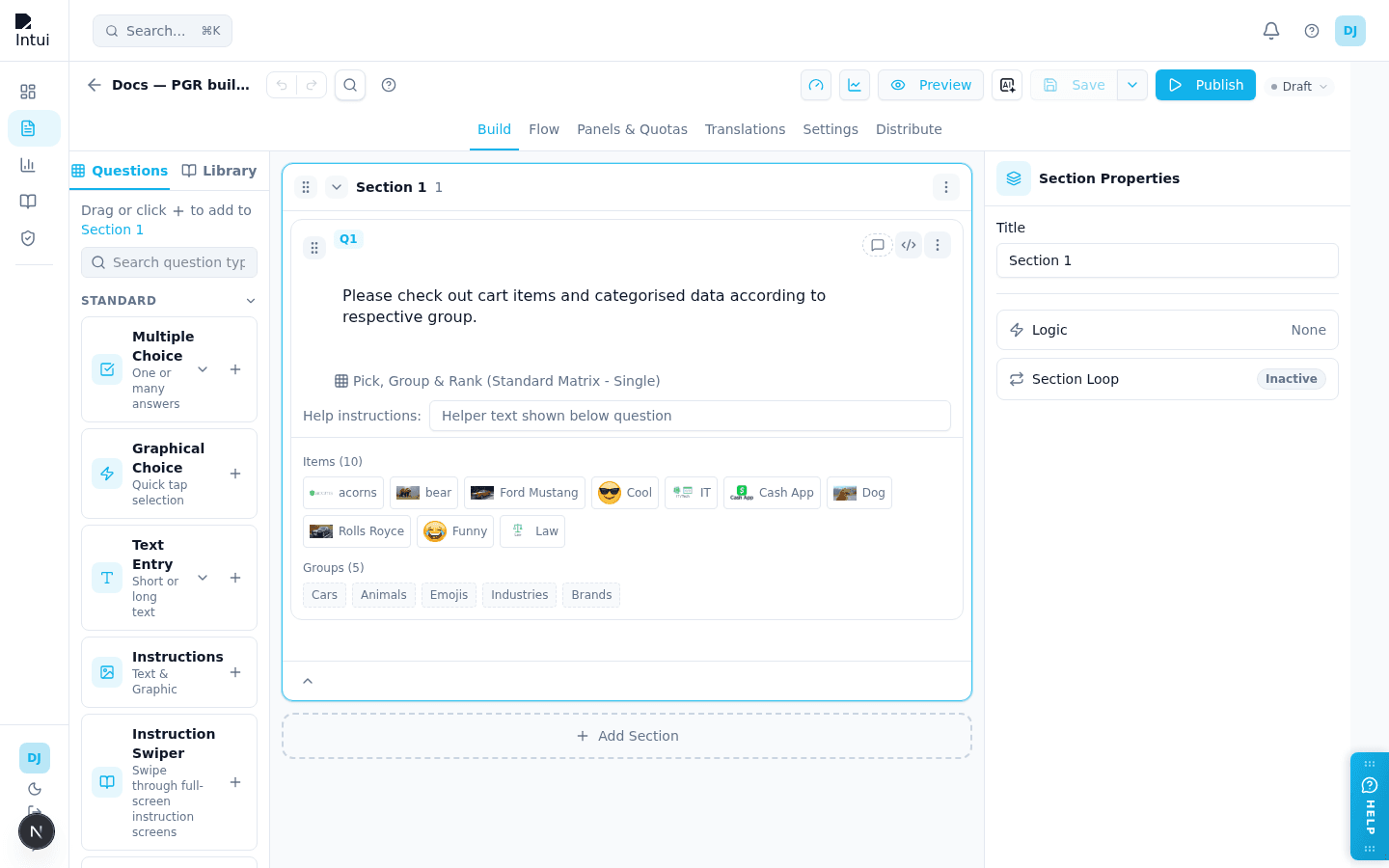
A card sort, listed in the Specialized group. Respondents drag each item into one of your named groups, for example sorting brands, animals and emojis into Cars, Animals, Emojis, Industries and Brands. You can also ask them to put the items in each group in order. It is the Survey Builder version of the Qualtrics Pick, Group, and Rank question.
When to use it:
- Learning how people categorise products, brands, features or ideas in their own heads.
- Finding the favourites within each group, when you turn on ranking.
What you set up:
-
The instructions — write them in the question's own text box. Respondents see them in a pop-up when the page opens, and again from the Instructions button.
-
Items — the cards to sort, edited on the question card like matrix rows. Each item can have an image. A new question starts with 10 image items.
-
Groups — where the cards go, edited on the question card like matrix columns. A group is a plain-text name. A new question starts with five groups.
-
Bulk Edit on Items takes one item per line. It also takes Qualtrics choice lines such as
Cash App|<img src="…">, which become the item name and its image. -
In Settings:
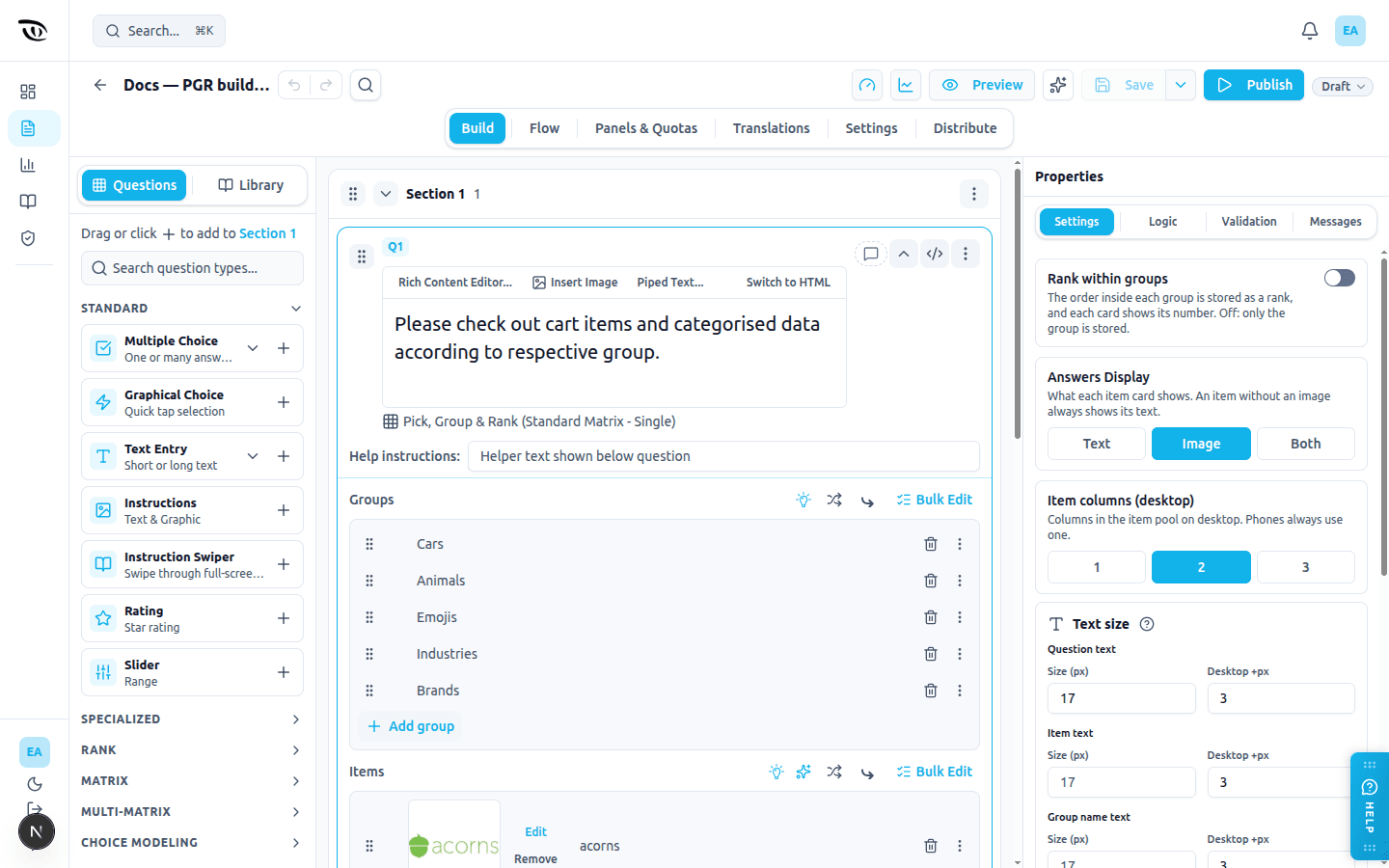
- Rank within groups — the order inside each group is saved as a rank (1, 2, 3 …), and each card shows its number. Off by default.
- Answers Display — whether a card shows the Text, the Image (the default) or Both. An item without an image always shows its text.
- Item columns (desktop) — 1, 2 or 3 columns of cards in the pool. Phones always use one.
-
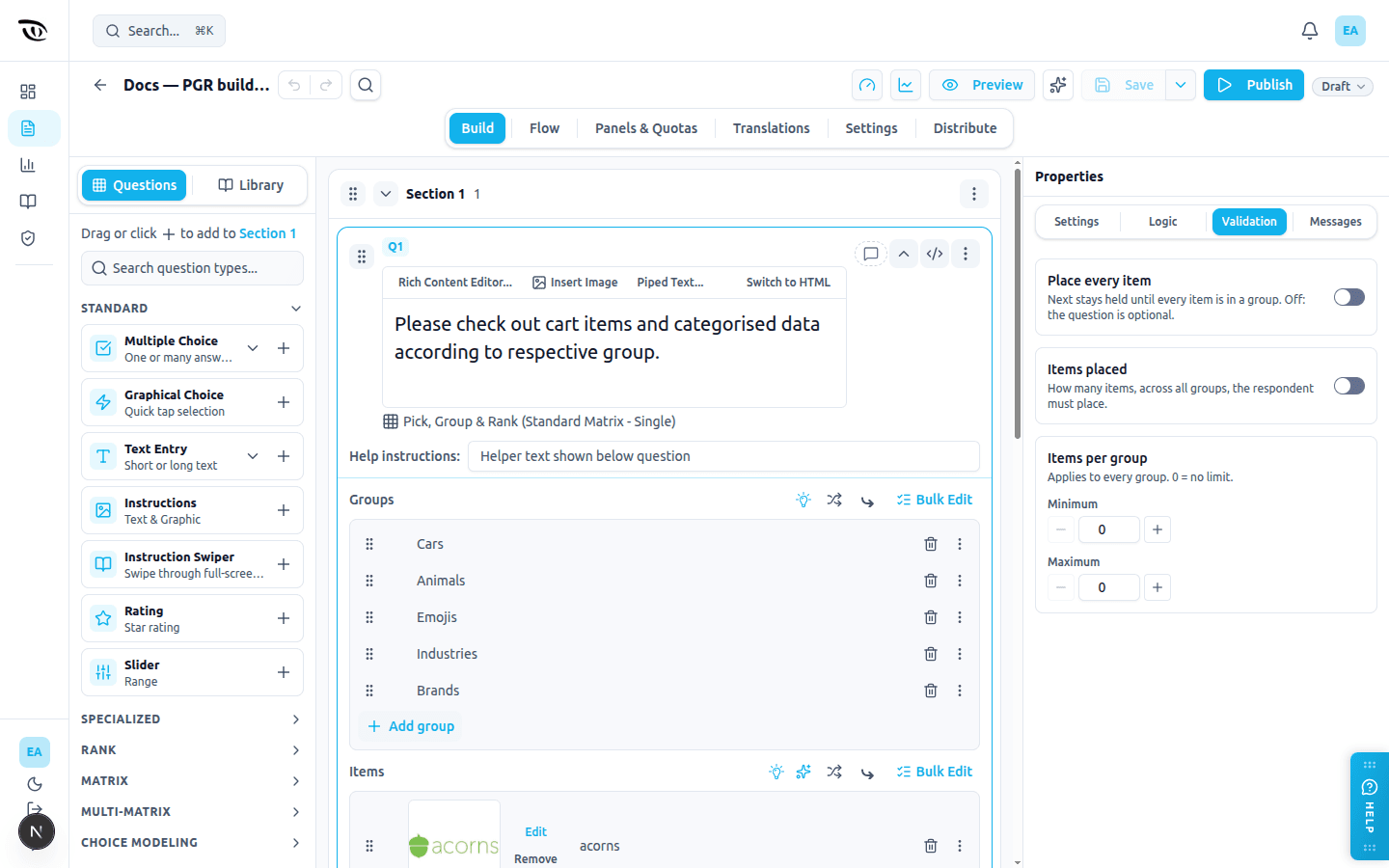
In Validation (all off by default, so the question is optional):
- Place every item — Next is held until every item is in a group.
- Items placed — the fewest and most items the respondent must place in total.
- Items per group — the fewest and most items any one group may hold.
-
In Messages: the Next, Instructions and pop-up OK buttons, the text shown when every item is placed, the "+N more" label on phones, the message for each rule shown when Next is tapped before the rules are met (or one message for every rule), and the labels and announcements screen readers use. Words in braces, such as
{group}or{items}, are filled in for the respondent: keep them. The text is in the survey's base language; translate it for other languages in the Translations tab.
What respondents see:
- On a computer, the cards on the left and the groups stacked on the right. On a phone, the cards and the groups side by side, each group showing up to four thumbnails and "+N more".
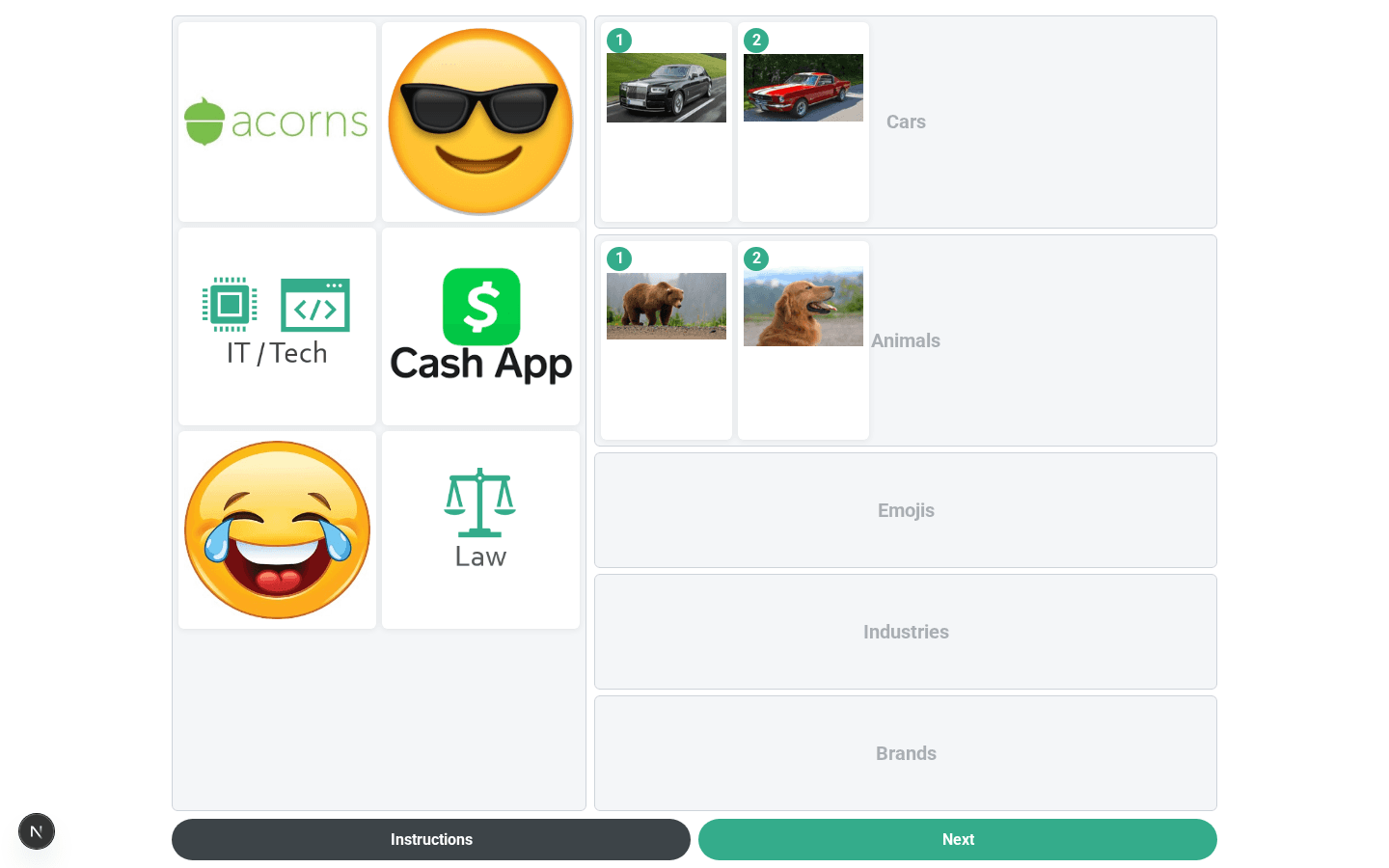
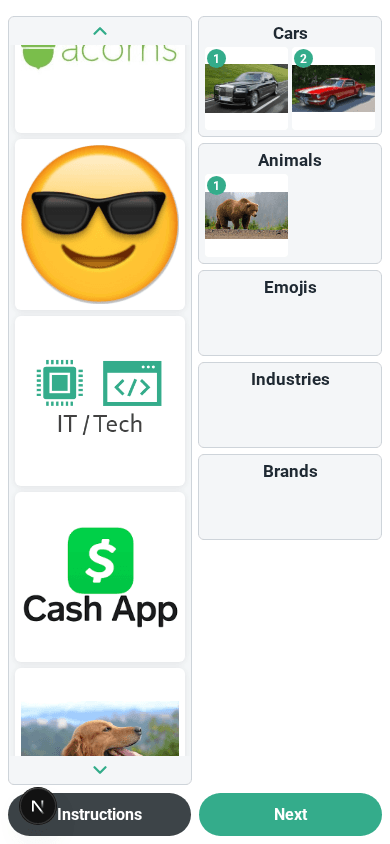
- They drag a card into a group, or tap a card and then tap a group. Cards can be moved between groups, reordered inside a group, or dragged back.
- On a phone, tapping a group opens it as a list, where its cards can be reordered or sent back.
- With ranking on, each card in a group shows its number, which updates as cards move.
- The page works with a keyboard and with screen readers.
Good to know:
- Each item is saved with two values: its group and its rank in that group. With ranking off, the rank is left empty. Items the respondent did not place have both left empty.
- Exports and the Web Service payload have two columns per item,
Q5_1_GROUP(the group's recode value) andQ5_1_RANK(the rank). The response detail view shows a table of item, group and rank. - If a respondent goes back and returns, the board starts fresh, and their next move replaces the earlier answer.
- Display logic and Skip Logic (After Question) work normally. Other questions can check whether this one was answered or was displayed. Conditions on a particular item or group, piping, carry forward and loops from this question are not available yet.
- Item randomisation uses the usual row randomisation. Groups always appear in the order you set.
- HM Admin does not receive this question's answers yet, and its Quant Analysis does not chart it. The answers are stored and exported in full.
- Text size has three controls: question text (the pop-up), item text and group name text.
Transposed Matrix and Funnel — "Other, please specify" on a brand#
On a Transposed Matrix or Funnel question, any brand can be marked Allow Text Input from that brand's ⋮ menu, turning it into an "Other, please specify" option. Require Text in the same menu makes typing something mandatory. Once a brand is marked, a Text entry prompt field appears alongside the question's other messages so you can word the popup.
What the respondent sees:
- Tapping the brand opens a popup asking them to type their answer. Confirm selects the brand; closing the popup leaves it unselected.
- The card then shows what they typed in place of its image and label, shrinking the text to fit the card and cutting it off with "…" if it is very long. In Multiple and Forward Funnel the card stays on screen for the following slides, so they keep seeing their own answer.
- Tapping the brand again on a later slide re-opens the popup with their earlier answer filled in. Closing it, or confirming without a change, keeps that answer; only editing it changes it. Clearing it puts the card back to the original brand.
What you get:
- Later questions use what they typed, not "Other brand". Piping, carry-forward, Section Loops over the brands, and the response detail view all show "Sensodyne Pronamel" — including when the brand was carried into a later question, whose answer the response detail view, the summary email and web-service payloads name the same way.
- Your export gets both: the brand's own column, unchanged, plus a companion
_TEXTcolumn with the typed value — see Response Export.
This is only offered on Transposed Matrix and Funnel. Other grid questions and interfaces do not have it.
Other plugin types#
The palette carries more of these interfaces than this page covers, including Transposed Matrix, Funnel, Carousel Matrix, Brand Association, Icon Rating Multi-Matrix, Constant Sum and Multiple Choice with Info Icons.
Guided Story (StorySync)#
Guided Story is a voice-first question format that turns open-ended feedback into a guided conversation. The respondent speaks their answer, the system transcribes and structures it, and you get a rich narrative response back.
When to use it:
- Customer research where written answers feel too formal.
- Short guided interviews at scale.
- Any open-ended question where you'd normally want a voice note.
Adding a Guided Story#
From the question palette, open the StorySync AI Qual group and drag Guided Story onto your canvas. A configuration wizard opens where you can set up the full narrative — the wizard handles the question text, prompts, and expected response shape, so you don't need to hand-write everything in the main canvas.
How it looks to respondents#
Respondents see a clear prompt and a large microphone button. When they tap it, they can speak their response naturally. A transcript appears live as they speak, and they can re-record before moving on. The full question text (built from the wizard) is shown above the recorder so expectations are clear.
Related Story formats#
The Guided Story wizard also powers a set of related formats:
- Guided Story + Segmentation — Voice narrative, and the answer is also matched against your answer options.
- Guided Story With Video — Voice plus camera video narrative.
- Guided Story With Image Capture — Guided camera capture with optional voice narrative.
- Guided Story With NPS/CSAT — An NPS or CSAT scale with a voice follow-up narrative.
- AI-Moderated Interview — An AI-guided voice interview.
- Pantry Checker — Image capture with a maximum photo count and an early-exit button.
- Tap & Talk — Image tap with voice recording.
- Slide & Speak — Video slider with voice recording.
All of them sit in the same StorySync AI Qual group in the palette and are configured through the same wizard.
Related guides#
- Question Types — overview and when-to-use table
- Custom Interfaces — mobile-first tap/swipe/drag plugin formats
- StorySync AI Qual — voice, video, and AI-moderated interview formats
- Logic, Flow & Conditions — plugin base types, ranking and matrix operators
- Platform Feature List — plugin inventory and status
- Exporting a Survey — downloading a survey's definition
- Choice Questions — standard single and multiple choice
Was this page helpful?