
Intuify can generate images for your questions and answer options with AI — no design tools, no manual uploads. From any question, one click opens the Graphics Library pre-filled with your question and its answer options. You generate and pick images there, and the ones you save flow back onto the right answer options in the Survey Builder automatically — that flow-back is set up by the click that opened the Library, so open it from the question's own button rather than navigating to the Library yourself.
Generation runs in the background, so you can start a batch, keep working — or close the tab entirely — and come back to it later.
Where to find it#
Every question card has an AI Images button (the sparkles icon) in its top-right actions, next to the comments icon. It's available on all question types.
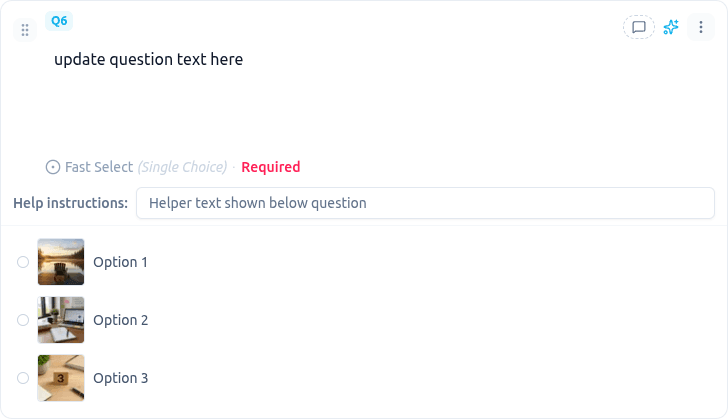
Clicking it opens the Graphics Library in a new browser tab, with your question and its answer options (or matrix rows) already filled in as the items to illustrate. This is the same Graphics Library you use to create standalone images, so everything it can do — visual styles, constraints, concepts, per-image regeneration — is available for question images too.
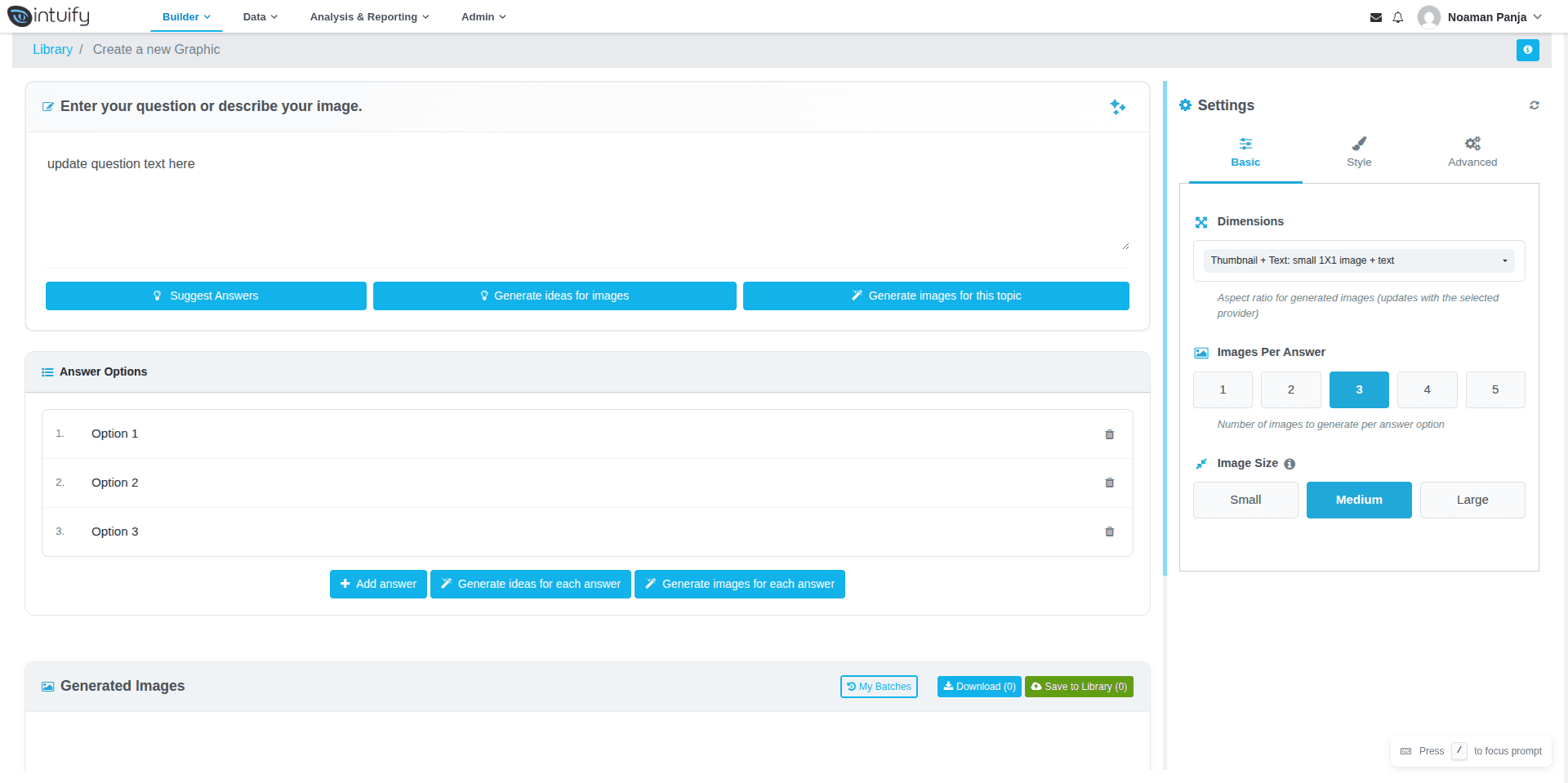
Generating images#
On the Graphics Library page:
- Review the items — one chip per answer option (or matrix row), pre-filled from your question. Edit the text, remove items you don't want images for, or add extra ones.
- Prompt — describe the visual theme you want across all images (e.g. "clean, modern flat illustrations on a white background").
- Configure — dimensions, images per item, size, a visual style (Realistic, Anime/Manga, Family Friendly Animation, Claymation, and more), and image constraints (No text in image, No people, No faces, Full color, Black & white, etc.).
- Click Generate.
Images stream in as they're ready. Each item shows its generated options in a grid — click to select, zoom to inspect, retry a failed image or regenerate one with extra directions, and cancel the whole batch if you change your mind. A single failed image never blocks the rest.
You don't have to wait on this screen: generation continues even if you close the tab.
Saving images back to your question#
On the Graphics Library page, tick the pictures you want and choose Link to question. Save to library on its own only keeps a picture in the library and does not put it on the question. Once you link, a confirmation banner appears:
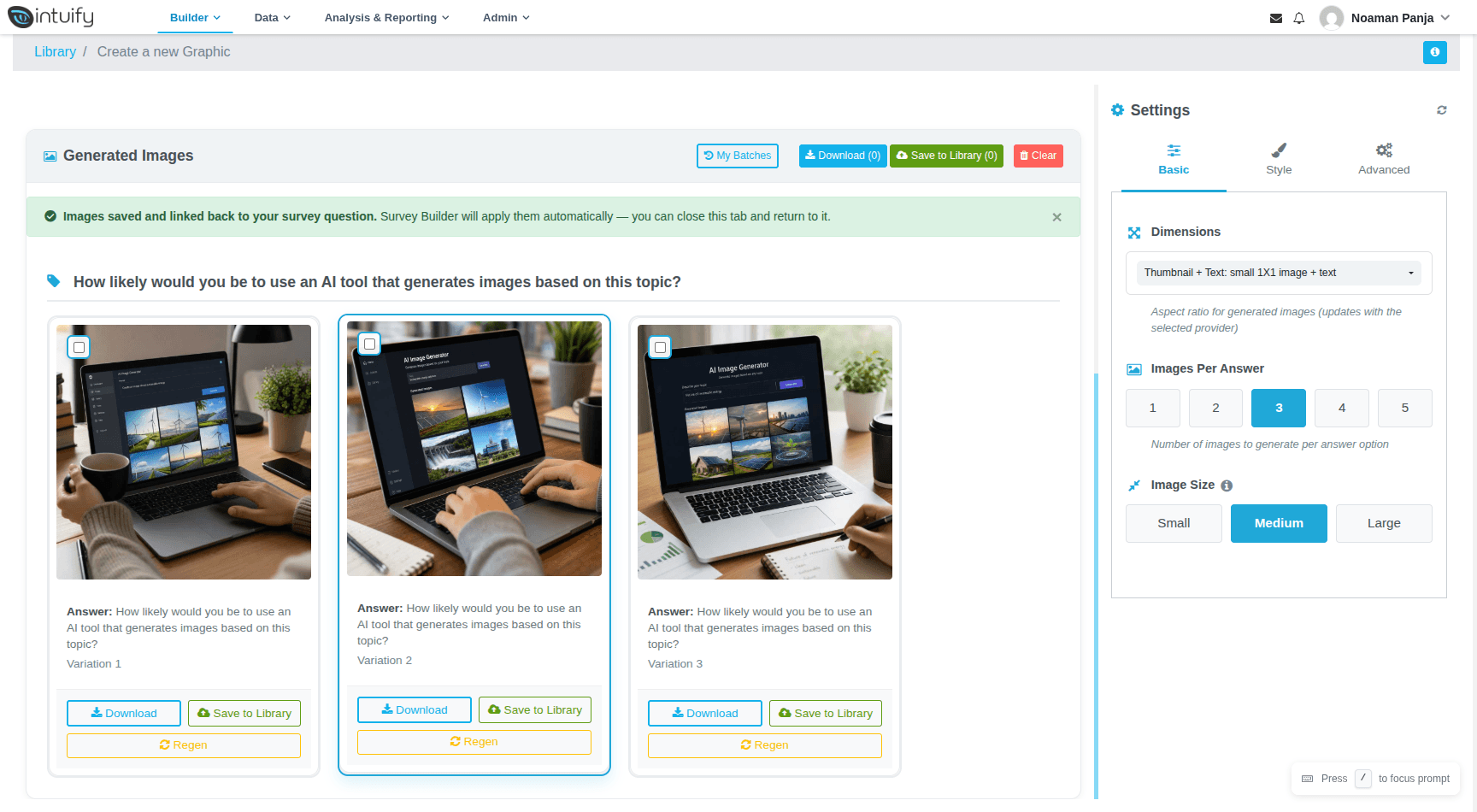
Back in the Survey Builder, the committed images are applied to the matching answer options automatically — on the question card, the preview, and the live survey. You'll see a toast confirming how many images were applied. (This works because opening the Library from the question set the builder watching it — see While the Graphics Library is open, below.)
Two rules apply:
- A linked image replaces whatever that option had. Linking an image in the Graphics Library is you choosing that image for that option, so it takes the slot — including from an image you had set by hand. If you want the old one back, undo (Ctrl/Cmd + Z) reverts the images that arrived together — link several at once and one undo takes them all back, link them one at a time and each one is its own undo step.
- Renamed or deleted options are skipped. If a committed image no longer matches any current answer option, it stays safely in your library and the builder warns you instead of guessing.
Images you linked before you opened the Graphics Library are left alone. Only the images you link during this visit are applied, so reopening a question that already has images never resurrects an older version of them.
The sparkles button tells you where things stand#
While a batch is linked to a question, the AI Images button changes state so you always know what's happening:
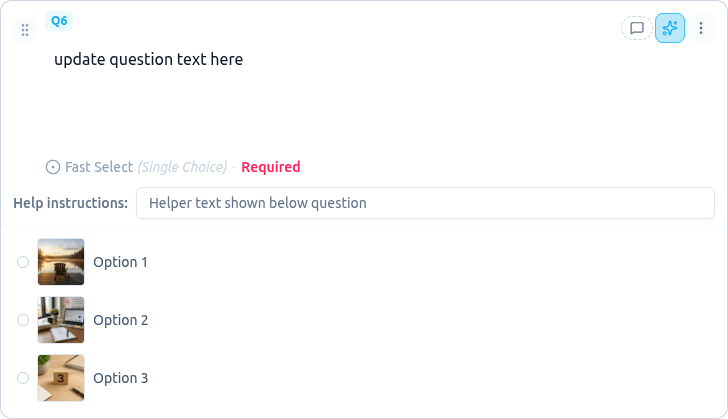
| Button state | Meaning |
|---|---|
| Outlined | You've opened the Graphics Library for this question — click to reopen it. |
| Outlined, dashed | The Graphics Library is open for this question and nothing of yours is generating. Anything you link there still comes back automatically. |
| Filled and pulsing | Images are generating in the background. |
| Filled, steady | Images are ready — open the Graphics Library to review and save them. |
| Amber | Generation may have stalled, been cancelled or timed out — click to check, or cancel it to start over. |
Clicking the button while a batch is still generating reopens that exact batch, so you can pick up where you left off. Once the question has a batch you've linked images from, or one that has finished, clicking it asks what you want: Reopen prior image batch opens the question's most recent batch so you can link more of its pictures, and Open new image builder batch starts a new one. Either way your linked images stay where they are.
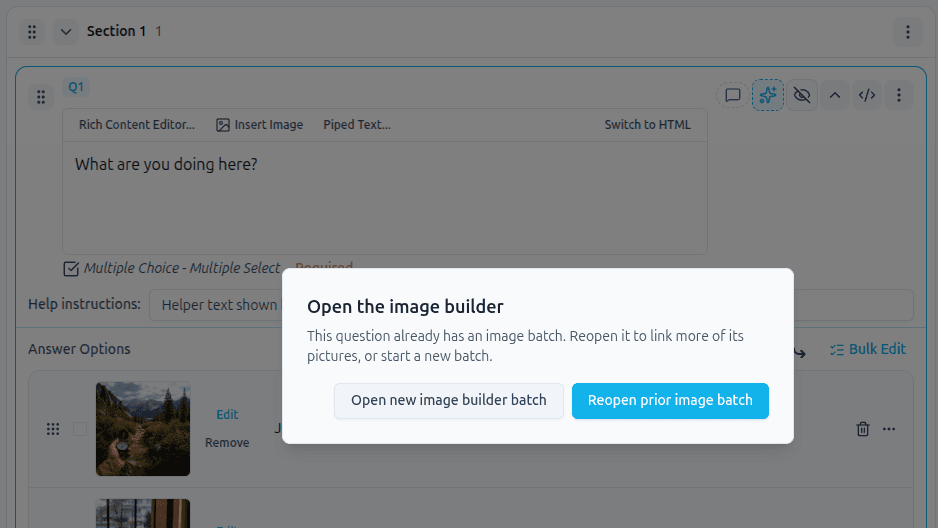
A button left sitting on Filled, steady or Amber — images finished or stalled, and never saved — returns to its normal look after about two hours, so an abandoned batch doesn't mark the question forever. Nothing is lost: the batch is still in My Batches, and clicking the button again offers to reopen it or start a new one.
While the Graphics Library is open#
From the moment you open the Graphics Library from a question, the Survey Builder watches that question. Every image you link — including images from a batch you generated days ago and reopened from My Batches — is applied to the question automatically, whether or not you reload the builder in between. The watch belongs to the builder tab you clicked from: reloading it, or moving to another survey and back, keeps it; opening the survey in a brand-new tab starts fresh.
Watching stops 30 minutes after the last image you link, or immediately if you press the stop watching button (the crossed-out eye) next to the sparkles button. Stopping changes nothing you have already linked.
Question images (questions without answer options)#
Question types with no answer options — Text Entry, long text, email, phone, number, slider, NPS, rating, date/time, file upload, and form fields — can generate an image for the question itself. The button works the same way; the Graphics Library opens with the question text as the single item.
When you save the image, it's inserted at the top of the question's text, so it shows above the wording on the question card, the preview, and the live survey. If the question text already starts with an image, the saved one replaces it — one header image at a time, never a stack.
Because the image lives inside the question text, you edit it like any other inserted image — open the Rich Content Editor on the question to resize, align, or remove it.
Coming back to a batch later#
- From the Survey Builder — click the question's sparkles button. While a batch is still generating it reopens that batch. If the question already has a batch, it asks whether to Reopen prior image batch (the most recent one) or Open new image builder batch.
- From the Graphics Library — use My Batches on the Library page to see all your batches with progress and status, and resume any of them. Images you link from an older batch reach the question exactly like images from a fresh one, as long as that question and its answer options still exist, even if you come back hours later.
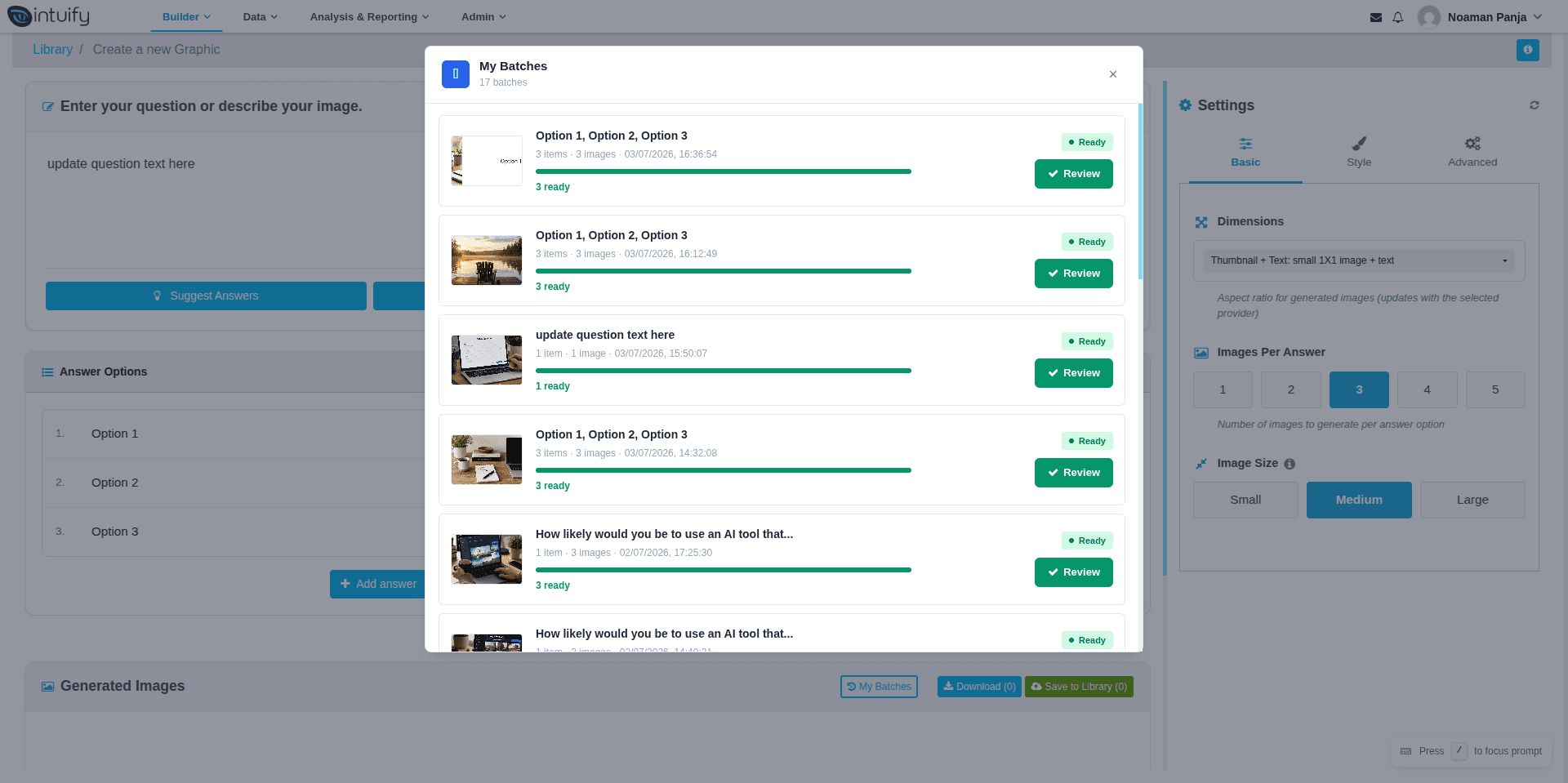
Uncommitted images are temporary: save the ones you want to keep, and the rest are eventually discarded.
Frequently asked#
- Do I have to wait while images generate? No. Generation runs in the background — close the tab, keep building your survey, and come back when the button lights up. If you leave it a couple of hours without saving anything, the button goes back to normal; the batch is still waiting for you in My Batches.
- How do the images get back into my survey? Automatically. Saving images in the Graphics Library links them to your question; the Survey Builder picks them up and applies them to the matching answer options.
- What if one image fails? Only that image is affected. Retry it individually; the rest of the batch is unaffected.
- Can I stop a batch? Yes — cancel it from the Graphics Library page while it's generating.
- Will it overwrite images I set manually? Yes — for the options you link an image to. Saving an image in the Graphics Library is an explicit choice for that option, so it takes the slot. Options you don't link are untouched, images you linked in an earlier session are never re-applied, and undo (Ctrl/Cmd + Z) takes back the images that arrived together — so linking one image at a time gives you one undo step per image.
- I reviewed an old batch and linked an image — will it reach my question? Yes, whether you reopened it from the sparkles button or from My Batches, and however long ago the batch was made, as long as the question and that answer option still exist. Reloading the Survey Builder in the meantime is fine. Changing your mind and linking a different image, then linking the first one back, works too.
- I replaced an option's image by hand and then linked the SAME image again — nothing happened. Link a different image, or reopen the Library from the sparkles button to start a fresh watch. Re-linking the identical image to a slot you have since changed by hand looks no different to the Survey Builder from the original link, so it is picked up only once the Graphics Library update is released. The same applies to an image linked in the first second or two after the Library opens, before the first check runs.
- Do I have to pick a folder? No. Leave it blank to save the images as unassigned and organize them later.
Was this page helpful?