
Admin only, in preview. The Survey JSON editor is for Intuify platform admins, which includes Intuify staff. You also need permission to edit the survey. If you don't see Edit survey JSON in the menu beside Save, your account doesn't have it yet, and that's expected. Access through HM Admin roles comes later.
The Survey JSON editor opens a survey exactly as the builder stores it: every section, question, answer option, logic rule, flow step, quota and Global Variable, as JSON text. You can change it by hand or ask AI to change it, and nothing is saved until the edit has passed the checks and you have seen what it changes.
It is not the same file as Export as JSON file. Export as JSON file downloads a Qualtrics-style
copy of the survey (with keys such as SurveyID, Questions, Blocks and SurveyFlow) for
backups and other tools. That file has a different shape and cannot be pasted into this editor. See
Exporting a Survey.
Open the editor#
- Open the survey in the builder.
- Click the arrow beside Save in the toolbar.
- Choose Edit survey JSON. It sits under Export as JSON file and Export to Word.
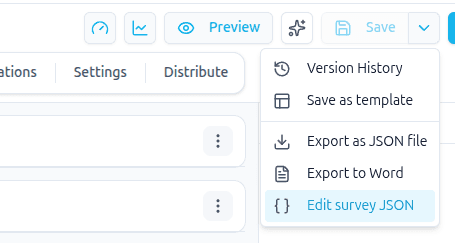
Unsaved changes in the builder are saved first, so the JSON you see is the survey as it is now. If that save fails, the editor still opens on the survey as the builder shows it, because a problem the builder refuses to save may be exactly what you want to fix here.
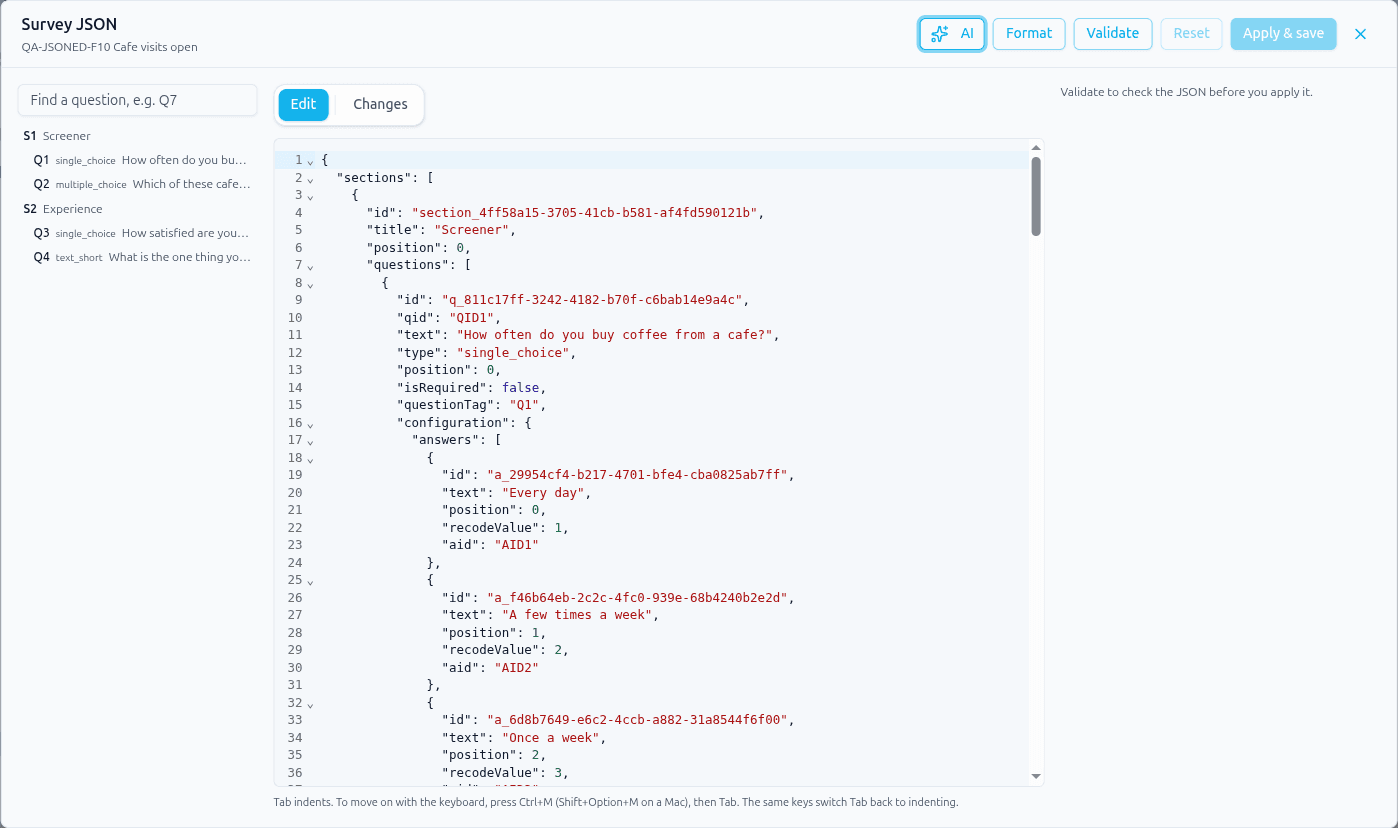
The dialog has three parts:
- Outline (left): every section (S1, S2...) and question (Q1, Q2...) with its type and text.
Click one to jump to its place in the JSON. Type in Find a question, e.g. Q7 to narrow the
list, and press Enter on an exact tag such as
Q7to jump straight to it. While the JSON has an error, the outline shows the last version that was valid, and clicking a question still finds it wherever it is now. If you deleted it, a message says it is not in the JSON any more. - JSON text (middle): the survey itself, with line numbers. Press Ctrl+F (Cmd+F on a Mac) inside the text to search it. Format lays the JSON out again with standard indentation. If a key is written twice in one place, Format leaves the text alone and tells you which key to fix. Tab indents the line. To move past the text with the keyboard, press Ctrl+M (Shift+Option+M on a Mac) and then Tab; the same keys switch Tab back to indenting. Shift+Tab always moves back.
- Problems (right): what the last Validate found.
Survey settings that belong to the survey record rather than to the draft (for example the response limit, open and close dates, password protection, CAPTCHA, IP tracking, multiple responses and anonymous responses) are left out of the JSON. Change those in the Settings tab.
Check your changes#
The text is checked as you type: if it is not valid JSON, a red line under the editor says where,
for example Line 1, column 15: Unexpected token '}', and Validate and Apply & save stay off
until you fix it. A number too large, too small or too long to store exactly is shown the same way,
with what it would be saved as: put it in quotes to keep it as text.
When the JSON is valid, click Validate. It checks the edit against the rest of the survey and lists every problem on the right, each with the question or area it is in, its line number and what to do about it. Click a problem to jump to its line, which is marked in red.
Problems name questions by the tag you see in the JSON ("questionTag": "Q2" is always Q2, even
after you delete Q1), and name what they point at by its tag and text, not by an internal id. If you
delete Q1 and Q2's display logic depends on it, the problem reads: Display logic on Q2 depends on Q1
"Do you drink coffee at breakfast?", which is no longer in this survey. Put Q1 back or remove the
rule from Q2. The same goes for a deleted answer option (answer "Yes" of Q1), section, flow step
or Global Variable.
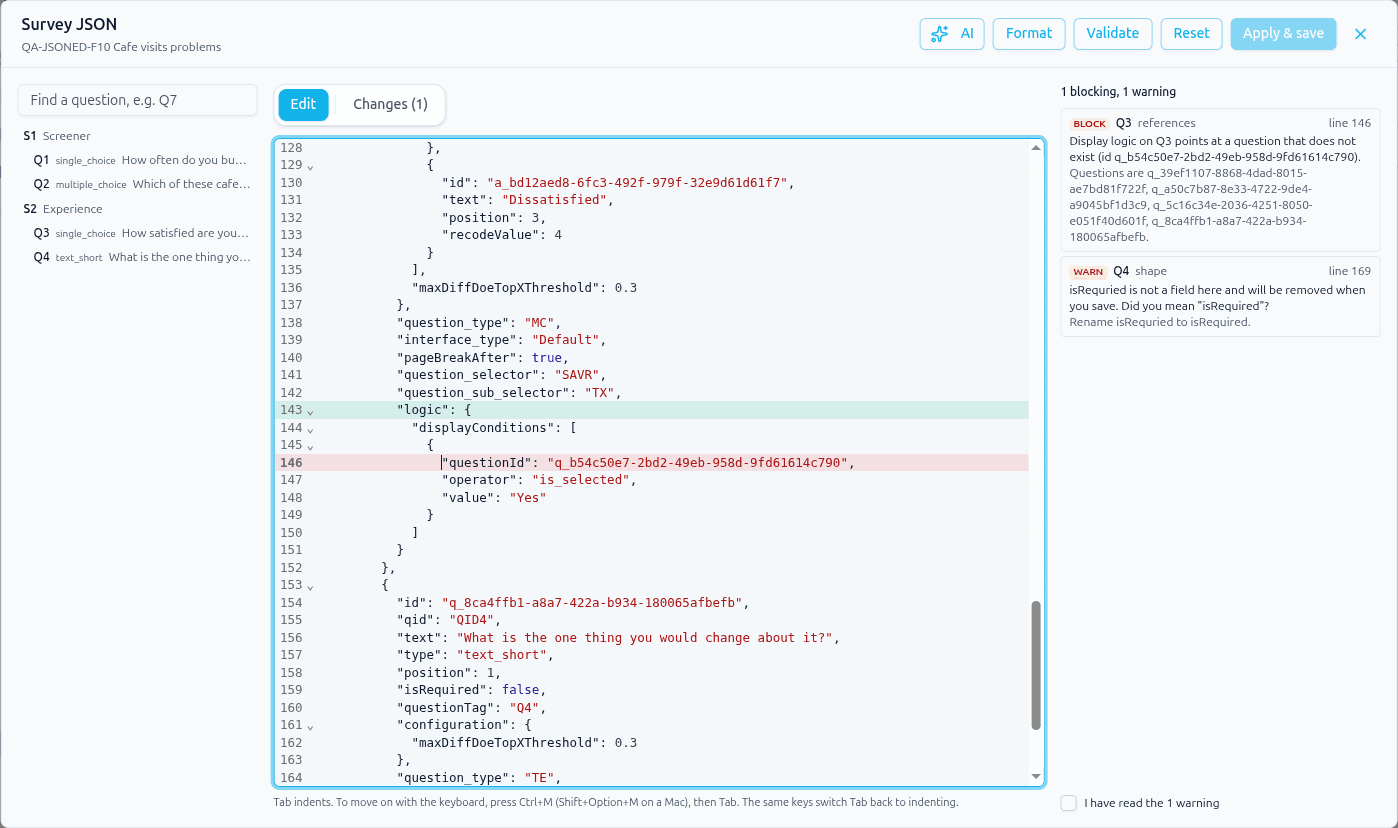
There are three kinds of problem:
-
Id changed is the loudest warning, listed first in a bold orange box with a warning sign. It means you changed the
idof a question, section, answer option, row, column, flow step or Global Variable, for example: You changed the id of Q3. Answers already collected, reports, quotas and logic are tied to this id, so changing it can disconnect them. The hint gives the old id to put back. Unless you are sure, change the id back. If you go ahead, Apply & save asks once more, naming how many ids you changed (You changed 1 id. ... Save anyway?): choose Go back to fix it, or Save anyway to save. -
Block stops Apply & save until you fix it. These are edits that would break the survey, for example:
- Logic that points at something that is not in the survey: a display, skip or termination rule that names a question, answer option or Global Variable that does not exist, a skip to a target that is not there, or a flow step or Section Loop that names a missing section, block or question.
- Two questions, sections or options with the same id.
- A question the builder would refuse to save, or JSON the builder cannot load at all.
- A change to a question's or section's scripts, unless you are Intuify staff.
-
Warn lets you apply once you tick the box under the list (I have read the 1 warning, or however many there are). Warnings include:
- A field the builder does not know, which will be removed when you save. When it looks like a typo, the problem says Did you mean the right name, for example isRequred is not a field here and will be removed when you save. Did you mean "isRequired"?, and the hint says to rename it. A misspelled question type works the same way: "single_choise" is not an allowed type for Q3. Did you mean "single_choice"? (that one is a block).
- Logic that depends on a question respondents only reach later, for example Q2's display logic on Q1 after you moved Q2 above Q1. Respondents have not answered Q1 yet when Q2 is decided, so the rule can never work. Move the question back, or base the rule on an earlier question.
- A field written twice in the same place, for example two
"text"lines in one question. Only the last one is kept, so delete the one you do not want. - Question text on a StorySync, Tap & Talk or Slide & Speak question. These take their wording from their own settings, so the text is removed when you save.
- Piped text, quotas or randomization that refer to something that has moved or gone.
- A project setting such as the response limit: the edit leaves it as it is, and the warning says to change it in the Settings tab.
- Answers already collected for something you removed or changed. On a survey with responses, it says how many, and that answers for a removed question will no longer show in analytics or exports. Keep the ids and recode values of options that already have answers, and add new options instead of renaming old ones.
A problem that was already in the survey before your edit is shown as a warning, not a block, so an old mistake never stops you from saving an unrelated change.
If you type after validating, the list dims and says The JSON changed since you validated. Validate again. Apply & save waits for a fresh Validate.
See what changed#
Open the Changes tab to see the edit as a list, one row per question, section or survey area, for example "Q1 text changed" or "Q3 isRequired changed". The tab's name shows how many rows there are. Click a row to jump to it in the JSON. In the Edit tab, a green band marks each place the edit changed.
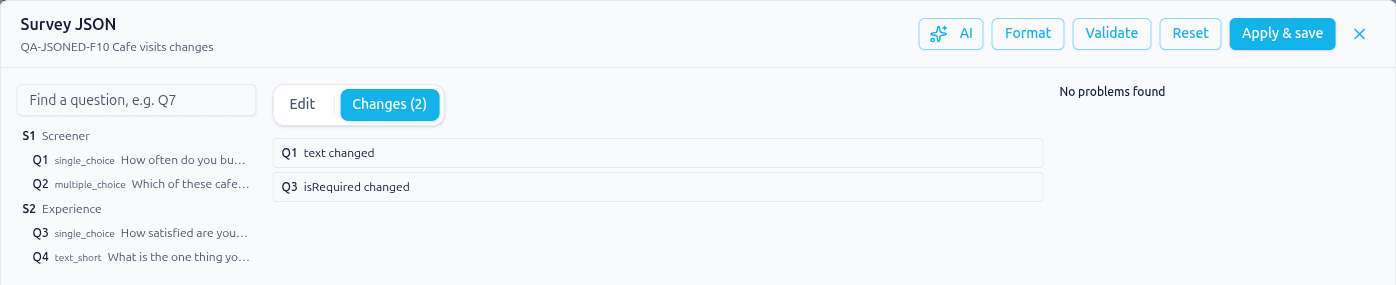
Apply & save saves exactly what the Changes tab lists, nothing more.
Apply and save#
When Validate found no blocks, you have ticked any warnings, and the Changes tab lists at least one change, Apply & save turns on. Click it and:
- The edit lands on the survey's draft and is saved straight away as a new version named JSON edit, with a description of what changed, for example "JSON edit: Q1 text changed". You see JSON edit saved and the dialog closes.
- Nothing is published. A live survey keeps showing respondents its published version until you publish again.
- Undo in the toolbar (or Ctrl+Z) takes the whole edit back in one step, like any other builder change.
- Version History keeps the JSON edit version, so you can compare it or restore an earlier one.
Reset puts the text back to how it was when you opened the editor. Close (X), Escape or a click outside the dialog closes it. With changes you have not applied, it asks first: Your JSON changes have not been applied. Close and discard them? Choose Keep editing to stay, or Discard to close without saving. Inside the text, Escape first closes a suggestion list or the search box. The editor also stays open, with your changes, if the browser window becomes narrower than the builder needs.
Ask AI to make the change#
Click AI in the dialog's header to open the AI panel. Describe the change in plain words, for
example add a "None of these" option to Q7 and make it exclusive, and click Generate.
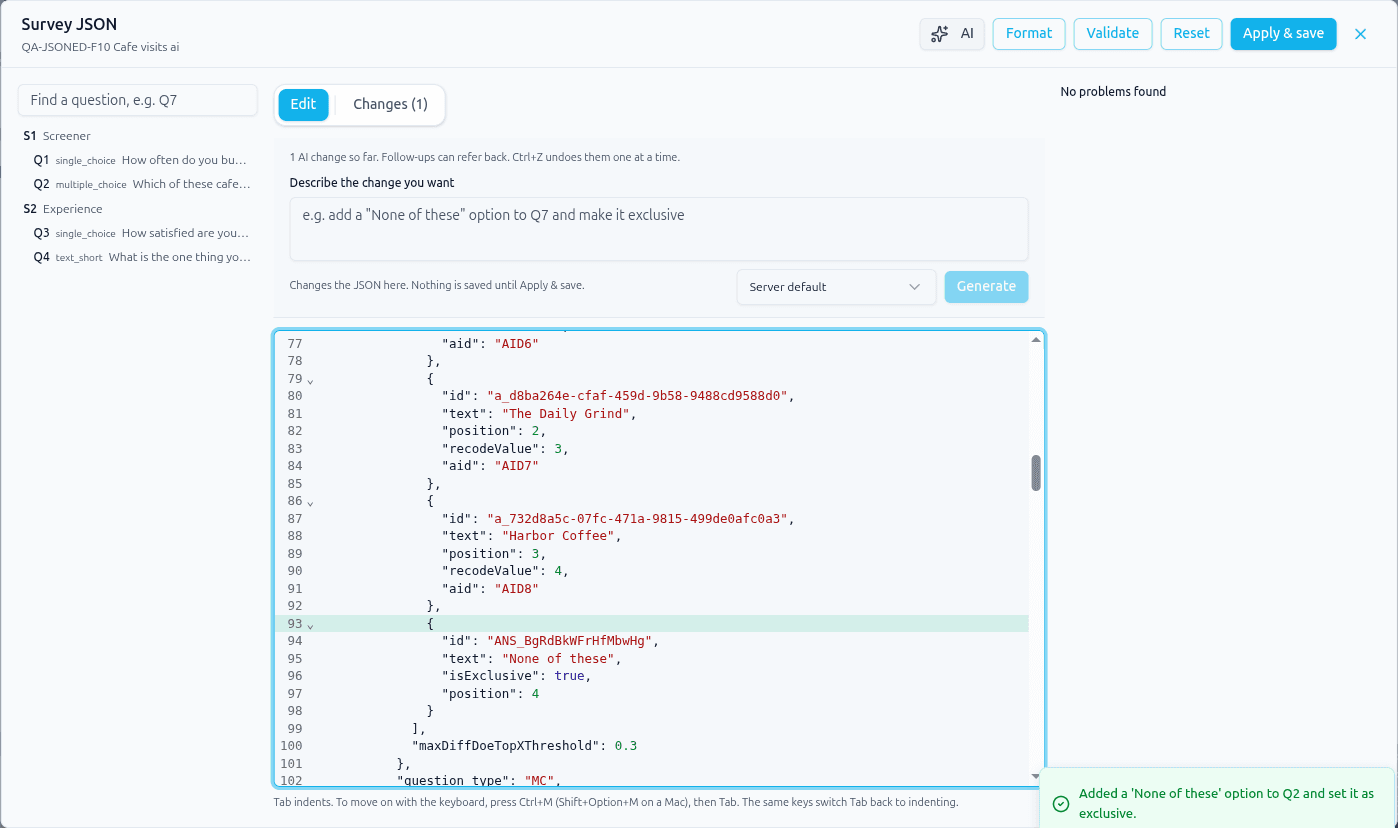
- The AI changes the JSON in the editor, then the same Validate as for a hand edit runs on it. Nothing is saved until you click Apply & save, so you can read the result, open the Changes tab, edit it further by hand, or Reset it.
- You can ask follow-ups that refer to the earlier ones ("now make it the last option"). The panel counts the AI changes so far, and Ctrl+Z in the text undoes them one at a time.
- The AI needs valid JSON to work on. If the text has an error, the panel says Fix the JSON error first.
- Asking AI also needs your account's permission to use AI features, the same one the builder's AI Edit needs.
- The list beside Generate picks the AI model. Leave it on Server default unless you have a reason to change it.
If someone else edits the survey at the same time#
If a teammate changes the survey while you have the editor open, Apply & save does not overwrite their work.
- If your changes and theirs touch different things, yours are carried onto the latest version for you, and a yellow banner asks you to check them and apply again.
- If you both changed the same thing, the banner names it, for example "Q1: text changed", and offers Keep editing (look at the JSON first) or Carry what doesn't clash (keep their version of the clashing parts and carry the rest of yours over). After an AI edit you can also choose Run the prompt again on the latest.
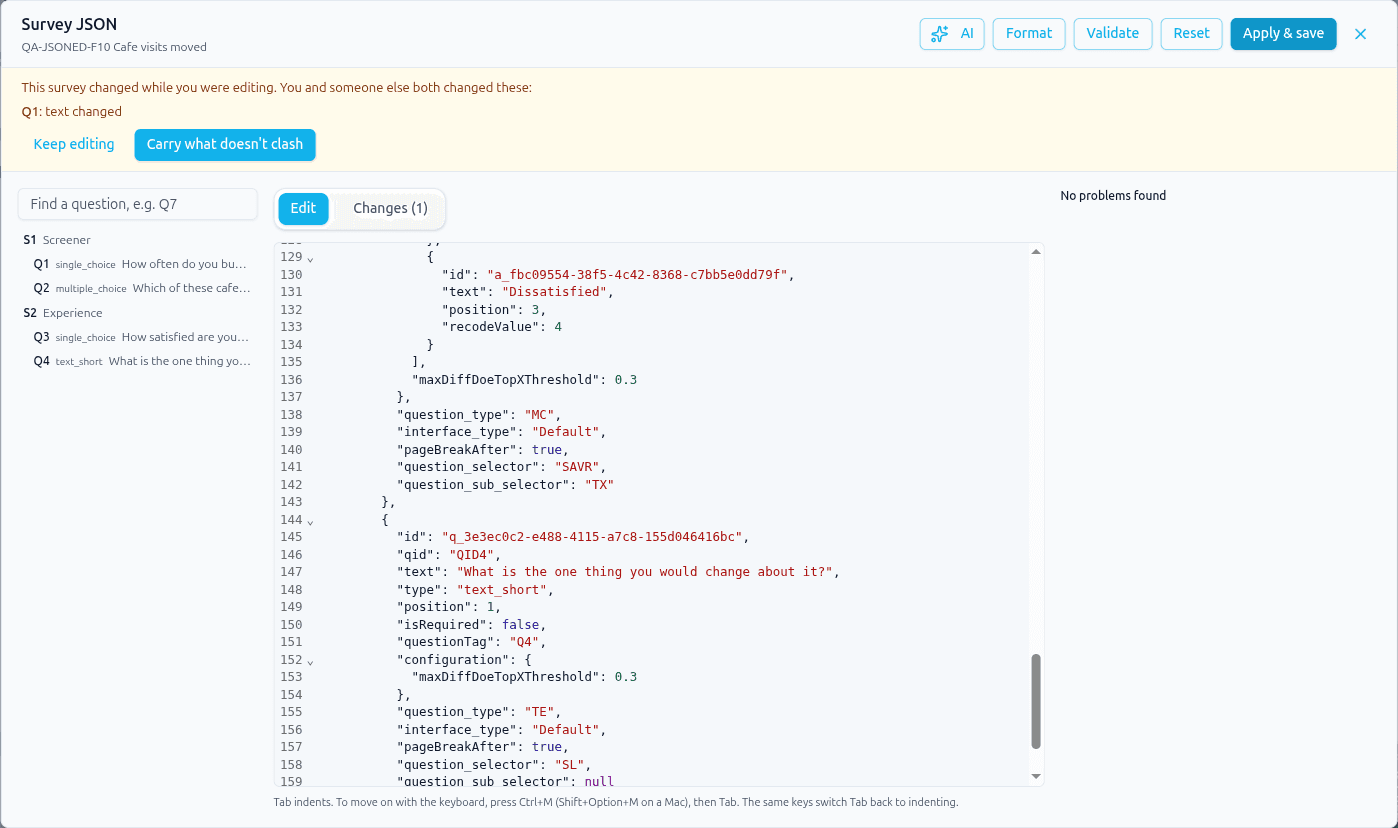
Anything carried over is validated again before you can apply it.
What you cannot change here#
- Project settings such as the response limit, dates, password protection and multiple or anonymous responses. They are not in the JSON; use the Settings tab.
- Scripts on questions and sections, unless you are Intuify staff.
- The survey's name and status. Rename the survey from the toolbar, and publish with Publish.
Related guides#
- Exporting a Survey: downloading the survey as a JSON or Word file
- Survey Builder Overview: the toolbar, Save menu and Version History
- Logic, Flow & Conditions: the rules the checks look at
Was this page helpful?