
A guide to every option on a quota and on a quota group, in plain language, so you know what you are turning on before you field the survey.
What a quota is#
A quota is a cap on how many people matching a condition may complete your survey. For example: "stop after 200 women aged 25-34."
Every quota has three parts:
- A quota type, whether it counts everyone, or only a segment (see below).
- A response limit, how many completes to allow.
- A "when full" action, what happens to the next matching person once the limit is reached.
A segment quota adds a fourth part: a condition, saying who the quota is about. It uses the same builder you use for display and skip logic.
Three things worth knowing up front:
- A quota always counts, whatever its action. A quota set to Nothing (tracking only) still keeps a running total. It just never turns anyone away. That is how you build a counter that other quotas can share.
- Only completed responses count. Partials, screen-outs, quality-control failures and abandoned sessions never increment a quota on their own. Previewing your survey doesn't affect live counts either.
- Except when you promote one by hand. Marking a partial or a terminated response complete on the Analytics page counts it toward your quotas from that moment, exactly as if the respondent had finished. That includes screen-outs, quality-control removals and quota returns that turned someone away part-way through. None of those was ever counted, so promoting one adds to the counter. The only response that doesn't move a counter is one that had already answered its way to the end before a full quota handed it back: that quota counted it at the time, so promoting it can't count it twice. Because a promotion is a deliberate override, it can take a quota past its own limit. A quota capped at 50 can read 51/50 after one. If you would rather it didn't, tick Keep quotas within their limits in the confirmation and Intuify refuses any promotion that would go over instead. See Marking a response complete.
Where quotas live#
Quotas are built on the survey builder's Panels & Quotas tab. The tab is split down the middle: Panel Providers on the left, Response Quotas on the right, with the subtitle "Limit responses based on specific criteria".
Two buttons sit above the quota list:
| Button | What it opens |
|---|---|
| Add Quota | The quota dialog, on its Quota configuration step. Every setting below is here. |
| Add Group | A short dialog asking only for a Group name. See Quota Groups. |
Under the buttons is a collapsed How quotas work summary. Open it for a two-paragraph recap of when counts increment and what Decrement on delete does. Everything in it is covered in more detail on this page.
Before you have any quotas the right half shows No quotas configured with its own Add Quota button, so you can start from there instead of the header.
Once you have both quotas and groups, grouped quotas render inside their group card and everything else is collected below an Ungrouped quotas heading. Drag a quota from one to the other to move it; the heading only appears once at least one group exists, so a survey with no groups looks exactly as it always did. If a group holds nothing, its card says so and invites you to drag one in.
Quota settings#
The help icons in the dialog#
Most fields in the quota dialog carry a small circled question mark after their label. Hover it, or tab to it, and a tooltip explains what the setting does. Each icon is named for its field, so the one beside Quota Type announces itself as About Quota Type, and the one beside Decrement on delete as About Decrement on delete. Nothing is hidden behind them that isn't on this page, so treat them as a reminder while you are in the dialog rather than a second source.
A few fields have no icon: Redirect Destination, the Redirect URL still set box that appears when a saved URL is no longer being used by the action, and Conditions on the second step, which carries its own note instead.
Six are always there: About Quota Type, About Quota Name, About Response Limit, About When Full, About Over-quota and About Decrement on delete. About When Full is the odd one out: instead of a sentence it shows a bulleted list, one line per option, saying what each does to the respondent.
Six more appear only when their field does, which is the part worth knowing because a missing icon usually means a missing setting:
| Help icon | Its field | Only there when |
|---|---|---|
| About Group | Group | You have created at least one quota group. With no groups the field is not rendered at all. |
| About Evaluate at section completion | Evaluate at section completion | When Full is Terminate respondent, Redirect respondent or Close survey, and the quota is not Total completes. |
| About Use other quota as cap | Use other quota as cap | The same two conditions as the row above. |
| About Message | Message | When Full is Terminate respondent, Redirect respondent or Close survey, which is what makes the Message & redirect card appear. |
| About Fixed link URL | Fixed link URL | When Full is Redirect respondent and Redirect Destination is set to Redirect to fixed link. |
| About Group name | Group name | You are in the Add Group dialog, not the quota dialog. |
Quota Type#
The first choice on a new quota, because it decides whether there is a conditions step at all.
| Option | What it counts |
|---|---|
| Total completes | Every completed response. No condition, nothing to configure beyond the limit and the action. |
| Segment | Only the respondents matching the conditions you write on the next step. This is what every older quota is. |
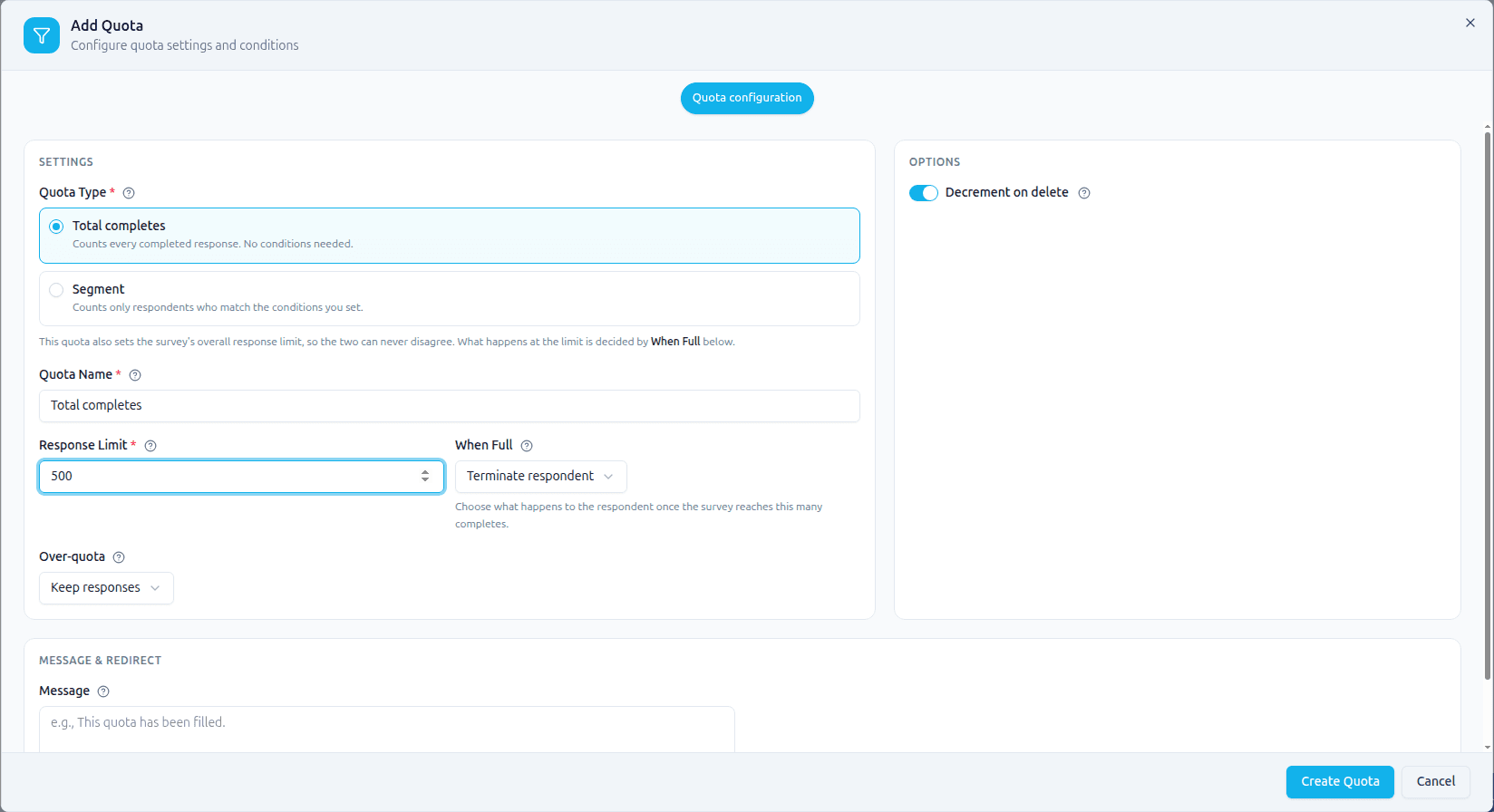
Total completes is how you cap a study overall, as in "stop this survey at 500 completes", so that fielding closes on its own instead of relying on someone watching the counter. Everything else about it is an ordinary quota: it has a live count, a when-full action, group assignment, the active toggle, and it shows up wherever other quotas do.
Choosing Total completes removes the Conditions step from the dialog, because there is nothing to write, so the quota is finished on the first step and the button reads Create Quota instead of Next. Two options also disappear, because they have nothing to act on: Evaluate at section completion (a total quota is matched at the first check whatever it says) and Use other quota as cap (there is no borrowed cap). Over-quota handling and Decrement on delete still apply and stay.
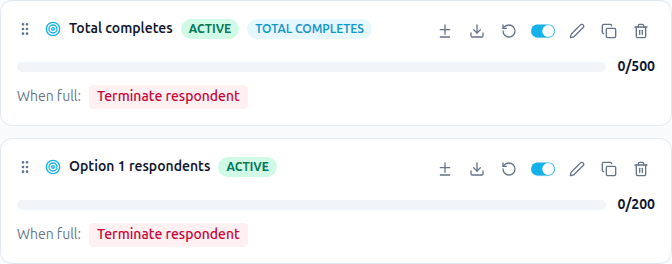
In the quota list a total quota is badged TOTAL COMPLETES, so you can tell at a glance which rule caps the whole study and which caps a segment. Everything else on the card, meaning the counter, the progress bar, the when-full badge and the counter tools, works exactly as it does for any other quota.
There is no need to fake a total quota with an always-true condition. If you have an older quota built that way, edit it and switch it to Total completes. The meaningless condition is removed when you save.
Total completes and the survey's overall response limit#
A survey also carries an overall response limit, which the public API can set (and a survey imported from Qualtrics before that import was retired may carry). A total-completes quota owns that number. Saving one writes the survey's limit to match, and deleting or deactivating it clears the limit again, so the two can never disagree.
Enforcement is the quota's, not the setting's. The bare setting can only refuse to start a new session; a quota can terminate, redirect, close the survey, block new sessions, or just track. So while a total quota is active, what happens at the cap is whatever its When Full says.
Quotas on Guided Story + Segmentation choices#
A Segment quota can count a choice the AI assigns on a Guided Story + Segmentation question, such as "stop after 50 respondents assigned Katniss". Build it on Segmentation choices from <tag> (Guided Story), the hidden choice question that holds the AI's pick. It works like any choice question, in Survey Builder and in HM Admin. A quota condition on the Guided Story question itself can only ask whether it was answered or displayed. A Guided Story + Segmentation question made before this update has no such question until you open its setup window and press Save once.
Quotas using Is Not Selected (Any)#
A quota condition can use Is Not Selected (Any), for example "count respondents who did not pick both Alpha and Beta". Survey Builder counts and enforces it. HM Admin has no matching condition when two or more options are picked, so that quota is not copied to HM Admin, and its segment there stays empty. With a single option picked it is the same rule as Is Not Selected (All) and is copied as usual.
Quotas pinned to a loop item#
A quota condition inside a Section Loop can read one loop item's answer, for example "Q2 (loop item: Brand B) Is Selected 1". Survey Builder counts and enforces it. HM Admin cannot pin a condition to a loop item, so that quota is not copied to HM Admin, and its segment there stays empty.
Quota Name#
Your own label for the quota. It appears on the quota card, in the public dashboard, and in reports. Respondents never see it, so name it for yourself. "Female 25-34 metro" is more useful than "Quota 3".
Response Limit#
How many completes to allow: matching completes for a segment quota, all of them for a total quota. Minimum 1.
Response Limit lives on the Quota configuration step of the quota dialog. When you are editing an existing quota, Update Quota is on that step too, so changing only the limit takes one click and you never have to walk through Conditions to commit it. (Next is still there if you do want to review the conditions; it is the quieter of the two buttons because Update is the one that saves.) A brand new segment quota still has to pass through Conditions before it can be created, because it has nothing to match on until you write them.
When Full#
What happens to the next matching respondent once the limit is reached. The help icon next to When Full in the quota dialog, About When Full, lists the same five options.
| Option | What it does |
|---|---|
| Terminate respondent | The respondent is ended and marked as a quota-full termination. A respondent who came from a panel is sent to that panel's Quota Full link; anyone else sees the quota message. |
| Redirect respondent | Same as terminate, but they're sent to a URL you choose. |
| Close survey | Ends this respondent and closes the whole survey to everybody. Use with care, because this is not limited to people matching the quota. It counts as a close everywhere a manual close does: HM Admin shows the survey as closed, and the survey's Survey closed API events send. |
| Block new sessions | Stops new people from starting. Anyone already partway through is allowed to finish and submit. Useful when you don't want to discard work in progress. |
| Nothing (tracking only) | Counts, but never turns anyone away. Use this for a pure counter, or to watch a segment fill before you decide to cap it. |
Over-quota#
What to do with a response that arrives when the quota is already full.
| Option | What it does |
|---|---|
| Keep responses (default) | The response is kept. |
| Delete responses | The response is removed from your results. |
Two things to understand about Delete responses:
- It's recoverable. Deleted responses are hidden and excluded from results and exports, not destroyed. This is deliberate, because the deletion happens automatically, with nobody reviewing each one, so a mistyped limit or a wrong condition must be undoable.
- It does not change the quota count. A response that arrived over the limit was never counted toward the quota in the first place, so removing it doesn't free up a slot. If it did, the quota would reopen, let another person in, go over again, and drift further off target with each cycle.
If your survey is fed by a panel, note that a completion already reported back to the panel still stands. Your counts and the panel's can legitimately differ on a survey that deletes over-quota responses.
Group#
Which quota group this quota belongs to. See Quota Groups below. Leave it unset if the quota stands alone.
Decrement on delete#
On by default. When you delete a response that this quota counted, the count goes down by one, so the quota can accept a new complete in its place. Turn it off if you want the quota to stay closed once it has been filled, regardless of later clean-up.
This applies to responses you delete. It does not apply to responses removed automatically for arriving over the limit. Those were never counted, as explained above.
Evaluate at section completion#
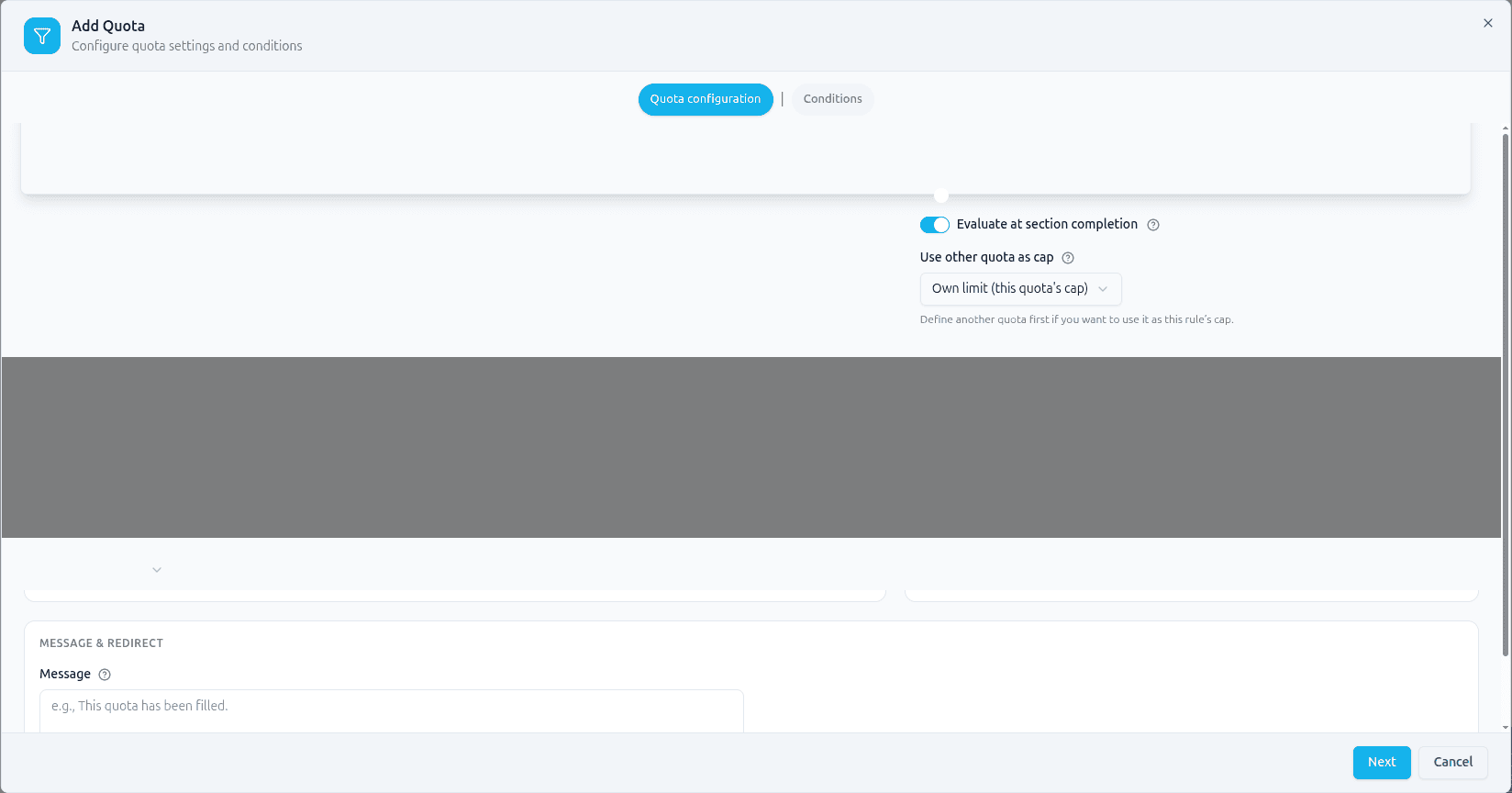
On by default, and only relevant for quotas that turn respondents away, so the switch is only in the dialog when When Full is Terminate respondent, Redirect respondent or Close survey and the quota is not a Total completes one. Set When Full to Block new sessions or Nothing (tracking only) and the switch disappears, because neither of those actions ever turns a respondent away, so there is nothing left for the timing to change. On a Total completes quota the setting is dropped when you save.
When on, the quota is checked when a respondent finishes a section, rather than after every single page. This stops someone being cut off halfway through a section. Turn it off if you need the quota enforced at the earliest possible moment.
Use other quota as cap#
Lets this quota use another quota's count and limit as its cap, instead of its own Response Limit. It appears under the same two conditions as the switch above: an action that turns the respondent away, on a quota that is not Total completes. Left alone it reads Own limit (this quota's cap), and until you have a second quota to point at, the line under it tells you to define one first.
The usual pattern: create one Nothing (tracking only) quota that counts a segment, then point several terminate quotas at it. They all share one cap, and you change that cap in one place.
If the quota it points at is ever removed, this quota falls back to its own Response Limit rather than becoming uncapped.
Message#
What a respondent sees when they're turned away because this quota is full. Supports your survey's translations, which you write on the Translations tab after the quota is saved.
It sits in a Message & redirect card below Settings, and that card only appears when When Full is Terminate respondent, Redirect respondent or Close survey. A tracking-only quota or one that only blocks new sessions has no message field, because it never turns anyone away.
Redirect destination#
Only shown when When Full is set to Redirect respondent.
| Option | What it does |
|---|---|
| Redirect to panel link | Sends the respondent back to the panel they came from, using the panel's own quota-full URL. |
| Redirect to fixed link | Sends them to a URL you type in. |
For panel traffic, the panel's own return URL always wins, even if you've set a fixed link. The fixed link applies to respondents who did not arrive from a panel.
A redirect URL you've entered stays saved and stays in effect if you later switch When Full to Terminate or Close survey. When that happens the URL is shown separately so you can see it and clear it, because otherwise it would keep redirecting people invisibly.
Conditions#
Who this quota counts. Built with the same condition builder as display and skip logic, so it supports nested groups and any/all logic, including logic sets joined by AND IF or OR IF. For example, (Q1 Yes and Q2 Dog) OR IF (Q5 Weekly or Q5 Daily) counts a respondent who matches either set. See Logic sets: AND IF and OR IF.
A quota with no conditions counts nobody. The conditions are what identify the segment.
The quota card shows its conditions in one line under the name (for example Q2 is "Under 18"), so you can check who a quota counts without opening it. A long question title or answer is shortened with "…" and extra conditions show as "+N more"; hold the pointer over the line, or tab to it, to read the whole rule. The same works on the summary at the top of the Conditions step. If an answer option or a question a condition names is deleted, the card and the condition builder read Missing option or Missing question in its place, never a healthy-looking empty choice. Pick the option again or remove that condition. With live editing, whoever deletes something a quota still uses is told so at once.
Don't add a condition for whether someone completed. Only completed responses count toward a quota. Partials, screen-outs, quality-control failures and abandoned sessions never add to it, so a condition that checks whether someone finished is neither needed nor useful here. Adding one delays the quota until the last page, which terminates respondents at the very end of the survey instead of stopping them early. The quota dialog says the same thing above the condition builder.
Watching and correcting the count#
Each quota card shows a live count and a progress bar, refreshed about every ten seconds while you have the Quotas tab open. Next to it sit three counter tools. They act on real respondent data, so they are hidden while you are editing a template.
| Tool | What it does |
|---|---|
| Adjust current count | Set the count to a number you type. Opens the Edit Count dialog. |
| Export respondent IDs | Downloads a CSV of the respondents this quota has counted. |
| Reset count to 0 | Starts the quota over from now. |
Adjusting the count#
Use this when the number the system worked out is not the number you want to field against: responses collected before the quota existed, a partner supplying completes outside this survey, or a segment you have already filled elsewhere.
Your number sticks. It is stored permanently, so it survives a publish, a server restart, and any amount of time passing. It is also the starting point, not a ceiling: completes that arrive afterwards are added on top of it. Set a quota to 120 and the next matching complete puts it at 121.
That "added on top" is deliberate, and it is the part worth understanding before you use the tool on a live study:
- It means an adjustment can never hide over-collection. If the survey really is collecting matching completes, the number keeps climbing and you will see it.
- It also means adjusting the count is not a way to raise a cap. If you need more completes, raise the Response Limit. Typing a lower count buys you room only until the difference fills back in.
Adjust and Reset both take effect from the moment you use them, and the more recent one wins. Reset after an adjustment throws the adjustment away and starts from zero. Adjust after a reset replaces the reset with your number. Neither is affected by publishing.
If the count cannot be saved, you get an error telling you why and the dialog stays open with your number in it. A success message now means the count really was stored.
Two side effects worth knowing, because setting a count also moves the quota's starting line to that moment. Both apply to a reset in exactly the same way:
- Export respondent IDs lists only the respondents counted since the adjustment, so the file will have fewer rows than the number on the card. The difference is the number you typed, which stands in for the history before it.
- Decrement on delete only applies to responses completed since the adjustment. Deleting an older response does not lower the count, because your number already accounts for it.
Resetting the count#
Reset sets the quota to zero and, from that moment on, counts only responses completed after the reset. It does not delete or alter any response, and it does not change what the quota matches. Use it when you are restarting fielding on a segment and want the earlier completes left out of the cap.
Like an adjustment, a reset is stored permanently and survives publishing. And because the later of the two always wins, resetting clears a number you set earlier with Adjust current count. The quota starts again from zero, not from your number. That is intended: the reset already leaves out the history your number stood for, so keeping it would count that history twice. If you want the quota to start from a particular figure, use Adjust current count on its own. There is no need to reset first.
Quota Groups#
A group answers one question: when someone matches several of your quotas at once, which one should they count toward?
It's also the unit you share publicly: a group has one dashboard showing all the quotas inside it.
Creating and managing a group#
Add Group asks for one thing, the Group name, then Create. The name is required and has to be different from your other groups; the dialog tells you if it is blank or already taken. A group starts empty, with Place in all matching as its rule and its public dashboard off.
Everything else happens on the group's card:
| On the card | What it does |
|---|---|
| The arrow before the name | Collapses the group to its header, hiding its quotas, and expands it again. See below. |
| The name | Click it and type to rename in place. A blank or duplicate name is rejected and the old name comes back. |
| The count beside it | How many quotas the group holds. |
| The rule dropdown | The assignment rule below. Each option carries a one-line description in the list. |
| Public | The toggle that publishes the group's dashboard. |
| Copy dashboard URL | Copies the dashboard link. It only appears once Public is on. |
| Duplicate group and its quotas | Copies the group and every quota in it, placed directly below the original. |
| Delete group | Removes the group after a confirmation. |
To put an existing quota in a group, drag its card onto the group, or use the + Add quota to this group dropdown at the bottom of the group card, which lists whatever is still ungrouped. When nothing is left it says so instead.
Collapsing a group folds its card down to the header: the name, the quota count, the rule, Public and the group's buttons stay, and the quotas inside it are hidden. Click the arrow again to expand it. Collapsing only changes what you see: it does not change the group, its quotas or how they count, and it is not saved with the survey, so teammates editing at the same time keep their own view. Every group starts expanded when you open the quotas screen. You can still drag a quota onto a collapsed group: drop it on the group's header and it joins that group, at the end of its list. Ungrouped quotas are never collapsed and stay where they are.
Duplicating a group starts its copies at zero, exactly like duplicating a single quota: the copies count only what arrives after you made them.
Deleting a group does not delete its quotas. They are kept and moved to Ungrouped quotas. What is lost is the group itself and its assignment rule, so quotas that were sharing a respondent between them start counting independently again. The confirmation says how many quotas will be moved.
Group name#
Identifies the group in the builder and on its public dashboard. You can rename a group at any time by clicking its name.
The Add Group dialog says the same thing in place: its one field carries a
help icon, About Group name, whose tooltip covers both what the name is for
and that you can rename a group inline from its header. The field itself starts
empty, showing e.g. Demographics as a prompt.
Public dashboard#
Publishes a live, read-only page showing the fill status of every quota in the group. Useful for sharing progress with a client without giving them builder access.
The whole group is shared, including every quota inside it. There is no per-quota privacy setting.
Assignment rule (multiple match)#
What happens when a respondent qualifies for more than one quota in this group.
| Option | What it does |
|---|---|
| Place in all matching | Count them toward every quota they match. |
| Defined order (first) | Count them toward the first matching quota, using the order the quotas appear in the group. Drag to reorder. |
| Reverse order (last) | Count them toward the last matching quota. |
| Least filled | Count them toward whichever matching quota has the lowest count. |
| Least filled % | Count them toward whichever matching quota is the least full relative to its own limit. |
| Most filled | Count them toward whichever matching quota has the highest count. |
| Most filled % | Count them toward whichever matching quota is the fullest relative to its own limit. |
A worked example#
Say a Regions group holds two quotas:
- North, limit 100, currently at 80
- Urban, limit 50, currently at 20
Someone who is both North and Urban matches both quotas. Here's where each setting sends them:
| Setting | Who gets the respondent | Why |
|---|---|---|
| Place in all matching | Both: North goes to 81, Urban to 21 | They count more than once, so your quota totals can add up to more than the number of people who took the survey |
| Defined order (first) | North | It's first in the group's list |
| Reverse order (last) | Urban | It's last in the list |
| Least filled | Urban | Fewest responses so far: 20 against North's 80 |
| Least filled % | Urban | Furthest from its own target: 40% full against North's 80% |
| Most filled | North | Most responses: 80 |
| Most filled % | North | Closest to its target: 80% full |
The plain and percentage versions only disagree when your quotas have different limits. Give both a limit of 100 and Least filled and Least filled % always pick the same quota.
Which one to choose#
- Place in all matching: you're tracking overlapping segments and want each counted honestly in its own right.
- Defined order / Reverse order: you want a priority you control, one that doesn't shift as counts move.
- Least filled / Least filled %: you want quotas to fill evenly and finish around the same time. Use the % version when limits differ.
- Most filled / Most filled %: you'd rather close nearly-complete quotas first than spread effort across all of them.
Panel providers on the same tab#
The left half of Panels & Quotas is where you register the panel providers your respondents arrive from, which is what several quota options point at: Terminate respondent and Redirect to panel link both send a panel respondent back through that panel's own return URL.
Add Panel opens Add Panel Provider, which asks for:
| Field | What it is |
|---|---|
| Panel Name | Your label for the provider, for example Lucid. It names the panel everywhere else in the builder. |
| URL Parameter | The query parameter on the entry link that identifies a respondent from this panel, for example pid or transaction_id. |
Both are required, and the URL parameter has to be unique across your panels; saving tells you which panel already uses it.
Below them, under Redirect URLs, are the four places a respondent can be
sent back to: Success (Complete), Screenout / Termination, Quota
Return and Quality Control. Each is optional, and each must start with
http:// or https:// if you fill it in. Quota Return is the one quotas
use when they turn someone away. What gets appended to these URLs is covered in
Variables & Panel Redirects.
Add Panel saves the panel. Editing an existing one changes the dialog title to Edit Panel and the button to Save Changes.
Each saved panel shows as a card with its URL parameter underneath and the four redirect URLs in a grid, any you left empty reading Not set, so you can see at a glance whether a provider is fully wired. Editing and deleting are the two buttons on the card; deleting asks you to confirm and cannot be undone.
Saving your first panel also adds the panel variables to the Flow. You do not have to create anything to capture which provider a respondent came from; see the built-in variables.
Things that catch people out#
Duplicating a quota starts it at zero. A copy counts only responses that arrive after you made it, not the original's history. That's almost always what you want. But if you were expecting the copy to show the same number as the original, this is why it doesn't.
Deactivating a quota freezes its count. Switching a quota off stops it counting from that moment. Switching it back on resumes counting; it does not retroactively pick up what happened while it was off.
"Close survey" closes everything. It's easy to read it as "close this quota". It ends the survey for all respondents, not just those matching the quota. It also fires the survey's Survey closed API events, exactly as closing the survey by hand does. A quota can also have its own Quota reached event, which sends when the quota hits its limit whatever its When Full action is.
A tracking-only quota still counts. If a number is climbing and you can't see why anyone is being turned away, that's the expected behaviour of Nothing (tracking only).
Respondents being terminated on the very last page usually means a completion condition. If a quota is turning people away at the end of the survey rather than early, check its conditions for anything that only becomes true once someone finishes, typically a global variable set on the last page. A quota cannot match anyone until all of its conditions are true, so a completion check holds the whole quota back to the final page. You don't need one: quotas already count only completed responses. Remove it and the quota goes back to stopping people as soon as they match. A second thing to check is Evaluate at section completion, which is on by default and only tests the quota at the end of each section.
Changing a quota's conditions changes what it counts. Because counts are worked out from your actual responses, editing a live quota's conditions can move its number up or down at the next publish. Check the count after editing a quota on a survey that's already collecting.
Publishing recalculates counts, but it does not undo an adjustment or a reset. Every publish rebuilds each quota's count from your responses, which is how the count picks up things a running total cannot see. A count you set by hand, and the moment you set it, are kept through that rebuild: the survey recounts from your number, forward. The same is true of a reset. If a number you typed used to come back changed after publishing, that was a bug and it is fixed.
A quota's count is not part of the survey you save. It belongs to the responses, not to the design. Adjusting or resetting a count is not an edit, so it does not mark the survey unsaved, does not need publishing, and is not captured in Version History.
Related guides#
- Logic, Flow & Conditions for building the conditions a quota matches on.
- Fielding & Respondent Experience for what a terminated respondent sees.
- Analytics & Responses for where quota counts and terminations show up in your data.
- Variables & Panel Redirects for what a panel's redirect URLs carry back to the provider.
Was this page helpful?