
The Flow tab gives you a visual map of your entire survey path. Each section, branch, randomizer, loop, and end point appears as an element you can arrange and connect.
Use it together with question-level display logic and skip logic. The hub Logic, Flow & Conditions lists every logic feature and a suggested learning path.
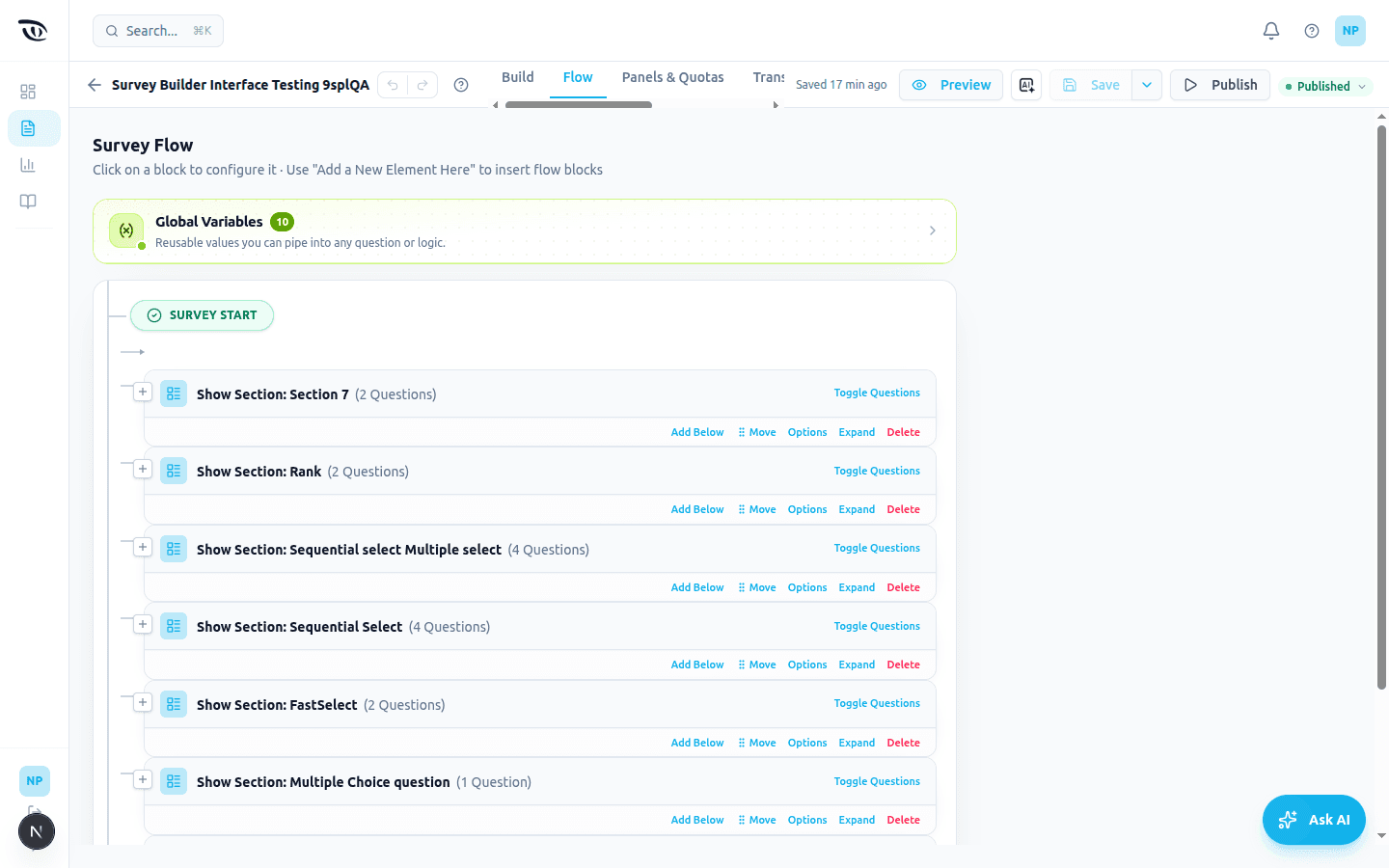
The Flow tab#
The Flow tab gives you a visual map of your entire survey path. Each section, branch, randomizer, loop, and end point appears as an element you can arrange and connect.
Use the Flow tab to:
- See the overall order of sections and logic elements.
- Confirm where respondents enter or skip particular paths.
- Add branch elements that route respondents based on conditions. A branch runs only when the respondent reaches it in the flow: an End of Survey or Set Variables inside a branch waits until everything placed above the branch is finished, even if its condition is already true earlier. Once reached, the condition is checked as it stands, whether or not the variables it reads have been set. When a branch's condition is not met, its sections are skipped and the respondent carries on with whatever comes next at the same level, so an End of Survey placed right after the branch ends the survey there. An End of Survey, Set Variables or Set Language placed inside a branch, below a section of that branch, waits until that section is answered. The branch card shows its condition in one line, with long titles and answers shortened; hold the pointer over it to read the whole rule.
- A branch with no condition lets nobody in. Everything inside it is hidden from every respondent, from the first screen on. Its card turns red and reads No condition: nobody enters this branch, with two buttons: Convert to Group, which keeps the contents and shows them to everyone, and Keep hidden on purpose, if you really want the contents hidden. You can't publish or preview until you add a condition or choose one of the two: Publish and Preview both stop with the same message and a Go to survey flow button. A survey where every section sits inside such a branch can't be published at all. To group elements so everyone sees them, use a Group, not a Branch.
- Add randomizer elements to shuffle or subset sections (randomizers can mix sections and other flow blocks as children).
- Add end-of-survey elements to control what happens when the survey finishes (completion message, redirect, etc.). An end-of-survey element takes effect only when the respondent reaches its place in the flow. If you give it a condition, the condition is checked at that point, so a screen-out placed after Section 2 that looks at a Section 1 answer still shows the respondent all of Section 2 first.
- Set or update global variables at specific points in the flow.
- Add Web Service blocks to call an external API mid-flow — push answers out or pull data back into variables. See Web service block.
- Add a Calculation block to compute a number from answers and variables (see Calculations below).
- Switch the respondent's display language mid-survey with a Set Language block (see Set language below).
Each section in the tree can show its questions (Toggle Questions on the section, or Show all questions above the tree for every section at once). Showing questions only changes your view, so it works even while a teammate is editing the flow.
A question whose choices, items, rows or columns have their own display logic shows a small blue filter badge with a number on its row: the number is how many options have logic. Under the question, a line sums it up, for example Choice logic · 11 of 13 choices are shown only for matching answers at QID22 RetailAssets (on a ranking-style question it says Item logic, on a matrix Row and column logic). When some rules need attention, the line goes on with an amber label, for example · 2 need attention; click it to open Review showing only those options. Click the badge or Review all to open that question's window on Review, where you can read every option's rule, its status and its warnings, and switch to Edit to change them. It is the same window as on the Build tab, and it shows one question at a time. While a teammate is editing the question, the window opens view-only: you can read every rule, but changing them waits until they finish.
In dark mode, question and choice text imported from Qualtrics or Word that was saved as black or near-black is shown in the normal light text colour on the Flow tab and the Build canvas, so it stays readable. Only the display changes: the saved text, the preview and what respondents see keep the original colour. See Display logic on choices, items, rows and columns.
For a respondent's-eye view of the same logic, use Preview — it runs through all the flow rules just as a real respondent would experience them.
Add Below#
Each card in the flow tree carries a small row of actions. A section card has Add Below, Move, Options, and Expand / Collapse along its bottom edge. A Branch, Randomizer, or Group card has Add Below, Move, Duplicate, Expand / Collapse, and Delete. A Set Global Variables or Set Language card has Add Below, Move, Duplicate, Configure, and Delete.
Add Below opens an element picker at the insert point directly below the card you pressed it on, rather than at the end of the flow. Pressing Add Below again on the same card closes the picker.
At the top level of the flow, that is the same picker the Add a New Element Here link opens. The link appears when you hover over the connector between two cards, and the picker asks What do you want to add?, offering Branch, Randomizer, Set Global Variables, Set Language, End of Survey, Web Service, and Group, with Cancel to close it.
Two things worth knowing:
- On a container element (Branch, Randomizer, or Group), Add Below adds the new element after the container, as its next sibling in the flow, not as a child inside it. To put an element inside a container, use the Add a New Element Here link that sits inside the container's own body.
- On a card that is already nested inside a Branch, Randomizer, or Group, Add Below opens that container's own picker instead, headed Select an element to add:. It lists the sections that are not already inside the container alongside the same seven block types, and the new element lands inside the container, immediately after the card you pressed it on.
Not every block has it. End of Survey, Web Service, and Section Loop (Legacy) cards have no Add Below, so add elements around them from the nearest Add a New Element Here insert point. Web Service and Section Loop (Legacy) offer Move, Duplicate, Configure, and Delete. End of Survey offers Move, Duplicate, Customize, and Delete, in its header row rather than along the bottom edge.
Tip: Section-level display logic is configured on flow blocks as well as in section settings. See Display logic — sections.
For randomizers and loops on the flow map, see Randomization & section loops.
Global variables#
Global variables are named values you can create and use throughout your survey. They're helpful for building more advanced flows.
How to use them#
- Go to the builder's settings and open the Global Variables panel.
- Create a variable (for example,
CustomerSegment). - Use it in conditions, piping, or quota rules anywhere in the survey.
Example uses:
- Branch the survey based on a running total of "yes" answers.
- Skip a screening section if a variable indicates the respondent is already qualified.
Deleting a variable#
Open the variable's ⋯ menu and choose Remove, or open the variable and choose Remove variable. A variable nothing uses is removed straight away. If the survey still uses it, you are asked first: Delete score? lists every place that would refer to a variable that no longer exists, such as "Q6's variable assignments" (an assignment that sets it), "Q5's question text" (piped ${gv://Field/score} text, in any piped field), a display or skip condition that tests it, or the flow element "Fetch score" (a Web Service that writes it). Choose Cancel to keep it, or Delete to remove it anyway. A variable whose name only starts the same way (score2) is not counted as a use. Built-in variables cannot be removed.
Variable assignments#
All global variables store text values. When you attach an assignment to a question or flow block, choose how the value is applied:
| Operation | What it does | Example |
|---|---|---|
| Set | Replace the variable with the given value | Set Region to ${q://Q1/SelectedValue} |
| Increment | Add to the current value when both sides are numeric text | Increment YesCount by 1 when the answer is "Yes" |
| Decrement | Subtract when both sides are numeric text | Decrement Remaining by ${q://Q5/SelectedValue} |
| Formula | Compute and store a result as text | Set from piped tokens via the formula field; math functions are listed in Create Global Variable |
Increment, decrement, and formula assignments are skipped when values cannot be read as numbers. The builder validates formula syntax as you type.
Calculations#
A Calculation works out a number from answers and global variables and stores it in a result variable. Add one from the Flow tab (the Calculation block) or as a Calculated Variables question from the question palette. Pick the result variable, open the formula editor and click inputs to insert them.
Every input is turned into a number first:
| You use | Token | Counts as |
|---|---|---|
| Single select | answer | The answer's recode value (set it in the question's recode settings) |
| Multiple select | one Choice per option | 1 if picked, 0 if not |
| Number, slider, rating, short text | answer | The number typed or chosen; empty or non-numeric text is not a number |
| Grid | one Row per row | The selected column's recode value, or the number typed in that row |
| Ranking | one Rank per item | The item's position, 1 being first |
| Global variable | variable name | The number it holds |
If any input cannot become a number, the result is NA. This differs from the Formula operation of Create / Edit Global Variables, which keeps the variable's old value when it cannot compute; a Calculation always replaces it, so an old number can never pass for a fresh one. Alongside the result the survey keeps a record of the formula, the numbers used and any error (a variable named __calc.<YourVariable>) that does not appear in Display Global Variables.
Word import/export and the AI assistant do not know about Calculations yet.
A question's assignments show in two places, and either can edit them: the question's panel in the Flow tab, and Properties → Logic → Set Variables in the Build tab.
Practical examples#
Example 1 — Copy an answer into a variable On Q1, add an assignment:
- Operation: Set
- Value:
${q://Q1/SelectedValue}
Later questions can pipe ${gv://Field/Region}.
Example 2 — Conditional assignment Attach a variable assignment to a question with a condition:
- Condition: Q4 equals "Premium"
- Operation: Set
- Value:
VIP
The variable is only updated when the condition is met.
Example 3 — Pipe the result into later questions Once a variable is set, use it in question text with piping:
"Your segment is ${gv://Field/CustomerSegment}."
See Carry forward & piping for more token examples.
Set language#
The Set language flow block changes the respondent's display language partway through the survey. Use it when the language a respondent should see depends on what they tell you — usually a question like "What language do you want to use?" near the start.
How to add a Set Language block#
- Make sure your survey has at least one translation language under the Translations tab — the base language plus the translations you want to offer.
- (Optional) Add a single-choice question that asks the respondent which language they want.
- In the Flow tab, add a Set Language block somewhere after that question.
- Choose the language source:
- Base language — switch back to the survey's base language.
- Static — always switch to one specific language (e.g. always
fr). - From question answer — read the respondent's choice from a language-selection question.
The block runs when the respondent finishes the section just before it in the flow, never earlier. From then on, every section, question, system label, and translated string that comes after it is rendered in the chosen language. If multiple Set Language blocks fire on the same page, the last one wins.
Builder shortcut — AI answer autofill#
When you create a single-choice (or multiple-choice) question whose text looks like it's asking the respondent to pick a language (e.g. "What language do you want to use?", "Choose your language"), the builder will automatically:
- Run a short AI check to confirm the question is really asking about display language.
- Replace the placeholder options (Option 1, Option 2…) with one row per language configured under Translations — with the full English language name as the option text and the locale code (
en,es,ja, …) saved on the option's variable name. - Show a small "✨ AI suggestions based on your configured translations" banner above the answer list and highlight the suggested rows.
The autofill only runs while the question is selected, only when the answers are still defaults (or already match the language set), and only when at least two languages are configured. If you customize the rows, the autofill leaves them alone.
This pairing — a language-picker question + a Set Language block set to From question answer — is the recommended way to switch languages at runtime. The mapping from the chosen option back to the locale code happens automatically using the option's variable name.
Note: Set Language requires the target language to be added under Translations. A code that isn't configured is ignored at runtime — the survey stays in the current language.
For translation setup outside the flow, see Multi-Language Surveys.
Related guides#
Was this page helpful?