
Built on Conjoint. Shelf Choice shows respondents a store shelf of products, one shelf per screen, and asks them to buy one product (or none) from each shelf. It stores its answers and exports them like a Conjoint question; what changes is the respondent screen, a fixed set of attributes, and a design that is built for each respondent, so there is no matrix to lock, no design to generate or upload, and no DOE library to activate.
What respondents see#
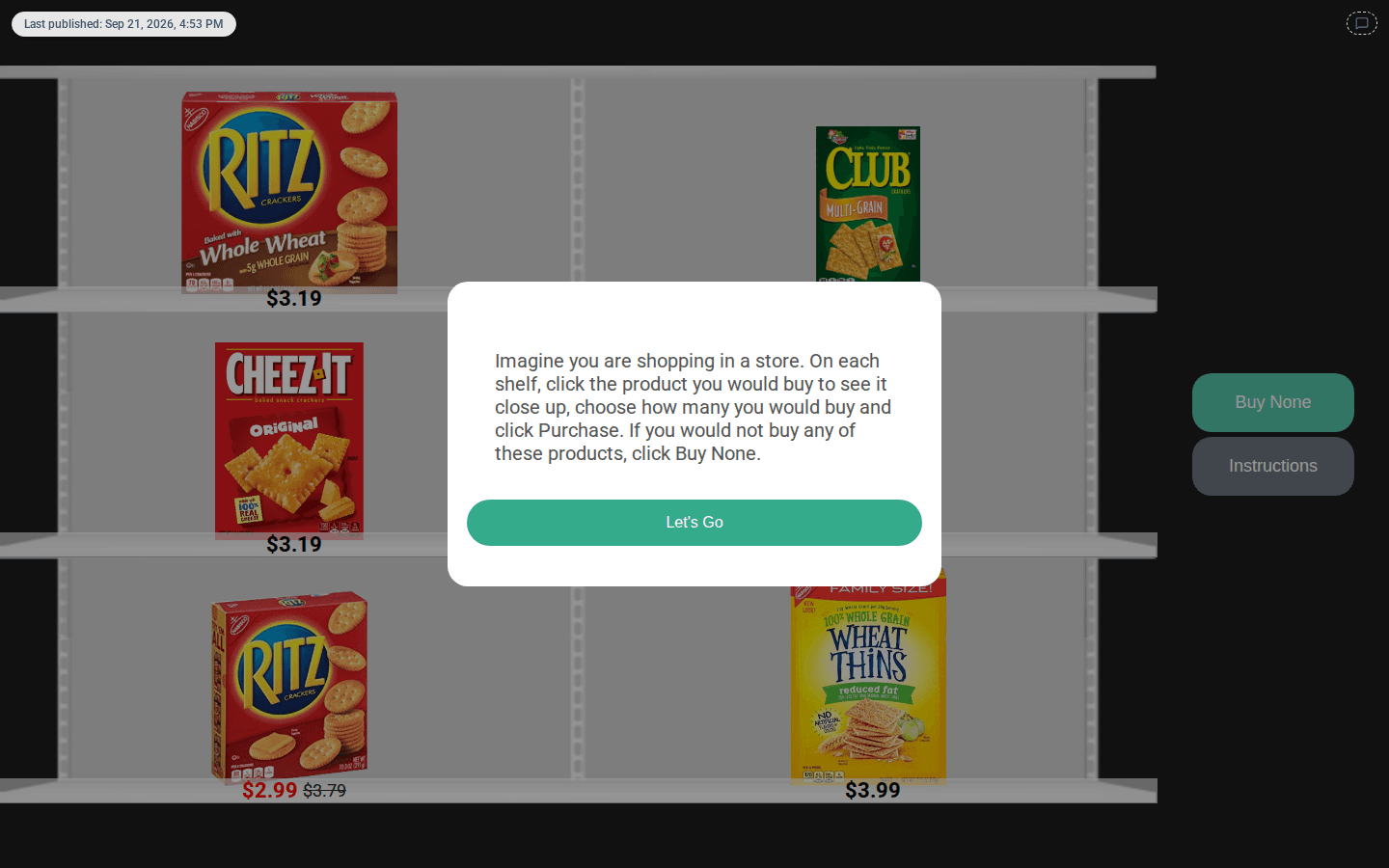
- A popup with your question text and a Let's Go button.
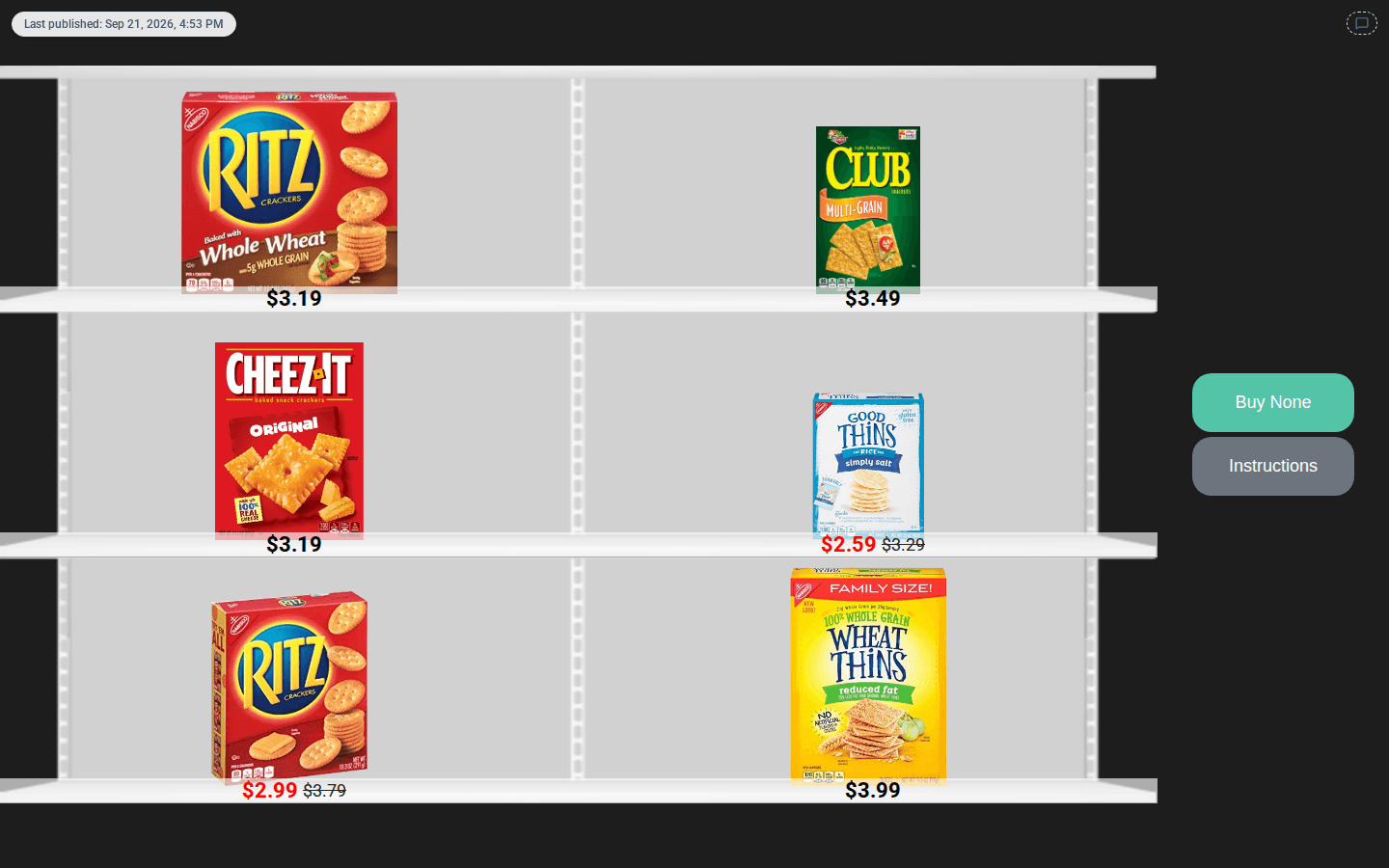
- A shelf of products (6 per screen by default, 2 per row). Each product shows its image and price. A product on promotion shows a sale badge (if you add an image to its Promotion active level), and a discounted price appears in red with the original price struck through.
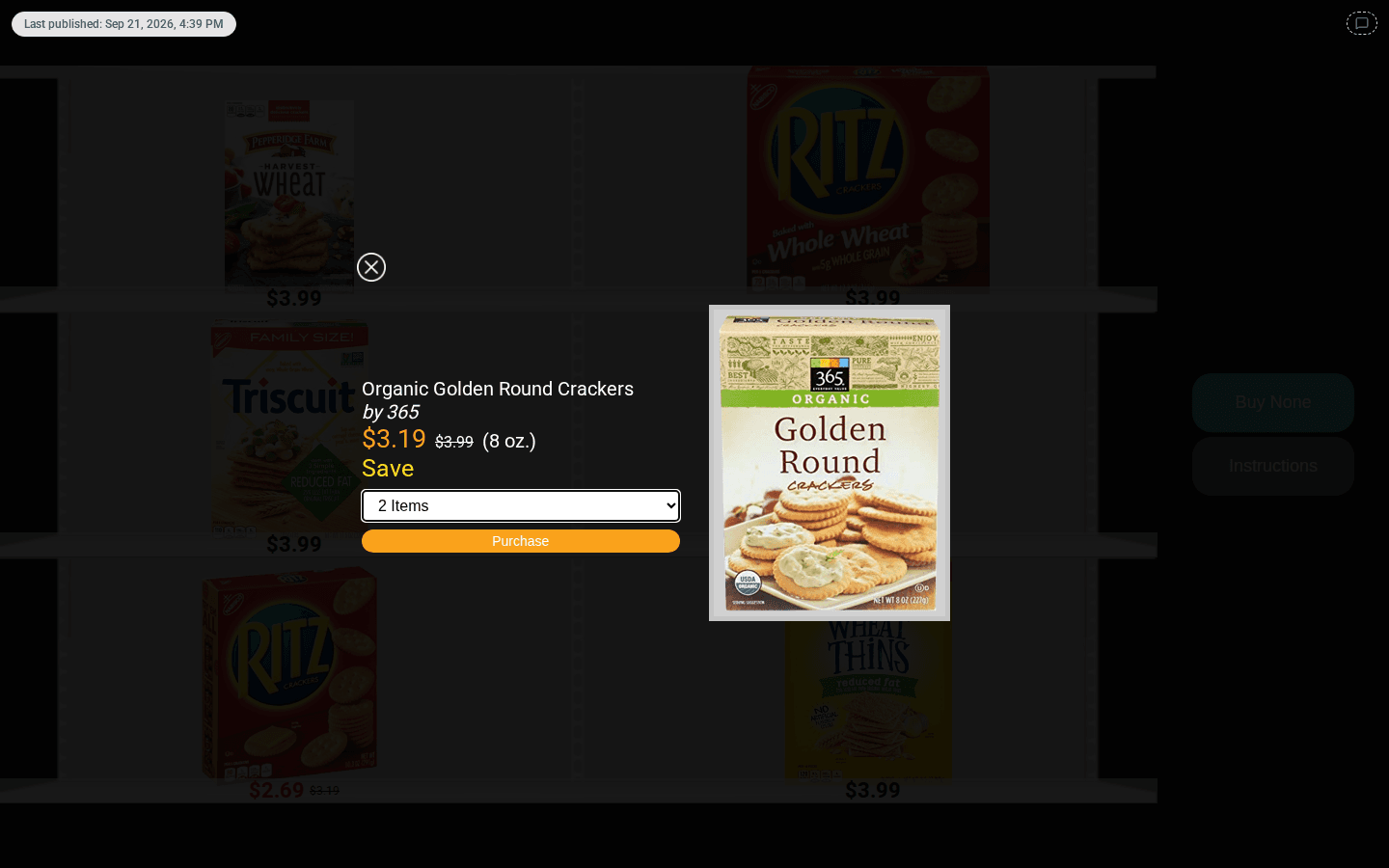
- Clicking a product opens a close-up: name, "by" manufacturer, price, size, promotion text and a large image. The respondent picks a quantity and clicks Purchase, or clicks outside the close-up to go back to the shelf.
- Buy None skips the shelf without buying anything. Instructions shows the question text again.
- After each purchase the next shelf fades in with Next Items Loading.... After the last shelf the survey moves on by itself; there is no Next button to click.
On a phone held upright, the buttons move below the shelf.
When to use it#
- Shopper studies where price, promotions and pack size compete on a shelf.
- Price and promotion tests that need purchase quantity, not just a single pick.
Configuring it in the builder#
Add Shelf Choice from the Choice Modeling group of the question palette.
Attributes#
Every Shelf Choice question has the same six attributes. You can't add, remove, rename or reorder them, and their type is fixed, so there is no attribute type or subtype to choose. You edit their levels, and you can drag levels to reorder them:
| Attribute | What a level holds |
|---|---|
| Product | Product name, product image, base price, and the product fields: manufacturer, size (e.g. "12 oz."), image scale, facing (how many units wide) and Fixed price |
| Price % adjustment | A fraction such as -0.1 (10% off) or 0.1 (10% more) |
| Price $ adjustment | A dollar change such as -0.50 |
| Promotion active | Yes (the promotion discount applies), No, or Label only (the label text is shown in the close-up without a discount; switching a level to Label only gives it the label "Promotion", which you can edit). Its image is the sale badge |
| Promotion % | A negative fraction; only a negative value discounts |
| Promotion $ | A negative dollar amount; only a negative value discounts |
Level text is plain text: there is no formatting toolbar, but you can still pipe in an earlier answer. There are no level tooltips, and the question card has no Help instructions field (the respondent only ever sees your question text, in the popups).
A new question comes with 17 sample products (the crackers set from the Qualtrics Shelf Choice study, with their images, sizes, image scales and fixed/vary price flags) and sample adjustment levels. Every adjustment attribute has a 0 level: if you don't use an attribute, keep only its 0 level. Replace the sample products with your own.
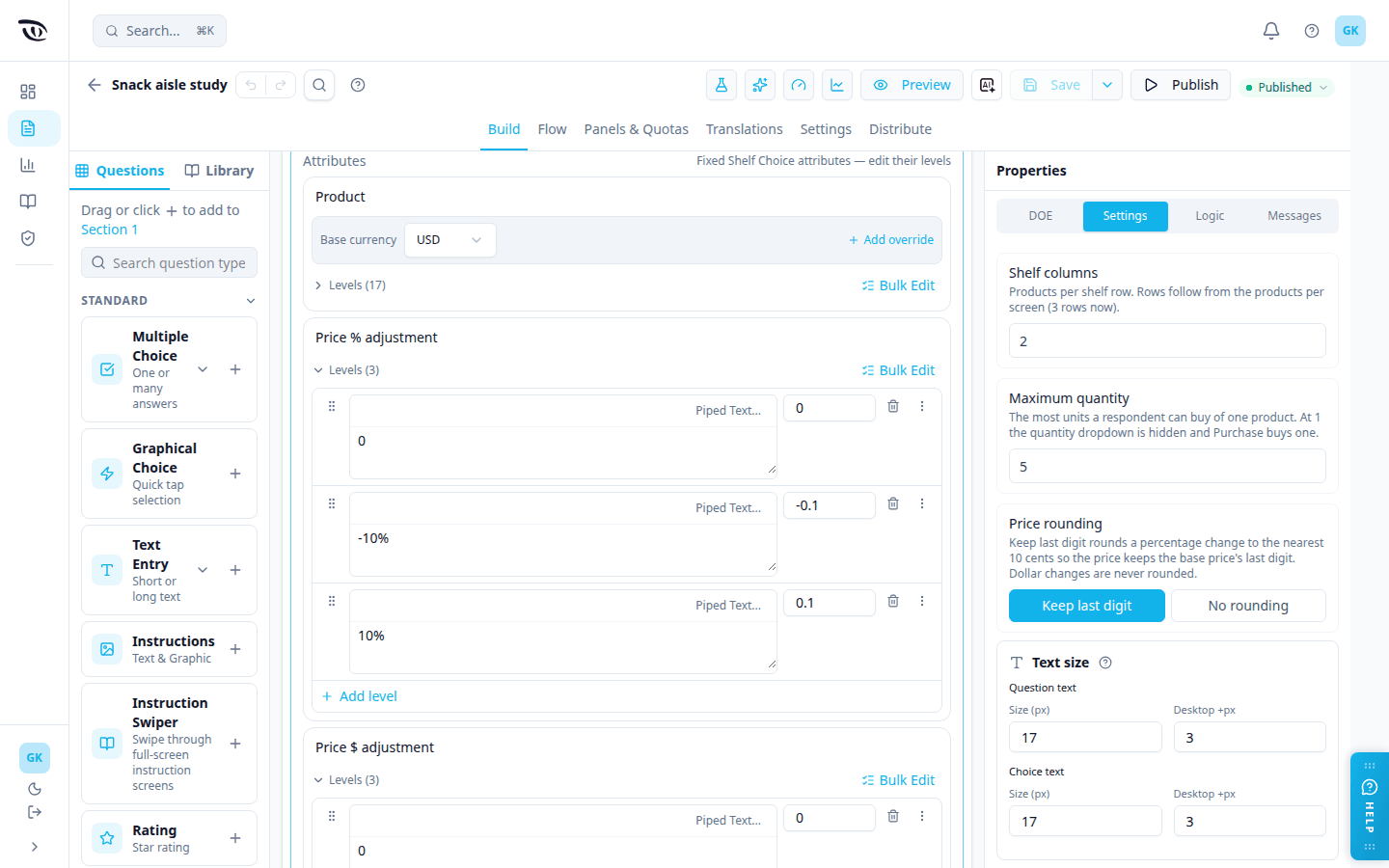
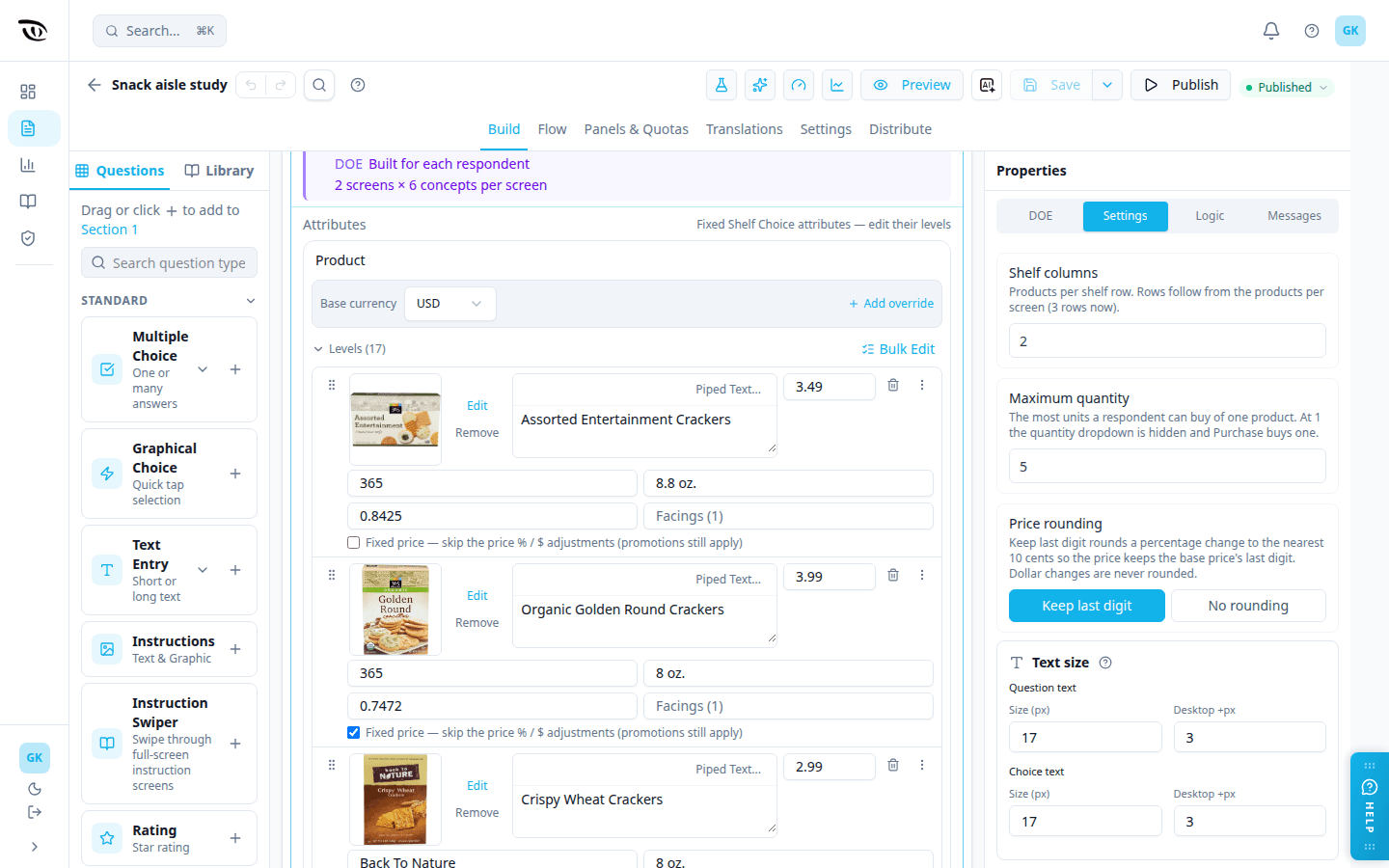
You need at least as many products as products per screen, so no product appears twice on one shelf.
How the price is worked out#
- Start from the product's base price.
- Apply the Price % adjustment. The Price $ adjustment is used only when Price % is 0. Products marked Fixed price skip this step.
- If Promotion active is Yes, apply a negative Promotion %, or otherwise a negative Promotion $. Promotions apply to fixed-price products too.
With Keep last digit rounding, a percentage change is rounded to the nearest 10 cents, so the price keeps the base price's last digit. Dollar changes are never rounded.
The currency is the Product attribute's currency, as in Conjoint. Currency overrides on the Product attribute work as they do in Conjoint: the first override whose condition matches is used, otherwise the base currency.
Properties tabs#
| Tab | What's there |
|---|---|
| DOE | Number of screens and Products per screen |
| Settings | Shelf columns (default 2), Maximum quantity (default 5; at 1 the quantity dropdown is hidden and Purchase buys one), Price rounding (Keep last digit or No rounding), and text size |
| Logic | Display and skip logic, as for other questions |
| Messages | Every button and popup text: Buy None, Instructions, Purchase, the quantity prompt, None, Item / Items, the "by" before the manufacturer, Let's Go, the loading text, and Save. A field you clear goes back to its default, shown greyed in the box |
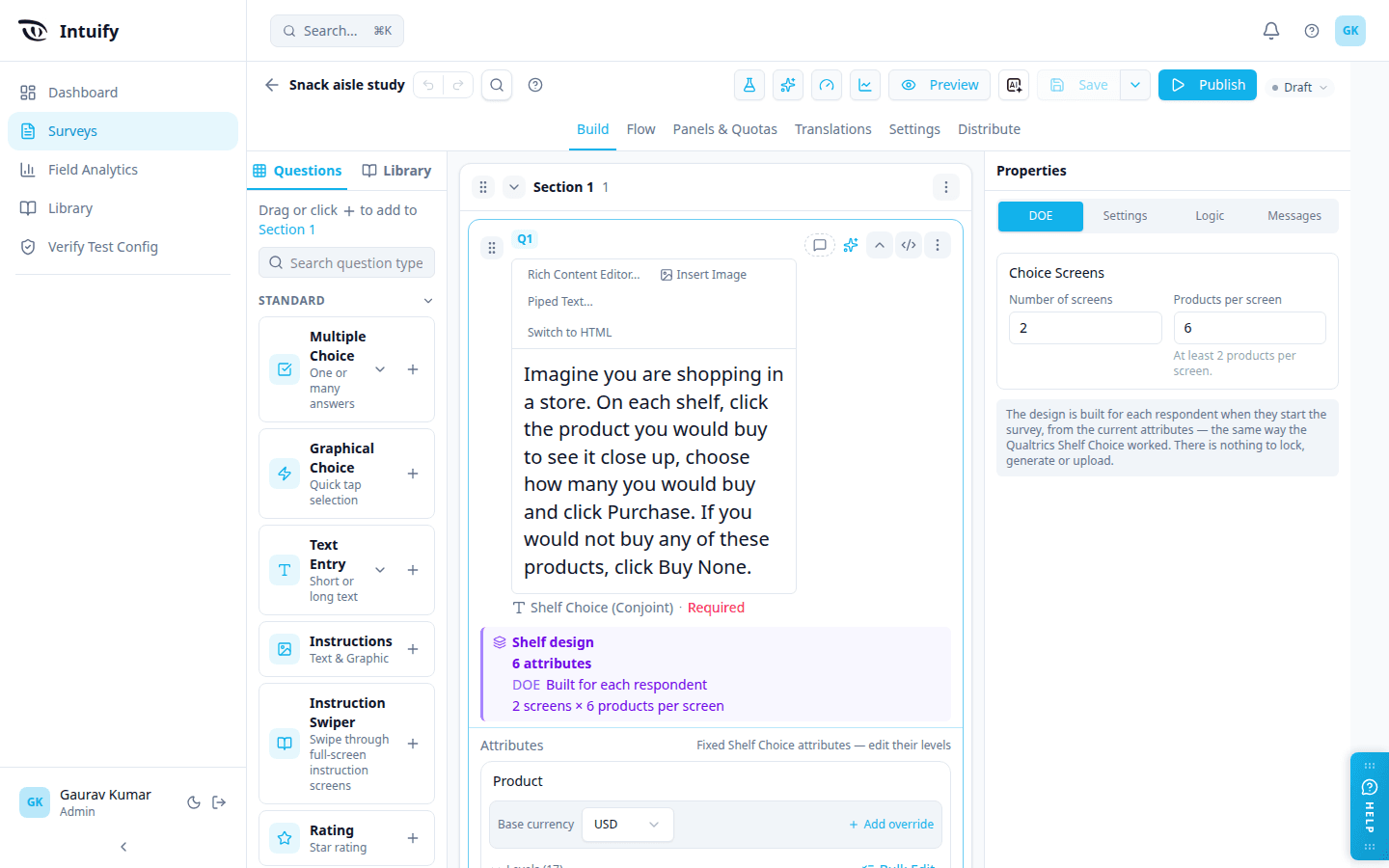
There is no Stimulus tab (the shelf is the layout) and no Validation tab: every shelf must be answered.
The design is built for each respondent#
Shelf Choice builds its design the way the original Qualtrics Shelf Choice did: when a respondent starts the survey, a design is built for them from the question's current attributes. Products are spread across the shelves without repeating, and the price and promotion levels are balanced. Shelves and products appear in random order.
So, unlike Conjoint, there is nothing to set up for the design: no matrix lock, no generating or uploading a design, no DOE libraries, and no constraints, overlap mode, number of designs, seed, presentation order, design assignment or Split across the flow settings. A Shelf Choice question can't be paused and resumed later in the survey.
Publishing#
Publish the survey as soon as the question is set up. There is no lock, generate or activate step. Publishing is refused only if the question can't build a design, for example when it has fewer products than products per screen.
You can keep editing the attributes after the survey is live. Changes apply to respondents who start after you publish them; a respondent already in the survey keeps the design they started with. If you remove a level after responses came in, the earlier responses that saw it still refer to it, as with any other question.
Data and exports#
Each shelf records which product was bought, the quantity, and the price shown for every product on the shelf. Buy None is recorded as its own answer.
One respondent's shelves in Excel#
To see one respondent's shelves, open the response from the Responses tab of the Fielding dashboard (click View) and click Export Response. On a survey with a Shelf Choice question this downloads an Excel file (.xlsx) instead of the usual CSV. Surveys without Shelf Choice still download the CSV.
The Excel file has these sheets:
| Sheet | What's on it |
|---|---|
| Response | The same row the CSV gives: both header rows and this respondent's answers, one column per question |
| Shelf Choice | One row per product shown to this respondent. If the survey has several Shelf Choice questions, each gets its own sheet named Shelf - followed by the question's tag, such as Shelf - Q3 |
The Shelf Choice sheet has these columns:
| Column | Contents |
|---|---|
RespondentID | The respondent |
DesignId | The design built for this respondent |
ScreenIndex | The shelf number, in the order the respondent saw the shelves |
PositionIndex | The product's slot on that shelf, starting at 1 |
Selected | 1 for the product the respondent chose, otherwise 0. Choosing the None quantity for a product gives Selected 1 with Quantity 0 |
One column per attribute, followed by its label column | The attribute column holds the level number (1 = the attribute's first level). The label column (Product label, Price % adjustment label, Price $ adjustment label, Promotion active label, Promotion % label, Promotion $ label) holds the level as readable text, such as the product name or -10%. The label is empty for a level you have since removed from the question |
Quantity | Units bought of this product (0 when not bought) |
FinalPrice | The price the respondent saw, after adjustments and promotions |
BuyNone | 1 for a shelf answered with Buy None, otherwise 0 |
Response JSON | The Shelf Choice answer exactly as it appears in the CSV and on the Response sheet (see Reading the export) |
To keep the sheet easy to read, RespondentID, DesignId and Response JSON are merged into one cell down all of the respondent's rows, and ScreenIndex and BuyNone are merged down the rows of each shelf. A shelf the respondent never reached is left out. If the respondent answered no shelf, the sheet has its header row only.
Reading the export#
In the main response export (Export Data on the Responses tab, and the Response sheet of the single-response download), the Shelf Choice question is one column. It uses the same layout as the Qualtrics Shelf Choice screenItems data: a list with one entry per product shown, such as ["1|1|2|1|1|0|1|1|vary|2.69|1|5", …]. Each entry has 12 fields separated by |:
screen | position | product | price % | price $ | promotion active | promotion % | promotion $ | fixed or vary | final price | bought | quantity
- screen and position start at 1 and follow what the respondent saw: the shelf number and the product's slot on that shelf.
- The six attribute fields are the level's position in that attribute's level list, counting from 0, so the first level is
0. A field is empty if the level has since been removed from the question. - fixed or vary is
fixedfor a product with Fixed price turned on, otherwisevary. - bought and quantity are
1and the quantity for the product bought, and0and0for every other product. After Buy None, every product on that shelf shows0and0. Choosing the None quantity shows1and0.
A shelf the respondent never answered has no entries. The same format is used in values and labels mode and in every file format.
A respondent who leaves and comes back starts again at the first shelf, with the same design.
Related guides#
- Conjoint (Choice-Based Trade-Off) — the question type Shelf Choice is built on
- Question Types — overview and when-to-use table
- Custom Interfaces — the other plugin question formats
- Platform Feature List — plugin inventory and status
Was this page helpful?